
Last Updated On : 12-Oct-2026
Total 67 Questions
You are analyzing connectivity problems caused by intermediate devices blocking traffic in
SSL VPN environment.
In which two ways can you effectively resolve the problem? (Choose two.)
A. You can turn off IKE fragmentation to fix large certificate negotiation problems.
B. You should use IPsec to solve issues with fragment drops and large certificate exchanges.
C. You can use SSL VPN tunnel mode to prevent problems with blocked ESP and UDP ports (500 or 4500).
D. You can configure a hub-and-spoke topology with SSL VPN tunnels to bypass blocked UDP ports.
Explanation:
When intermediate devices (such as firewalls, proxies, or ISPs) block or interfere with SSL VPN traffic, administrators need to implement techniques that work around these restrictions. Based on Fortinet's recommendations for SSL VPN traversal issues:
C. You can use SSL VPN tunnel mode to prevent problems with blocked ESP and UDP ports (500 or 4500)
This is correct. SSL VPN tunnel mode encapsulates all traffic inside SSL/TLS (typically TCP port 443). Unlike IPsec, which uses ESP (protocol 50) and UDP ports 500/4500 (which are often blocked by restrictive firewalls), SSL VPN uses standard HTTPS ports that are almost always allowed through firewalls and proxies. This makes SSL VPN an effective solution when intermediate devices are blocking IPsec-specific protocols and ports.
D. You can configure a hub-and-spoke topology with SSL VPN tunnels to bypass blocked UDP ports
This is correct. In a hub-and-spoke SSL VPN topology, remote users (spokes) establish SSL VPN tunnels to a central FortiGate (hub). This allows communication between remote sites or users even when intermediate devices block UDP-based VPN protocols. The hub-and-spoke architecture ensures that all traffic is encapsulated in SSL/TLS, which traverses firewalls more reliably than IPsec.
Why the other options are incorrect:
A. You can turn off IKE fragmentation to fix large certificate negotiation problems
This is incorrect. IKE fragmentation is an IPsec feature, not an SSL VPN feature. The question specifically asks about SSL VPN environments. Additionally, turning off IKE fragmentation would likely worsen, not resolve, connectivity problems related to large certificate exchanges in IPsec.
B. You should use IPsec to solve issues with fragment drops and large certificate exchanges
This is incorrect. The question describes a problem with intermediate devices blocking traffic in an SSL VPN environment. Suggesting IPsec as a solution is counterproductive because:
* The problem exists in SSL VPN, and switching to IPsec is a different technology, not a resolution to the SSL VPN issue.
* IPsec traffic (ESP/UDP 500/4500) is more likely to be blocked by intermediate devices than SSL VPN traffic (TCP 443).
Fortinet Reference:
This information is documented in the FortiOS 7.6 Administration Guide under the "SSL VPN" section. Fortinet recommends SSL VPN tunnel mode specifically for environments where:
* IPsec protocols (ESP, UDP 500/4500) are blocked
* Users need to traverse restrictive firewalls and proxies
* Large certificate exchanges cause fragmentation issues (though handled differently in SSL VPN)
* SSL VPN uses standard HTTPS ports, making it the preferred choice when intermediate devices aggressively block non-standard protocols.
You have configured the below commands on a FortiGate.
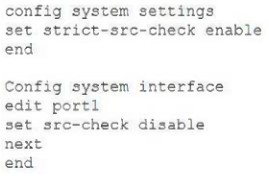
What would be the impact of this configuration on FortiGate?
A. FortiGate will enable strict RPF on ail its interfaces and port1 will be enable for asymmetric routing.
B. FortiGate will enable strict RPF on all its interfaces and port1 will be exempted from RPF checks.
C. Port1 will be enabled with flexible RPF, and all other interfaces will be enabled for strict RPF
D. The global configuration will take precedence and FortiGate will enable strict RPF on all interfaces.
Explanation:
The configuration shown in the exhibit demonstrates the relationship between global RPF (Reverse Path Forwarding) settings and per-interface RPF settings on FortiGate.
Let's break down the configuration:
Global setting: config system settings → set strict-src-check enable
This enables strict RPF check globally on the FortiGate. Strict RPF means the FortiGate verifies that the source IP address of a packet arriving on an interface is reachable through that same interface according to the routing table. If not, the packet is dropped.
Interface setting on port1: config system interface → edit port1 → set src-check disable
This disables RPF check specifically on port1, overriding the global setting for this interface only.
How FortiOS handles RPF configuration hierarchy:
* The global strict-src-check setting applies to all interfaces by default.
* Individual interface settings (src-check) can override the global setting.
* When an interface has src-check disable, it is exempted from RPF checks, even if the global setting is enabled.
* Interfaces without specific src-check configuration inherit the global setting.
Therefore, with this configuration:
* All interfaces except port1 will have strict RPF enabled (inheriting from global)
* port1 will have RPF disabled (explicitly configured)
Why the other options are incorrect:
A. FortiGate will enable strict RPF on all its interfaces and port1 will be enable for asymmetric routing
This is partially correct about strict RPF on other interfaces, but incorrect about port1. Port1 has RPF disabled, not enabled. Asymmetric routing may be possible on port1 because RPF is disabled, but the statement misstates the configuration.
C. Port1 will be enabled with flexible RPF, and all other interfaces will be enabled for strict RPF
This is incorrect. Flexible RPF (loose mode) is a different setting not configured here. The interface setting src-check disable completely disables RPF; it does not enable "flexible" mode. Flexible RPF would require a different configuration.
D. The global configuration will take precedence and FortiGate will enable strict RPF on all interfaces
This is incorrect. In FortiOS, per-interface settings override global settings. The interface-specific set src-check disable on port1 takes precedence over the global set strict-src-check enable.
Reference:
This is documented in the FortiOS 7.6 Administration Guide under "Firewall" → "Reverse Path Forwarding (RPF)". The guide explains:
* Global RPF settings apply to all interfaces
* Interface-level RPF settings override global settings
* RPF helps prevent IP spoofing and ensures symmetric routing
You have configured the FortiGate device for FSSO. A user is successful in log-in to
windows, but their access to the internet is denied.
What should the administrator check first?
A. Whether the user is assigned to the correct AD group.
B. The FortiGate firewall policy settings for SSL decryption.
C. The FortiGate FSSO active users list for user’s IP address.
D. The windows event viewer for failed login attempts.
Explanation:
In a FortiGate FSSO (Fortinet Single Sign-On) deployment, when a user successfully logs into Windows (AD/DC), but cannot access the internet:
The first and most immediate check is to verify whether FortiGate has actually learned/received the user's logon information from the Collector Agent (or polling/DC agent).
This is done by checking the FSSO active users list on FortiGate:
* GUI: User & Authentication > User Groups > [FSSO group] > View Active Users
* CLI: diagnose debug authd fsso list / get user fsso
Look specifically for:
* The user's username (or domain\username format).
* The source IP address of the workstation from which the user is accessing the internet.
If the user's IP (or the user) is not present in the active list (or shows as expired/not verified), FortiGate does not recognize the session as belonging to an authenticated FSSO user → traffic falls back to unauthenticated policies (which may deny internet access if policies require FSSO group membership).
Common causes include:
* Collector Agent not detecting/sending the logon (e.g., polling delay, event log issues, workstation verify timeout).
* IP change (DHCP lease renewal) → old IP still cached, new IP not yet reported.
* Communication issues between FortiGate and Collector Agent.
* User excluded via ignore list or filters.
This is the quickest diagnostic step because:
* It confirms whether the problem is on the FortiGate side (no user/IP learned → FSSO not working for this session) vs. deeper AD/Collector issues.
* All other troubleshooting builds from here.
Why not the other options first?
A. Whether the user is assigned to the correct AD group
This is important, but secondary. If the user isn't even in FortiGate's active users list, group membership on AD won't matter yet — FortiGate can't apply group-based policies if it doesn't know the user exists. Check this after confirming the user/IP is learned.
B. The FortiGate firewall policy settings for SSL decryption
SSL decryption (deep inspection) is unrelated to FSSO user identification. FSSO is about user-to-IP mapping for identity-based policies, not content inspection. This might affect HTTPS sites later, but not initial access denial due to missing authentication.
D. The Windows Event Viewer for failed login attempts
The user successfully logged in to Windows (per question), so no failed logins. Event Viewer on the workstation/DC might show successful logon (4624), but the issue is FortiGate not receiving/processing it — check FortiGate's FSSO list first.
References (FortiOS 7.6):
* Administration Guide → Monitoring FSSO users → "View active FSSO users" to see learned IP-to-user mappings.
* Troubleshooting Tip: FSSO Complete troubleshooting → Recommends diagnose debug authd fsso list / active users check as early step when users are not identified.
* Multiple community threads (e.g., "Some users didn't reach internet") start with: First check if workstations' IP is still in FSSO list.
Which three strategies are valid SD-WAN rule strategies for member selection? (Choose three.)
A. Lowest Cost (SLA) without load balancing
B. Manual with load balancing
C. Lowest Quality (SLA) with load balancing
D. Lowest Cost (SLA) with load balancing
E. Best Quality with load balancing
Explanation:
In FortiGate SD-WAN rules, member selection strategies determine how traffic is forwarded across available WAN links based on SLA performance or administrator preference.
Valid built-in SD-WAN strategies include:
✅ A. Lowest Cost (SLA) without load balancing
Selects the link with the lowest defined cost among members meeting SLA requirements.
Traffic uses a single best member (no load balancing).
✔ Valid SD-WAN strategy.
✅ D. Lowest Cost (SLA) with load balancing
Uses SLA performance plus configured cost values.
Multiple eligible links can be used simultaneously.
Traffic is distributed across members.
✔ Valid strategy.
✅ E. Best Quality with load balancing
Selects members based on best SLA metrics (latency, jitter, packet loss).
Supports load balancing across qualified links.
✔ Commonly used performance-based strategy.
❌ Why the other options are incorrect:
B. Manual with load balancing
Manual mode selects a specific interface order.
It does not perform SLA-based load balancing.
❌ Not a valid combined strategy.
C. Lowest Quality (SLA) with load balancing
SD-WAN never selects the lowest quality link intentionally.
Selection is always based on best or meeting SLA metrics.
❌ Invalid concept.
🧠 Exam Tip (High-Probability SD-WAN Topic):
Remember these key SD-WAN strategies:
✅ Manual
✅ Best Quality
✅ Lowest Cost (SLA)
✅ Load balancing variations of SLA strategies
If you see “lowest quality”, it’s almost always a distractor.
Refer to the exhibits.
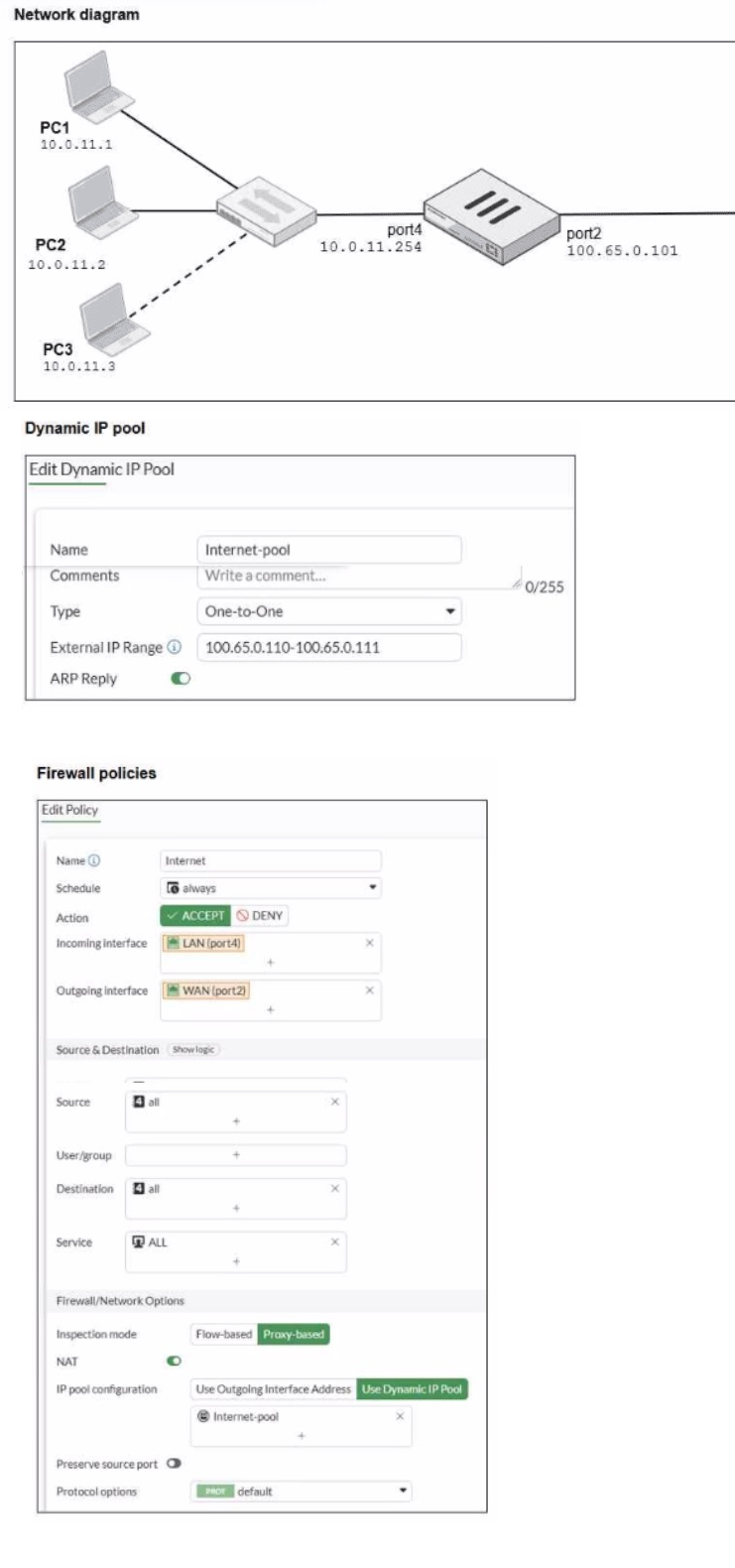
The exhibits show a diagram of a FortiGate device connected to the network, as well as the
firewall policy and IP pool configuration on the FortiGate device
Two PCs PC1 and PC2, are connected behind FortiGate and can access the internet successfully However, when the administrator adds a third PC to the network (PC3), the
PC cannot connect to the internet
Based on the information shown in the exhibit, which two configuration options can the
administrator use to fa the connectivity issue for PC3? (Choose two.)
A. In the system settings sot Multiple Interface Policies to enable
B. In the firewall policy, set match-vip to enable using CLI.
C. ln the IP pool configuration, set endip to 100.65.0.112.
D. In the IP pool configuration, set type to overload.
Explanation:
Based on the exhibits, we can see that PC1 (10.0.11.1) and PC2 (10.0.11.2) can access the internet successfully, but PC3 (10.0.11.3) cannot. The issue is related to the NAT configuration and the IP pool limitations.
Analysis of the current configuration:
* Network setup: Three PCs (PC1, PC2, PC3) on the 10.0.11.0/24 network are connected to port4 (10.0.11.254) of the FortiGate.
* IP Pool configuration: A One-to-One NAT pool named "Internet-pool" is configured with external IP range 100.65.0.110-100.65.0.111. This provides only 2 public IP addresses.
* Firewall policy: The policy for internet access uses "Use Dynamic IP Pool" with the "Internet-pool" configured.
The problem:
One-to-One NAT requires a dedicated public IP for each private IP that needs to access the internet.
With only 2 public IPs in the pool (100.65.0.110 and 100.65.0.111), only 2 private IPs can be translated simultaneously.
PC1 and PC2 are using the two available public IPs, leaving no public IP for PC3.
Solutions:
C. In the IP pool configuration, set endip to 100.65.0.112
This is correct. By extending the external IP range to include a third IP address (100.65.0.112), the One-to-One NAT pool will have enough public IPs to accommodate PC3. This maintains the One-to-One NAT behavior where each private IP gets a dedicated public IP.
D. In the IP pool configuration, set type to overload
This is correct. Changing the pool type from "One-to-One" to Overload (which is Port Address Translation - PAT) allows multiple private IPs to share a single public IP address. With overload mode, all three PCs could share the existing public IPs (or even just one public IP) using different source ports. This is the most common and efficient solution for this scenario.
Why the other options are incorrect:
A. In the system settings set Multiple Interface Policies to enable
This is incorrect. Multiple Interface Policies allows a single firewall policy to have multiple incoming interfaces. This is unrelated to NAT connectivity issues and would not resolve the IP pool exhaustion problem.
B. In the firewall policy, set match-vip to enable using CLI
This is incorrect. The match-vip setting is used for destination NAT (Virtual IPs) configurations, not source NAT. It controls whether the policy matches traffic destined for VIPs. This would not help with source NAT limitations for PC3.
Reference:
This is documented in the FortiOS 7.6 Administration Guide under "Firewall" → "NAT" → "IP Pools":
* One-to-One NAT: Maps each private IP to a unique public IP. Requires enough public IPs for all concurrent private IPs.
* Overload NAT (PAT): Maps multiple private IPs to a single public IP using different source ports. More efficient for networks with more private IPs than public IPs.
Refer to the exhibits.
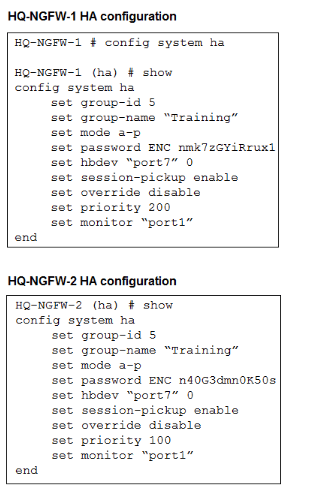
An administrator configured both members of an HA cluster at the same time. After one
week of monitoring, the administrator wants to verify the HA failover performance.
How can the administrator force a failover?
A. The administrator must reset the HA uptime on HQ-NGFW-1.
B. The administrator must set the parameter override to enable on HQ-NGFW-2.
C. The administrator must increase the HA priority on HQ-NGFW-2.
D. The administrator must set the monitored port to down on HQ-NGFW-1.
Explanation:
In the provided HA configuration for HQ-NGFW-1, the administrator has configured set monitor "port1". This means the health of port1 is a critical factor in the High Availability (HA) cluster's election process.
Monitored Port Failure:
When a monitored port on the primary unit (currently HQ-NGFW-1 due to its higher priority of 200) goes down, its "monitor score" decreases. This trigger causes the HA cluster to immediately renegotiate the primary role. Since HQ-NGFW-2 has a healthy port1, it will win the new election and become the primary unit, effectively forcing a failover.
Verification:
This is a standard method to test failover performance because it simulates a real-world network link failure without requiring a full device reboot.
Why other options are incorrect:
A. Reset the HA uptime
While uptime is a tie-breaker in the election process, resetting it manually via CLI is not the standard or most efficient way to "force" a failover in this specific monitored configuration.
B. Set override to enable on HQ-NGFW-2
Simply enabling override on the secondary unit (HQ-NGFW-2) will not cause it to take over because its priority (100) is still lower than HQ-NGFW-1's priority (200).
C. Increase the HA priority on HQ-NGFW-2
Because set override disable is configured on both units (the default behavior), the cluster prioritizes monitored ports and uptime over device priority. Increasing the priority alone will not trigger an immediate failover unless the units are rebooted or the override setting is changed.
Refer to the exhibit.
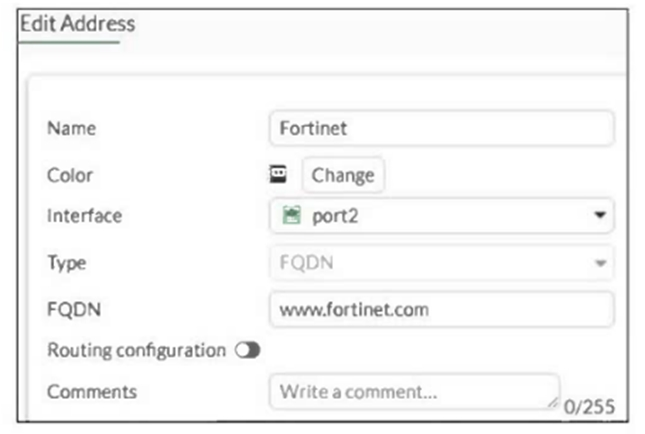
An administrator has created a new firewall address to use as the destination for a static
route.
Why is the administrator not able to select the new address in the Destination field of the
new static route?
A. In the new static route, the administrator must select Named Address.
B. In the new firewall address, the FQDN address must first beresolved.
C. In the new static route, the administrator must first set the interface to port2
D. In the new firewall address, Routing configuration must be enabled.
Explanation:
On FortiGate, not every firewall address object can be used as a destination in a static route.
When an address object is intended for routing purposes (for example, as the destination network in a static route), the option Routing configuration must be enabled in that address object.
In the exhibit:
The address type is FQDN ([www.fortinet.com](http://www.fortinet.com)).
The Routing configuration toggle is currently disabled.
Because routing is not enabled, FortiGate treats this object as usable only for firewall policies, not for routing tables. Therefore, the address does not appear in the Destination field when creating a static route.
👉 Enabling Routing configuration allows the address object to be referenced by routing entries.
Why the Other Options Are Incorrect
A. In the new static route, the administrator must select Named Address.
❌ Incorrect
There is no requirement to switch to a special “Named Address” mode. The issue is not with the static route configuration but with the address object eligibility for routing.
B. In the new firewall address, the FQDN address must first be resolved.
❌ Incorrect
FortiGate dynamically resolves FQDN objects using DNS. Resolution status does not prevent the object from appearing in routing selections. The limitation here is configuration-based, not DNS resolution.
C. In the new static route, the administrator must first set the interface to port2.
❌ Incorrect
The interface selection does not control whether the address object appears in the destination list. Address objects are filtered based on routing capability, not interface selection.
Exam Tip (FCP_FGT_AD-7.6)
Remember this key distinction:
Feature-------Firewall Policy------- Static Route
Standard address object ------- ✅ Allowed ------- ❌ Not allowed
Address with Routing configuration enabled ------- ✅ Allowed ------- ✅ Allowed
Fortinet added this control to prevent accidental use of policy-only objects in routing.
| Page 3 out of 10 Pages |
| 12345 |
| FCP_FGT_AD-7.6 Practice Test Home |
The FortiGate 7.6 Administrator exam is notoriously tough. It doesn't test memorization. It forces you to make complex decisions under time pressure. A weak prep strategy risks a costly failure and wasted effort. Our FCP_FGT_AD-7.6 practice tests are built to be your definitive bridge to a passing score.

Copyright © - All Rights Reserved