
Last Updated On : 12-Oct-2026
Total 67 Questions
The difference between a near pass and a confident pass isn't just knowing the material, it's mastering the FortiGate 7.6 Administrator exam experience. Our Fortinet FCP_FGT_AD-7.6 practice test is engineered to close the gap between your current knowledge and the 2026 exam's demands. With every question, you receive detailed, expert verified explanations that break down not just the correct answer, but also the reasoning behind every incorrect option.
Don't just study. Practice FCP_FGT_AD-7.6 with purpose. Start your journey to a first-time pass today.
By replicating the exact style, complexity, and format of the real FortiGate 7.6 Administrator exam questions, we ensure you walk into the exam with complete confidence.
You have configured an application control profile, set peer-to-peer traffic to Block under
the Categories tab, and applied it to the firewall policy. However, your peer-to-peer traffic
on known ports is passing through the FortiGate without being blocked.
What FortiGate settings should you check to resolve this issue?
A. FortiGuard category ratings
B. Application and Filter Overrides
C. Network Protocol Enforcement
D. Replacement Messages for UDP-based Applications
Explanation:
In FortiGate Application Control, the Application and Filter Overrides setting has higher priority than the category settings configured under the Categories tab.
Even though you configured:
Peer-to-Peer category = Block
Profile applied correctly to the firewall policy
Traffic can still pass if an override rule explicitly allows specific applications or filters.
How this happens
Application Control processing order (simplified):
1. Application & Filter Overrides (highest priority)
2. Explicit application signatures
3. Category actions (like P2P = Block)
So if an override exists that:
Allows BitTorrent, eDonkey, or another P2P application
Or allows traffic matching certain ports or signatures
The override will bypass the category block, allowing traffic through.
Why the other options are incorrect
A. FortiGuard category ratings
These relate mainly to Web Filtering, not Application Control behavior.
They do not control whether P2P applications are blocked after detection.
Not relevant to application blocking precedence.
C. Network Protocol Enforcement
Used to detect protocol anomalies or misuse of ports.
Does not override application category actions.
Not responsible for allowed P2P traffic.
D. Replacement Messages for UDP-based Applications
Only affects the block notification message shown to users.
Does not influence whether traffic is allowed or blocked.
Cosmetic setting only.
Exam Tip (Very Important for FCP_FGT_AD-7.6)
When traffic behaves differently than category settings:
Always check Application and Filter Overrides first.
Fortinet exams frequently test policy precedence and override hierarchy.
Refer to the exhibit, which shows a partial configuration from the remote authentication
server.

Why does the FortiGate administrator need this configuration?
A. To set up a RADIUS server Secret.
B. To authenticate Any FortiGate user groups.
C. To authenticate and match the Training OU on the RADIUS server.
D. To authenticate only the Training user group.
Explanation:
Why D is Correct
The exhibit shows the use of the Fortinet-Group-Name Vendor-Specific Attribute (VSA). This is a crucial mechanism used when FortiGate interacts with a RADIUS server for administrative or user authentication.
Group Matching
Instead of the RADIUS server simply responding with Access-Accept (user is valid), it sends back the specific attribute Fortinet-Group-Name with the value Training.
Access Control
On the FortiGate side, this allows the administrator to map remote users to a local user group. Only users who are members of the Training group on the RADIUS server will match this configuration.
This ensures that only a specific subset of users — rather than all users authenticated by the RADIUS server — are granted access.
Analysis of Incorrect Answers
A. To set up a RADIUS server Secret
The RADIUS Shared Secret is a password configured during the initial RADIUS server setup on FortiGate.
It is used to encrypt communication between FortiGate and the RADIUS server.
It is not an attribute returned inside an Access-Accept message like the one shown in the exhibit.
B. To authenticate Any FortiGate user groups
This configuration is the opposite of "Any."
By defining the attribute value as Training, the administrator is explicitly restricting authentication to users that belong to that specific group name.
C. To authenticate and match the Training OU on the RADIUS server
Although Training could exist as an Organizational Unit (OU) in an LDAP or Active Directory structure, RADIUS does not use OUs for group matching in this context.
RADIUS uses attributes (such as Vendor-Specific Attributes) to pass group names.
OUs are typically referenced in LDAP queries using Distinguished Names (DN), not through the Fortinet-Group-Name attribute in a RADIUS packet.
References
Fortinet Documentation – FortiOS 7.6 Administration Guide: Configuring a RADIUS server and Vendor-specific RADIUS attributes.
Fortinet Training Institute – FCP - FortiGate Security Module: User Authentication.
Refer to the exhibit, which contains a RADIUS server configuration.
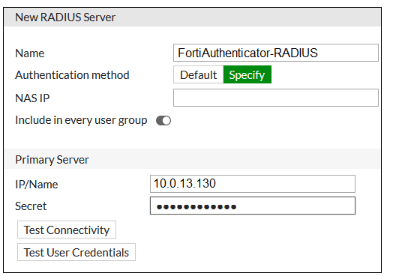
An administrator added a configuration for a new RADIUS server. While configuring, the
administrator enabled Include in every user group.
What is the impact of enabling Include in every user group in a RADIUS configuration?
A. This option places the RADIUS server, and all users who can authenticate against that server, into every FortiGate user group.
B. This option places the RADIUS server, and all users who can authenticate against that server, into every RADIUS group.
C. This option places all users into every RADIUS user group, including groups that are used for the LDAP server on FortiGate.
D. This option places all FortiGate users and groups required to authenticate into the RADIUS server, which, in this case, is FortiAuthenticator.
Explanation
In FortiOS, when configuring a RADIUS server, the option "Include in every user group" (located under the RADIUS server configuration) serves a specific purpose related to how group matching works.
Normally, when you create a FortiGate user group that uses a RADIUS server, you must specify a Remote Group Match (for example, a specific OU or group name) to determine which RADIUS-authenticated users are added to that particular FortiGate user group. If no match is found, the user is not added to the group.
However, if you enable "Include in every user group" on the RADIUS server configuration:
The RADIUS server itself becomes a valid member of all FortiGate user groups that are configured to use that RADIUS server.
Consequently, any user who successfully authenticates against this RADIUS server will be placed into every FortiGate user group that references this RADIUS server, regardless of their specific RADIUS group attributes or OUs.
This is useful in scenarios where you want all users from a particular RADIUS server to have the same level of access without having to configure specific group filters.
Why the other options are incorrect
B.
This option places the RADIUS server, and all users who can authenticate against that server, into every RADIUS group.
This is incorrect because the setting applies to FortiGate user groups, not RADIUS groups. The RADIUS server maintains its own group structure independently; FortiGate cannot place users into groups on the RADIUS server.
C.
This option places all users into every RADIUS user group, including groups that are used for the LDAP server on FortiGate.
This is incorrect for two reasons:
1. The setting affects FortiGate groups, not RADIUS groups.
2. It mentions LDAP, which is a separate authentication protocol and is not directly affected by this RADIUS-specific setting.
D.
This option places all FortiGate users and groups required to authenticate into the RADIUS server.
This reverses the direction of the relationship. The setting controls how RADIUS users are mapped to FortiGate groups, not how FortiGate objects are placed into the RADIUS server.
Reference
This behavior is documented in the FortiOS 7.6 Administration Guide under the RADIUS server configuration section.
The GUI tooltip states:
"Enable to include the RADIUS server in every user group. When this option is enabled, any user who authenticates with this RADIUS server will be accepted as a member of any FortiGate user group that uses this RADIUS server."
Refer to the exhibit.
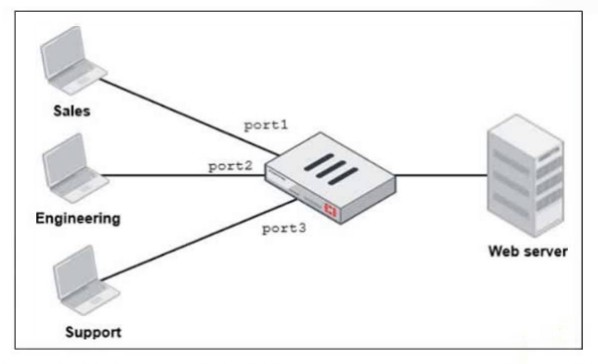
FortiGate has two separate firewall policies for Sales and Engineering to access the same
web server with the same security profiles.
Which action must the administrator perform to consolidate the two policies into one?
A. Create an Aggregate interface that includes port1 and port2 to create a single firewall policy.
B. Select port1 and port2 subnets in a single firewall policy.
C. Replace port1 and port2 with the any interface in a single firewall policy.
D. Enable Multiple Interface Policies to select port1 and port2 in the same firewall policy.
Explanation:
By default, in FortiOS (including 7.6), each firewall policy allows selection of only one incoming interface (srcintf) and one outgoing interface (dstintf) when creating or editing a policy in the GUI. This restriction prevents accidental overly broad rules and encourages granular policy design.
In the exhibit:
Sales traffic arrives on port1 → separate policy required.
Engineering traffic arrives on port2 → separate policy required.
Both go to the same Web server (same destination, same security profiles, same services assumed).
To consolidate these into one single policy while keeping the same security profiles and actions:
The administrator must first enable the hidden/advanced feature called Multiple Interface Policies.
Once enabled, the firewall policy GUI allows selecting multiple incoming interfaces (for example, port1 and port2) and/or multiple outgoing interfaces in the same policy.
After enabling, create or edit one policy, select port1 and port2 as incoming interfaces (or even "any" if appropriate), keep the single outgoing interface to the web server subnet, and apply the same security profiles.
How to enable it (GUI)
Go to System > Feature Visibility.
Under Additional Features, check Multiple Interface Policies.
Click Apply.
CLI equivalent
config system settings
set gui-multiple-interface-policy enable
end
After this change, the policy editor will no longer restrict you to a single interface per direction.
Why not the other options?
A. Create an Aggregate interface that includes port1 and port2 to create a single firewall policy
Link aggregation (LACP/802.3ad) combines physical ports for redundancy and higher bandwidth, but requires switch-side support and is designed for uplink or downlink scenarios (for example, to a core switch).
In this case, port1 and port2 are separate access ports for different departments (Sales and Engineering). They are not intended to be aggregated.
Aggregation would require re-cabling and would unnecessarily change the network topology.
B. Select port1 and port2 subnets in a single firewall policy
This refers to source address subnets, not interfaces.
You can already use multiple source address objects (for example, Sales_subnet and Engineering_subnet) in one policy.
The real limitation is the incoming interface restriction, not the source IP addresses.
Therefore, this option does not solve the problem.
C. Replace port1 and port2 with the any interface in a single firewall policy
Using "any" as the incoming interface could work technically (after enabling Multiple Interface Policies, since "any" is also restricted by default), but it is not best practice.
It would allow traffic from all other interfaces (such as Support on port3, management interfaces, VPN, and others) to match the policy unintentionally, which weakens security.
The goal is to consolidate only the Sales and Engineering policies without introducing overly broad access.
Reference (FortiOS 7.6)
Administration Guide → Firewall policy
Notes that incoming and outgoing interfaces are singular by default, and multiple interfaces are allowed after enabling the feature.
Community / Technical Tip: How to allow the configuration of policies with multiple source/destination interfaces or "any".
Refer to the exhibit.
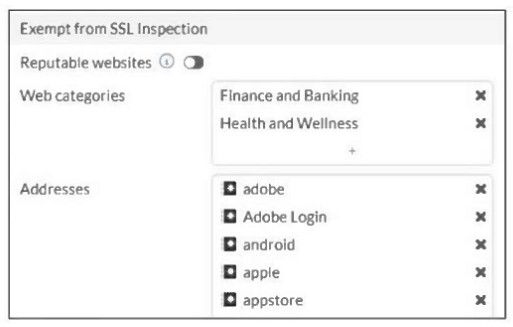
The predefined deep-inspection and custom-deep-inspection profiles exclude some web
categories from SSL inspection, as shown in the exhibit.
For which two reasons are these web categories exempted? (Choose two.)
A. The FortiGate temporary certificate denies the browser’s access to websites that use HTTP Strict Transport Security.
B. These websites are in an allowlist of reputable domain names maintained by FortiGuard.
C. The resources utilization is optimized because these websites are in the trusted domain list on FortiGate.
D. The legal regulation aims to prioritize user privacy and protect sensitive information for these websites.
Explanation:
HSTS Compliance (Option A)
Websites that use HTTP Strict Transport Security (HSTS) or certificate pinning — which is common with financial institutions and high-security services — can block access if they detect a man-in-the-middle certificate. This includes the temporary certificate generated by FortiGate during deep inspection.
If SSL deep inspection is applied to these sites, users may experience certificate errors or complete access denial.
Exempting these categories prevents application breakage and ensures uninterrupted access to critical services.
Privacy and Legal Regulations (Option D)
Categories such as Finance and Banking and Health and Wellness handle highly sensitive personal and financial information.
Many regulatory and compliance frameworks (for example, GDPR or HIPAA) discourage or restrict SSL interception for these types of traffic in order to protect user privacy and confidentiality.
For this reason, these categories are commonly exempted from deep inspection by default.
Why the other options are incorrect
B. Reputable websites allowlist
Although FortiGuard maintains a reputable websites list, the exhibit specifically highlights the Web Categories and Addresses sections.
In the exhibit, the "Reputable websites" toggle is disabled (switched to the left), meaning it is not responsible for the exemptions shown.
C. Resource utilization
While reducing SSL deep inspection can lower CPU utilization on the firewall, performance optimization is not the primary documented administrative reason for these specific default exemptions.
The exemptions are mainly related to compatibility, privacy, and regulatory considerations rather than system resource management.
Refer to the exhibits.
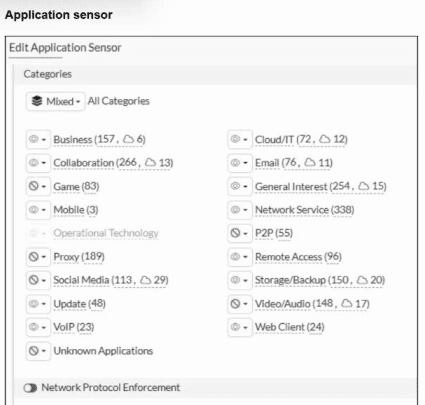
You have implemented the application sensor and the corresponding firewall policy as
shown in the exhibits.
Which two factors can you observe from these configurations? (Choose two.)
A. YouTube search is allowed based on the Google Application and Filter override settings.
B. YouTube access is blocked based on Excessive-Bandwidth Application and Filter override settings.
C. Facebook access is allowed but you cannot play Facebook videos based on Video/Audio category filter settings.
D. Facebook access is blocked based on the category filter settings.
Explanation:
From the exhibit of the Application Sensor configuration:
The Categories tab shows Mixed - All Categories view, listing various categories with actions (Block/Monitor/Allow indicated by icons or counters).
Visible categories include Video/Audio (148, ...), P2P (76, ...), and others.
The profile has Application and Filter Overrides enabled (as implied by the exhibit and typical exam scenarios).
In FortiOS Application Control:
Category actions are evaluated first (for example, if Social Media is set to Block, all applications in that category are blocked unless overridden).
However, Application and Filter Overrides take precedence over category actions.
Overrides can target specific applications (such as YouTube) or filters (such as behaviors like Excessive-Bandwidth).
In this scenario:
There is an Application and Filter Override configured to Block applications matching the Excessive-Bandwidth behavior filter.
YouTube, which belongs to the Video/Audio category, matches this behavior because streaming video consumes high bandwidth.
Therefore, the override blocks YouTube entirely, even if the Video/Audio category were allowed or monitored.
Facebook belongs to the Social Media category, which is set to Block at the category level.
Since no override is shown that allows Facebook, all Facebook access (including browsing and embedded videos) is blocked.
Why the other options are incorrect
A.
YouTube search is allowed based on the Google Application and Filter override settings.
This is incorrect because there is no override shown allowing Google or specifically permitting YouTube search while blocking other parts.
The Excessive-Bandwidth override blocks YouTube as a whole, including searches and video playback.
YouTube is treated as a single high-bandwidth application group.
C.
Facebook access is allowed but you cannot play Facebook videos based on Video/Audio category filter settings.
This is incorrect because Facebook is blocked at the Social Media category level.
There is no partial allowance (such as allowing browsing but blocking embedded videos separately).
If the category is blocked, the entire application suite is denied.
Video/Audio blocking would only apply if Social Media were allowed but video-related behaviors were overridden separately.
Reference (FortiOS 7.6)
Administration Guide → Basic category filters and overrides.
States that overrides take precedence over category actions.
Also explains that filter overrides (such as behavior-based filters like excessive-bandwidth) can block specific risky behaviors across multiple categories.
Refer to the exhibit, which shows an SD-WAN zone configuration on the FortiGate GUI.
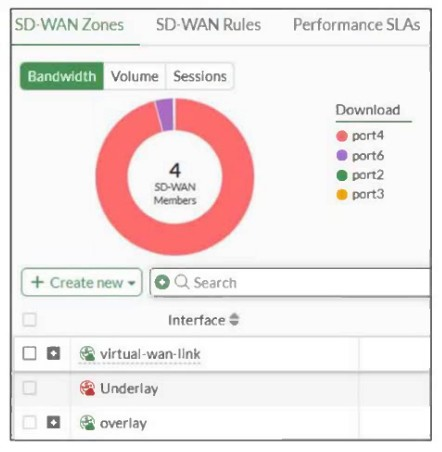
Based on the exhibit, which statement is true?
A. The Underlay zone is the zone by default.
B. The Underlay zone contains no member.
C. port2 and port3 are not assigned to a zone.
D. The virtual-wan-link and overlay zones can be deleted.
Explanation:
From the SD-WAN Zones view:
The donut chart shows 4 SD-WAN members (port2, port3, port4, port6).
These interfaces belong to the default SD-WAN zone, which is virtual-wan-link.
The Underlay zone appears listed but shows no usage, activity, or members assigned.
Therefore:
The Underlay zone currently has no interfaces assigned.
Why the other options are incorrect
A. The Underlay zone is the zone by default
The default SD-WAN zone created automatically by FortiGate is virtual-wan-link, not Underlay.
Incorrect.
C. port2 and port3 are not assigned to a zone
The exhibit clearly shows SD-WAN members including port2 and port3.
Since they are SD-WAN members, they belong to a zone (virtual-wan-link).
Incorrect.
D. The virtual-wan-link and overlay zones can be deleted
virtual-wan-link is the default SD-WAN zone and cannot be deleted while SD-WAN is enabled.
Overlay zones also cannot be removed if they are referenced or in use.
Incorrect.
Exam Tip (Very Common SD-WAN Question)
Remember:
virtual-wan-link = default SD-WAN zone
Interfaces added to SD-WAN automatically belong to a zone
Empty zones can exist but have no operational effect
Fortinet exams frequently test recognition of default SD-WAN objects.
| Page 1 out of 10 Pages |
| 12345 |
The FortiGate 7.6 Administrator exam is notoriously tough. It doesn't test memorization. It forces you to make complex decisions under time pressure. A weak prep strategy risks a costly failure and wasted effort. Our FCP_FGT_AD-7.6 practice tests are built to be your definitive bridge to a passing score.

Copyright © - All Rights Reserved