
Last Updated On : 12-Oct-2026
Total 75 Questions
The difference between a near pass and a confident pass isn't just knowing the material, it's mastering the Fortinet FortiManager 7.6 Administrator exam experience. Our Fortinet FCP_FMG_AD-7.6 practice test is engineered to close the gap between your current knowledge and the 2026 exam's demands. With every question, you receive detailed, expert verified explanations that break down not just the correct answer, but also the reasoning behind every incorrect option.
Don't just study. Practice FCP_FMG_AD-7.6 with purpose. Start your journey to a first-time pass today.
By replicating the exact style, complexity, and format of the real Fortinet FortiManager 7.6 Administrator exam questions, we ensure you walk into the exam with complete confidence.
Refer to Exhibit: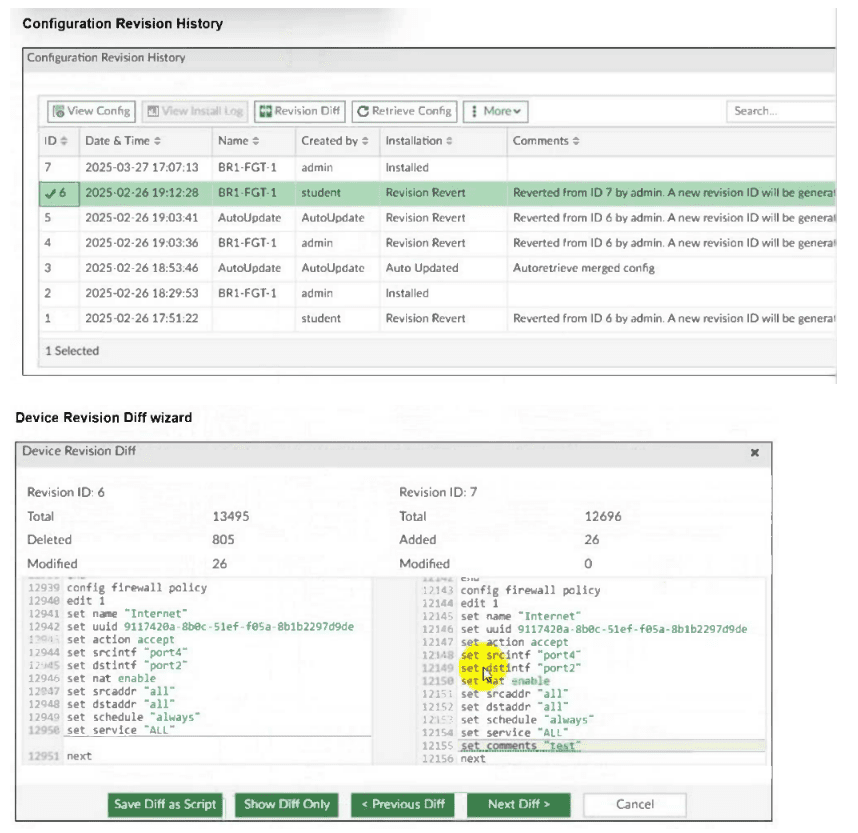
An administrator admin used the Configuration Revision History window to revert the FortiGate device configuration to revision ID 6. After running the reinstall policy package,
the administrator noticed problems with the firewall policy- they could not see the unset comment on policy ID 1.
Why did FortiManager not remove the comment from policy ID 1 when the administrator ran reinstall policy package?
A. Because the administrator student must install the configuration changes to correctly see the expected results.
B. Because the administrator must import the firewall policies to update the firewall policy package.
C. Because every time the administrator uses the revert config file, they must use the Install Wizard instead of running the reinstall policy package.
D. Because the administrator used the Revision Diff view, which shows what changed, not what will be installed.
Explanation:
Reverting to a previous revision restores the policy package in FortiManager’s database, but the device-level database still contains the current installed configuration. Running Reinstall Policy Package reapplies the same policy package without re-importing changes. To remove the comment, the administrator must import the reverted policy package to sync the device-level database.
Correct Option:
B. Because the administrator must import the firewall policies to update the firewall policy package.
Correct. After reverting to revision ID 6, the policy package in FortiManager reflects the older configuration. However, the device-level database is not automatically updated. The administrator must use Import Policy Package to pull the reverted configuration into the device-level database before installation.
Incorrect Option:
A. Because the administrator student must install the configuration changes to correctly see the expected results.
Incorrect. The issue is not about who performs the installation. Even if admin runs installation, the device-level database still holds the current policy with the comment. Import is required first.
C. Because every time the administrator uses the revert config file, they must use the Install Wizard instead of running the reinstall policy package.
Incorrect. The Install Wizard and Reinstall Policy Package both install from the policy package. Neither resolves the underlying issue that the device-level database must be re-imported after a revision revert.
D. Because the administrator used the Revision Diff view, which shows what changed, not what will be installed.
Incorrect. The Revision Diff view is only a comparison tool. It does not affect the installation process or why the comment remained.
Reference:
FortiManager 7.6 Administration Guide → Revision History → Reverting Revisions → Importing Policy Package After Revision Revert to Update Device Database
Refer to the exhibits.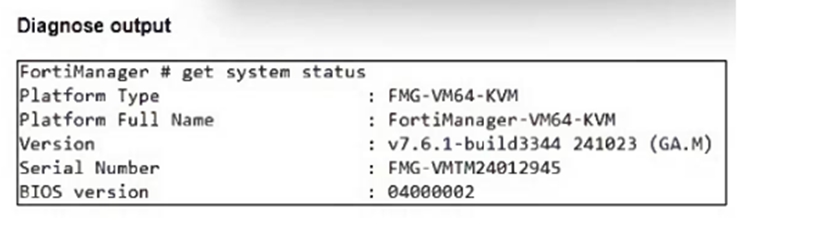
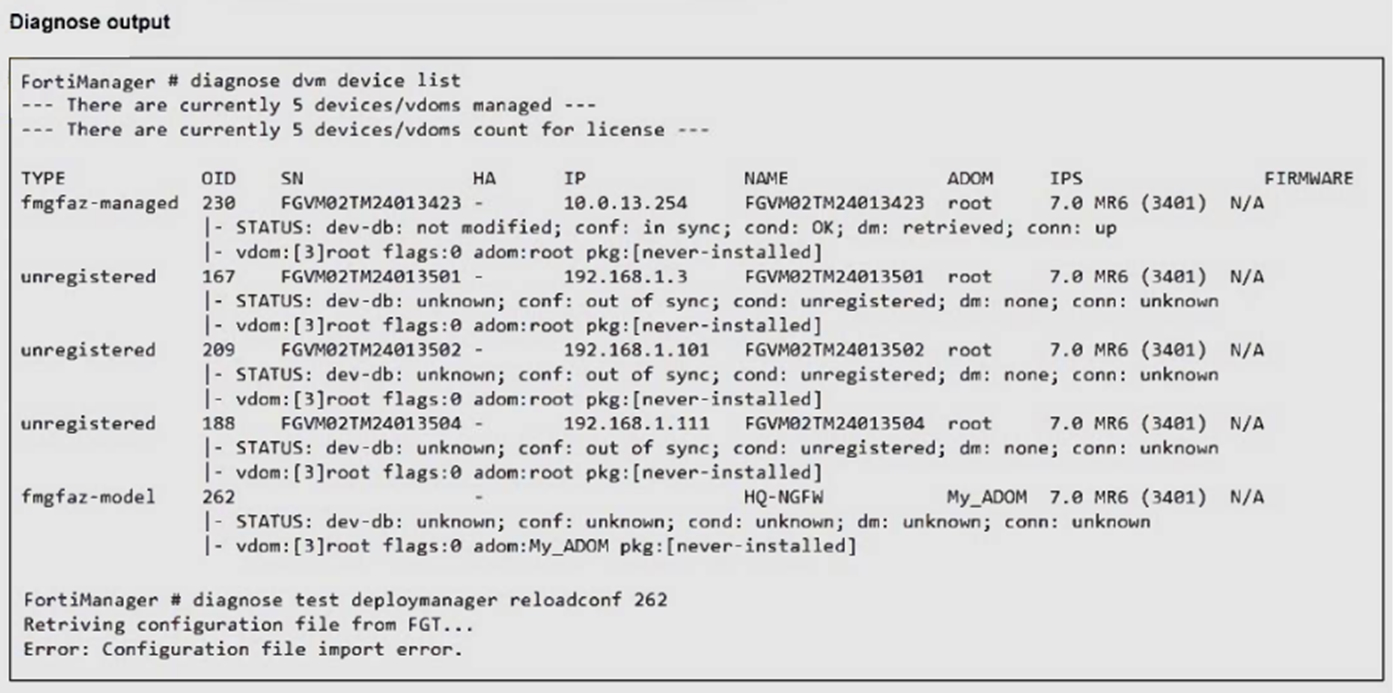
An administrator runs the reload failure command diagnose test deploymanager reloadconf
262 on FortiManager.
Why does the administrator receive an error message?
A. The administrator must use the FortiGate name instead of the ID number.
B. The administrator just recently added FortiGate HQ-NGFW as a model device.
C. FortiManager requires the FortiGate serial number instead of the ID number.
D. FortiManager does not support FortiOS version 7.0.
Explanation:
The diagnose dvm device list output shows device OID 262 is listed as type fmgfaz-model, which indicates a model device (offline/unmanaged device added manually), not a real managed FortiGate. The reloadconf command fails because there is no actual FortiGate to retrieve a configuration from.
Correct Option:
B. The administrator just recently added FortiGate HQ-NGFW as a model device.
Correct. The output clearly shows fmgfaz-model for HQ-NGFW. Model devices are placeholders without an actual connection to a physical FortiGate. The reloadconf command attempts to retrieve a live configuration, which fails because no real device exists.
Incorrect Option:
A. The administrator must use the FortiGate name instead of the ID number.
Incorrect. The reloadconf command accepts either the device ID or name. Using the name would also fail because the device is a model device, not because of the identifier type.
C. FortiManager requires the FortiGate serial number instead of the ID number.
Incorrect. The reloadconf command works with the internal OID (device ID). Serial numbers are not required. The failure is due to the device type, not the identifier format.
D. FortiManager does not support FortiOS version 7.0.
Incorrect. FortiManager 7.6 fully supports FortiOS 7.0. The firmware column shows 7.0 MR6 (3401), which is a supported version. This is not the cause of the error.
Reference:
FortiManager 7.6 Administration Guide → Device Manager → Model Devices vs. Managed Devices → Limitations of Model Device Configuration Retrieval
An administrator assigned the Training global policy package to the Branches policy package in ADOM1. Later, the administrator created a new policy package named Remotes on ADOM1.
What should the administrator do to sync the Training global policy package with the Remotes policy package in ADOM1?
A. Manually add and assign the Remotes policy package to the Training global policy package
B. Use the automatically install policies to ADOM devices method to sync from the Training global policy package to the Remotes policy package
C. Assign the Training global policy package to the Remotes policy package
D. Unassign the Training policy package and reassign it to all policy packages within ADOM1
Explanation:
In FortiManager, a global policy package (assigned from Global ADOM) can be linked to multiple local policy packages within a regular ADOM. To sync the global package with a newly created local package (Remotes), the administrator must explicitly assign the global package to that local package.
Correct Option:
C. Assign the Training global policy package to the Remotes policy package.
Correct. Once the Remotes policy package is created, the administrator must go to Policy & Objects > Policy Packages, select the Remotes package, and under Assigned Global Policy Package, select “Training.” This establishes synchronization.
Incorrect Option:
A. Manually add and assign the Remotes policy package to the Training global policy package.
Incorrect. Assignment flows from global to local, not the reverse. The Training global package does not “hold” local packages; local packages reference the global package.
B. Use the automatically install policies to ADOM devices method to sync from the Training global policy package to the Remotes policy package.
Incorrect. Installation methods push policies to devices but do not establish the global-to-local package assignment required for ongoing synchronization.
D. Unassign the Training policy package and reassign it to all policy packages within ADOM1.
Incorrect. Unassigning and reassigning is unnecessary and risks disrupting existing assignments. Only the new Remotes package needs the global package assignment.
Reference:
FortiManager 7.6 Administration Guide → Policy & Objects → Global Policy Packages → Assigning Global Policy Packages to ADOM Policy Packages
An administrator created a new global policy package that includes both header policies and footer policies. What two things must the administrator know before deploying the global policy package to ADOM2? Choose two answers
A. They can promote ADOM2 objects to global objects.
B. They can assign the global policy package to all or selected policy packages within ADOM2.
C. They must install from the ADOM2 layer to FortiGate when using the Automatically install policies to ADOM devices option.
D. They can synchronize policy packages by importing from the ADOM2 policy package into the global ADOM policy package.
Explanation:
When deploying a global policy package (with header/footer policies) to an ADOM like ADOM2, the administrator must understand two key actions: objects can be promoted from ADOM2 to global for reuse, and the global package can be assigned to all or selected local policy packages within ADOM2.
Correct Option:
A. They can promote ADOM2 objects to global objects.
Correct. When using global policy packages, ADOM‑level objects can be promoted to the Global ADOM. This allows those objects to be shared across multiple ADOMs and referenced in global header/footer policies.
B. They can assign the global policy package to all or selected policy packages within ADOM2.
Correct. A global policy package is not automatically applied to all packages in an ADOM. The administrator must explicitly assign it to specific local policy packages (or all) under Policy & Objects > Policy Packages by selecting the global package from the Assigned Global Policy Package dropdown.
Incorrect Option:
C. They must install from the ADOM2 layer to FortiGate when using the Automatically install policies to ADOM devices option.
Incorrect. The Automatically install policies to ADOM devices option installs changes automatically, but it does not require a manual installation from the ADOM2 layer. More importantly, this is not a prerequisite for deploying the global package—it is an installation method.
D. They can synchronize policy packages by importing from the ADOM2 policy package into the global ADOM policy package.
Incorrect. Synchronization flows from global to local, not the reverse. Changes made in the global policy package are pushed down to assigned local packages. Importing from ADOM2 to global would overwrite global policies, which is not the intended design.
Reference:
FortiManager 7.6 Administration Guide → Global Policy Packages → Assigning Global Packages to ADOM Policy Packages → Promoting Objects to Global ADOM
A service provider administrator has assigned a global policy package to a managed customer ADOM named My_ADOM. The customer administrator has access only to My_ADOM. How can the customer administrator edit the global header policy of the global policy package?
A. The customer administrator can edit the header policy by using workspace mode on the global ADOM.
B. The customer administrator can edit the header policy by using workflow mode on the global ADOM and My_ADOM.
C. The service provider administrator can unlock the global policy from the global ADOM to authorize changes to the customer administrator.
D. The customer administrator cannot edit the global header policy; only the service provider administrator can make changes from the global ADOM.
Explanation:
Global policy packages are created and managed in the Global ADOM.
The header and footer policies in a global policy package are enforced across all assigned ADOMs.
These policies are read-only from the perspective of the customer ADOM. The customer administrator can see them but cannot modify them.
Only the service provider administrator (who has access to the Global ADOM) can edit or update the global header/footer policies.
Fortinet documentation states: “Global policy packages are managed in the Global ADOM. Administrators of assigned ADOMs cannot modify global header or footer policies.” (FortiManager 7.6 Admin Guide).
❌ Why the other options are wrong
A. Workspace mode on the global ADOM
Workspace mode allows collaborative editing and commit control, but the customer administrator does not have access to the Global ADOM.
B. Workflow mode on the global ADOM and My_ADOM
Workflow mode is for approval processes, but again, the customer administrator cannot access the Global ADOM.
C. Service provider administrator can unlock the global policy
There is no “unlock” mechanism to delegate editing of global header policies to customer administrators. Control remains strictly with the service provider.
📖 Reference
FortiManager 7.6 Administration Guide – “Global policy packages are defined in the Global ADOM. Only administrators with access to the Global ADOM can edit global header and footer policies. ADOM-level administrators cannot modify them.”
An administrator notices that a policy package in an ADOM shows status “Modified” and the policy comparison indicates changes only in comments and section headings, not in actual firewall rules or objects.
How can the administrator avoid installing these cosmetic changes on the FortiGate?
A. Use the Install Wizard and enable Install only modified objects
B. Revert to the last ADOM revision and discard all changes
C. Use Install Wizard and select Skip policies with comments only changes
D. Use the Partial Install option and select only the required policy sections
Explanation:
When a policy package in FortiManager is marked as Modified due only to comments or section headings, the actual firewall behavior on the FortiGate does not change. If you don’t want to push those cosmetic edits to the device, you can:
- Use Install → Partial Install
- Select only the components you truly want to install (for example, specific objects or other sections)
- Exclude the policy package or sections whose only changes are comments/headings
This way you:
- Keep the cosmetic changes in FortiManager’s database (for documentation/readability)
- Avoid pushing those purely cosmetic changes to the FortiGate
That’s exactly what option D describes.
Why the other options are wrong
A. Use the Install Wizard and enable Install only modified objects:
Comments and headings are modifications from FortiManager’s perspective, so this option would still install them.
B. Revert to the last ADOM revision and discard all changes:
That would remove your comment/heading improvements from FortiManager as well. The question asks to avoid installing to FortiGate, not to discard the changes entirely.
C. Use Install Wizard and select Skip policies with comments only changes:
There is no such specific “skip comments-only changes” option in the Install Wizard; this is not a real feature.
Refer to the exhibits.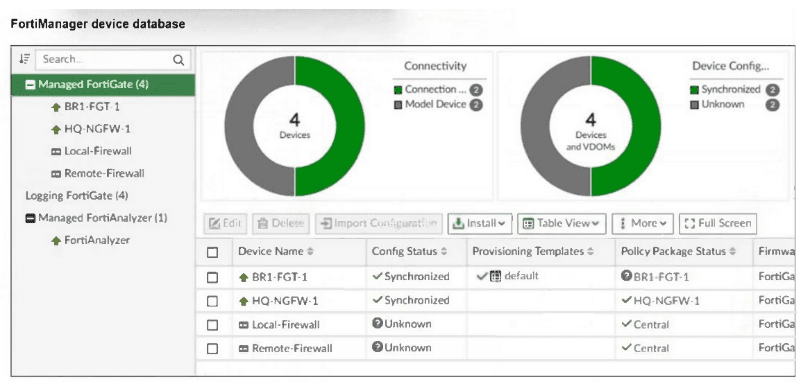
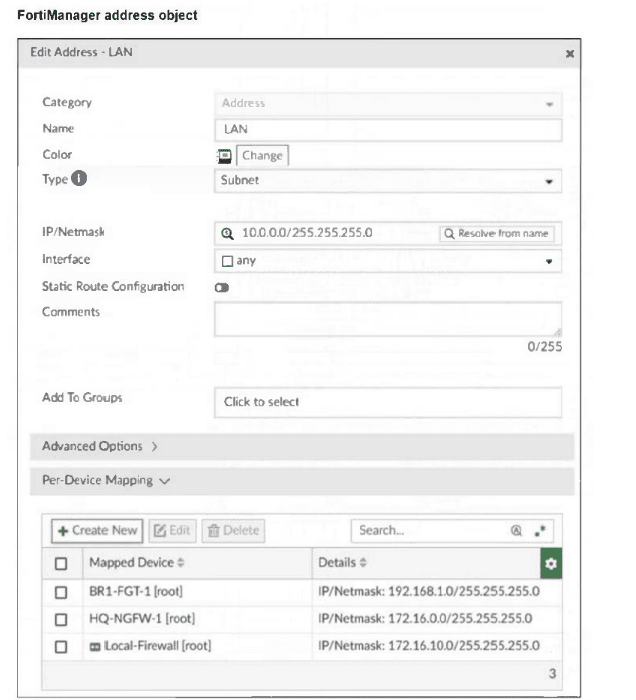
Which IP/netmask will be present in the LAN firewall address object on the Remote- Firewall?
A. 172.16.0.0/255.255.255.0
B. 10.0.0.0/255.255.255.0
C. 192.168.1.0/255.255.255.0
D. 172.16.10.0/255.255.255.0
Explanation:
The address object named "LAN" has a base IP/netmask of 10.0.0.0/255.255.255.0 as shown in the Edit Address window. The Per-Device Mapping table shows specific overrides for BR1-FGT-1, HQ-NGFW-1, and Local-Firewall, but no mapping exists for Remote-Firewall. Therefore, Remote-Firewall uses the default base value.
Correct Option:
B. 10.0.0.0/255.255.255.0
Correct. When a device does not have a per-device mapping configured for an address object, FortiManager uses the base (default) value defined in the object. Since Remote-Firewall is not listed in the Per-Device Mapping table, it receives the base IP/netmask of 10.0.0.0/255.255.255.0.
Incorrect Option:
A. 172.16.0.0/255.255.255.0
Incorrect. This is the per-device mapping assigned to HQ-NGFW-1, not to Remote-Firewall.
C. 192.168.1.0/255.255.255.0
Incorrect. This is the per-device mapping assigned to BR1-FGT-1, not to Remote-Firewall.
D. 172.16.10.0/255.255.255.0
Incorrect. This is the per-device mapping assigned to Local-Firewall, not to Remote-Firewall.
Reference:
FortiManager 7.6 Administration Guide → Policy & Objects → Firewall Objects → Address Objects → Per-Device Mapping Behavior (Default Value Applied When No Mapping Exists)
| Page 1 out of 11 Pages |
| 123456 |
The Fortinet FortiManager 7.6 Administrator exam is notoriously tough. It doesn't test memorization. It forces you to make complex decisions under time pressure. A weak prep strategy risks a costly failure and wasted effort. Our FCP_FMG_AD-7.6 practice tests are built to be your definitive bridge to a passing score.

Copyright © - All Rights Reserved