
Last Updated On : 12-Oct-2026
Total 75 Questions
Which two conditions trigger FortiManager to create a new revision history? (Choose two.)
A. When FortiManager installs device-level changes on a managed device
B. When changes to the device-level database are made on FortiManager
C. When FortiManager is auto-updated with configuration changes made directly on a managed device
D. When a provisioning template is assigned to a managed device on the device-level database
Explanation:
An ADOM revision is a snapshot of the entire ADOM's configuration database, including both the policy/object database and the device-level database. A new revision is automatically created when there is a change to this centralized database.
✅Option B is correct
because any manual edit to the device-level configuration (e.g., interfaces, routing settings) within FortiManager's Device Manager constitutes a change to the ADOM database, triggering a revision.
✅Option C is correct
because when FortiManager performs a retrieve operation (pulling configuration changes made directly on a managed FortiGate), it updates its own device-level database. This database change also triggers the creation of a new ADOM revision.
❌ Why the other options are wrong
Option A is incorrect.
Installing configuration to a device does not change the ADOM database itself; it pushes the existing database configuration to the device. Therefore, it does not trigger a revision. Installation history is tracked separately.
Option D is incorrect.
Assigning a provisioning template to a device is a metadata operation that links the template. It does not, by itself, alter the configuration entries in the device-level database. A revision would be created later when that template is installed and its configuration is written to the database.
Reference:
FortiManager Administration Guide - Managing ADOMs - Revision History. Revisions are created when the ADOM database is modified, either manually within FMG or via a retrieve from a device.
After correcting a policy package configuration issue, you want to prevent administrators from repeating the mistake that caused the issue. Which FortiManager approach best meets this need?
A. Configure an TCL script to run locally on FortiManager for each FortiGate.
B. Restrict administrators with an administration profile from viewing the revision history to limit who can make changes.
C. Enable the change note to require administrators to add a note whenever they change object configurations.
D. Enable a workflow requiring approval before installing policy packages on any FortiGate.
Explanation:
Workflow mode in FortiManager enforces a centralized approval process for all policy package installations. When enabled, administrators must submit their changes for review, and a designated approver must authorize them before they are pushed to managed FortiGate devices. This ensures that mistakes are caught during the approval stage, preventing repeated errors and maintaining strict change control. Fortinet documentation confirms: “Workflow mode allows administrators to submit changes for approval before installation, ensuring controlled and verified deployments.” (FortiManager 7.6 Administration Guide).
❌ Why the other options are wrong
A. Configure a TCL script to run locally
TCL scripts can automate tasks but do not prevent administrators from repeating mistakes. They are not a governance mechanism.
B. Restrict administrators from viewing revision history
Revision history is for auditing and rollback. Restricting access does not prevent mistakes; it only limits visibility.
C. Enable the change note requirement
Change notes improve documentation and accountability but do not enforce approval or prevent incorrect configurations from being installed.
📖 References
FortiManager 7.6 Administration Guide
– section on Workflow Mode: “Workflow mode enforces a structured approval process for policy changes before installation.”
Fortinet KB Article:
“Use workflow mode to prevent unauthorized or incorrect policy package installations by requiring approval.”
What is the best explanation of how FortiManager helps with mass provisioning?
A. It upgrades the OS of each FortiGate device.
B. It provides local FortiGuard Distribution Server (FDS) services to the network.
C. It uses templates to configure the same settings on many devices simultaneously.
D. It sends email alerts when new devices connect.
Explanation:
FortiManager is designed for centralized management and mass provisioning of FortiGate devices. The key feature is the use of templates (system templates, interface templates, provisioning templates, etc.) that allow administrators to apply consistent configurations across multiple devices at once. This eliminates repetitive manual configuration, ensures uniformity, and speeds up deployment in large environments. Fortinet documentation confirms: “FortiManager supports mass provisioning by using templates to configure common settings across multiple devices simultaneously.” (FortiManager 7.6 Administration Guide).
❌ Why the other options are wrong
A. It upgrades the OS of each FortiGate device
FortiManager can manage firmware upgrades, but this is not the primary mechanism for mass provisioning. Provisioning refers to configuration, not OS upgrades.
B. It provides local FortiGuard Distribution Server (FDS) services
FDS services are handled by FortiGuard or FortiAnalyzer, not FortiManager. This is unrelated to provisioning.
D. It sends email alerts when new devices connect
FortiManager can generate alerts, but sending emails is not a provisioning function. Alerts do not configure or deploy settings.
📖 References
FortiManager 7.6 Administration Guide – section on Provisioning Templates: “Templates allow administrators to configure the same settings on multiple devices simultaneously, supporting mass provisioning.”
An administrator must create a policy and install it on a FortiGate device within an ADOM in backup mode. How can the administrator perform this task?
A. Use the Install Wizard located on the device manager.
B. Enable workflow mode to allow policy creation and approval.
C. Make sure the ADOM and FortiGate firmware versions match and use the ADOM policy package.
D. Use a FortiManager script to apply the configuration changes.
Explanation:
When an ADOM is in backup mode, it is read-only for policy and object management. You cannot create or install policy packages in the normal way.
The only way to push configuration changes (such as policies) to a FortiGate device in backup mode is by using FortiManager scripts.
Scripts bypass the ADOM policy package workflow and apply changes directly to the device or its database.
Fortinet documentation confirms: “In backup mode, ADOMs are read-only. Configuration changes must be applied using scripts.” (FortiManager 7.6 Admin Guide).
❌ Why the other options are wrong
A. Use the Install Wizard located on the device manager
The Install Wizard cannot be used in backup mode because policy packages are locked.
B. Enable workflow mode to allow policy creation and approval
Workflow mode enforces approval processes, but it does not override the read-only nature of backup mode.
C. Make sure the ADOM and FortiGate firmware versions match and use the ADOM policy package
Version matching is important, but in backup mode, policy packages cannot be installed regardless of version alignment.
📖 References
FortiManager 7.6 Administration Guide – section on ADOM backup mode: “ADOMs in backup mode are read-only. Scripts must be used to apply configuration changes.”
Company policy dictates that any time a change is made to a policy package on FortiManager an ADOM revision is created before the change installed, and that revision is held for a minimum of 90 days. Over the past three months, each installed change has resulted in several unused policies and duplicate objects. The FortiManager administrator plans to upgrade the FortiGate devices and then upgrade the FortiManager ADOM from version 7.4 to 7.6. Which action can the administrator take to avoid slow ADOM upgrades?
A. Check and repair the global configuration database before upgrading.
B. Export firewall policies to Excel, delete them on the ADOM. then reimport them after upgradingthe ADOM.
C. Find unused firmware templates, then delete them before upgrading.
D. Limit ADOM revisions before upgrading.
Explanation:
ADOM revisions are snapshots of the ADOM database, including all policy packages and objects.
If every change creates a revision and those revisions are retained for 90 days, the ADOM accumulates a large number of revisions.
During an ADOM upgrade (e.g., from 7.4 to 7.6), FortiManager must process and convert all revisions, which significantly slows down the upgrade.
Limiting the number of revisions before upgrading reduces the amount of data FortiManager must process, resulting in faster and smoother upgrades.
Fortinet documentation confirms: “Large numbers of revisions can slow down ADOM upgrades. Limiting revisions before upgrading improves performance.” (FortiManager 7.6 Administration Guide).
❌ Why the other options are wrong
A. Check and repair the global configuration database
Useful for corruption issues, but not related to ADOM upgrade speed.
B. Export firewall policies to Excel, delete, and reimport
This is unnecessary and risky. Policy packages are already handled by FortiManager during upgrades.
C. Find unused firmware templates and delete them
Firmware templates do not impact ADOM upgrade performance. The issue is revision history size, not templates.
📖 References
FortiManager 7.6 Administration Guide –
section on ADOM Revisions and Upgrade: “Excessive revisions can slow down ADOM upgrades. Limit revisions before upgrading.”
Fortinet KB Article:
“To improve ADOM upgrade performance, reduce or purge old revisions before upgrading.”
The administrator uses FortiManager to push a CLI script using the Remote FortiGate Directly (via CLI) option to configure an IPsec VPN. However, when running the script, the administrator receives the following error: config vpn ipsec phase2-interface [parameter(s) invalid. detail: object mismatch] What must the administrator do to resolve the script error and successfully apply the IPsec configuration?
A. Add the end command after finishing the IPsec phase 1-interface configuration block.
B. Use IPsec templates to deploy provisioning templates.
C. Add a second config vpn ipsec phase2-interface block without linking it to phase1.
D. Run the script using the policy package or ADOM database method.
Explanation:
When configuring IPsec VPNs through FortiManager scripts, the phase2-interface must reference a valid phase1-interface. If the administrator forgets to close the phase1 block with the end command, the phase1 object is not created on the FortiGate. As a result, when the script attempts to configure phase2, FortiGate reports “object mismatch” because the required phase1 object does not exist. Adding the end command ensures the phase1-interface is properly defined and available before phase2 is configured. This is the most direct and correct fix for the error. Fortinet documentation confirms: “Phase2 configuration requires a valid phase1-interface. Ensure phase1 is completed and closed with ‘end’ before configuring phase2.” (FortiGate CLI Reference, FortiManager 7.6 Admin Guide).
Why other options are not correct:
B. Use IPsec templates to deploy provisioning templates:
Templates can simplify VPN deployment but do not resolve CLI syntax errors. The issue here is missing end, not template usage.
C. Add a second config vpn ipsec phase2-interface block without linking it to phase1:
Phase2 must always be linked to a valid phase1. Adding another block without linkage will still fail.
D. Run the script using the policy package or ADOM database method:
The execution method does not fix the object mismatch. The problem is within the script syntax itself, not how it is delivered.
References:
FortiGate CLI Reference Guide – IPsec VPN section:
“Phase2 must reference a valid phase1-interface. Ensure phase1 is properly defined and closed.”
Refer to the exhibits.
Practice Exam
Practice Exam
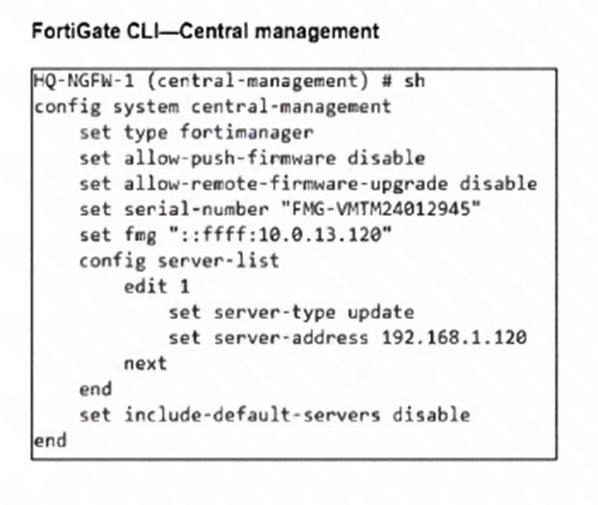
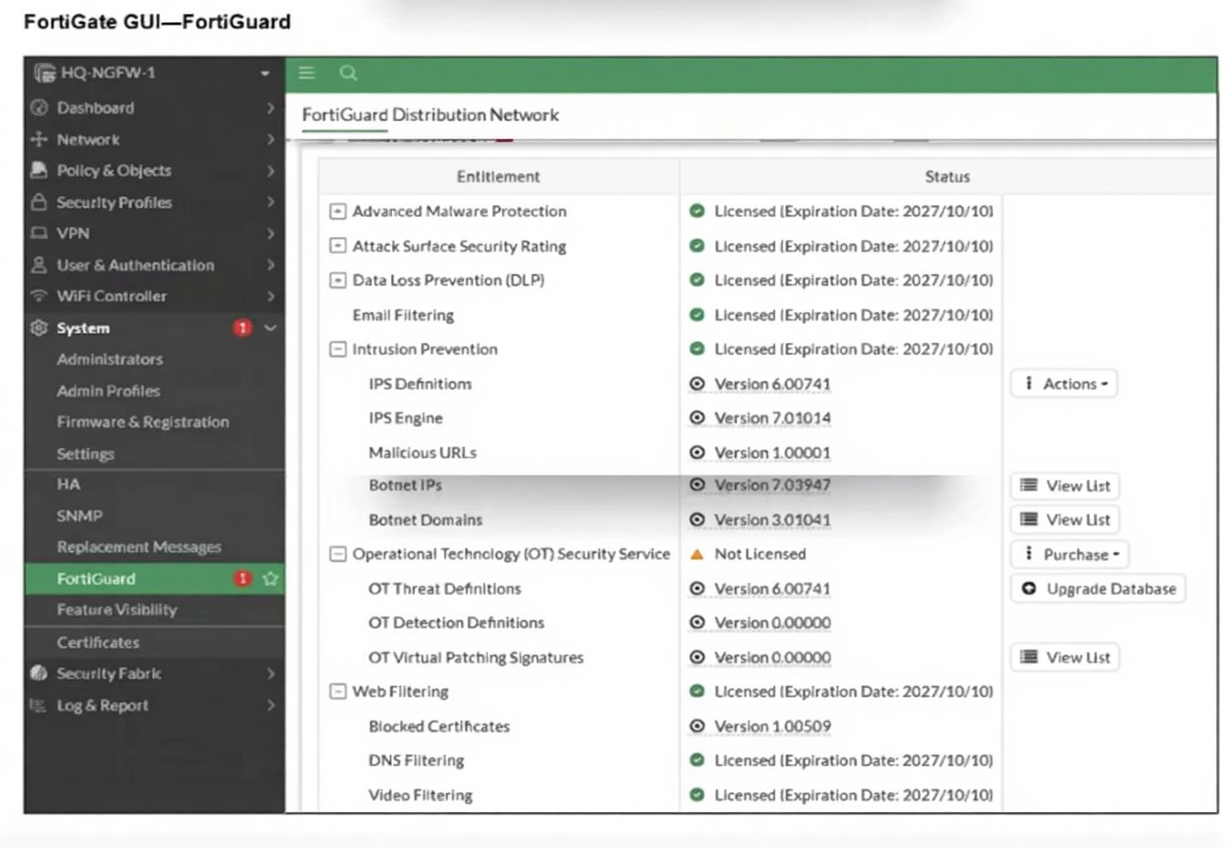
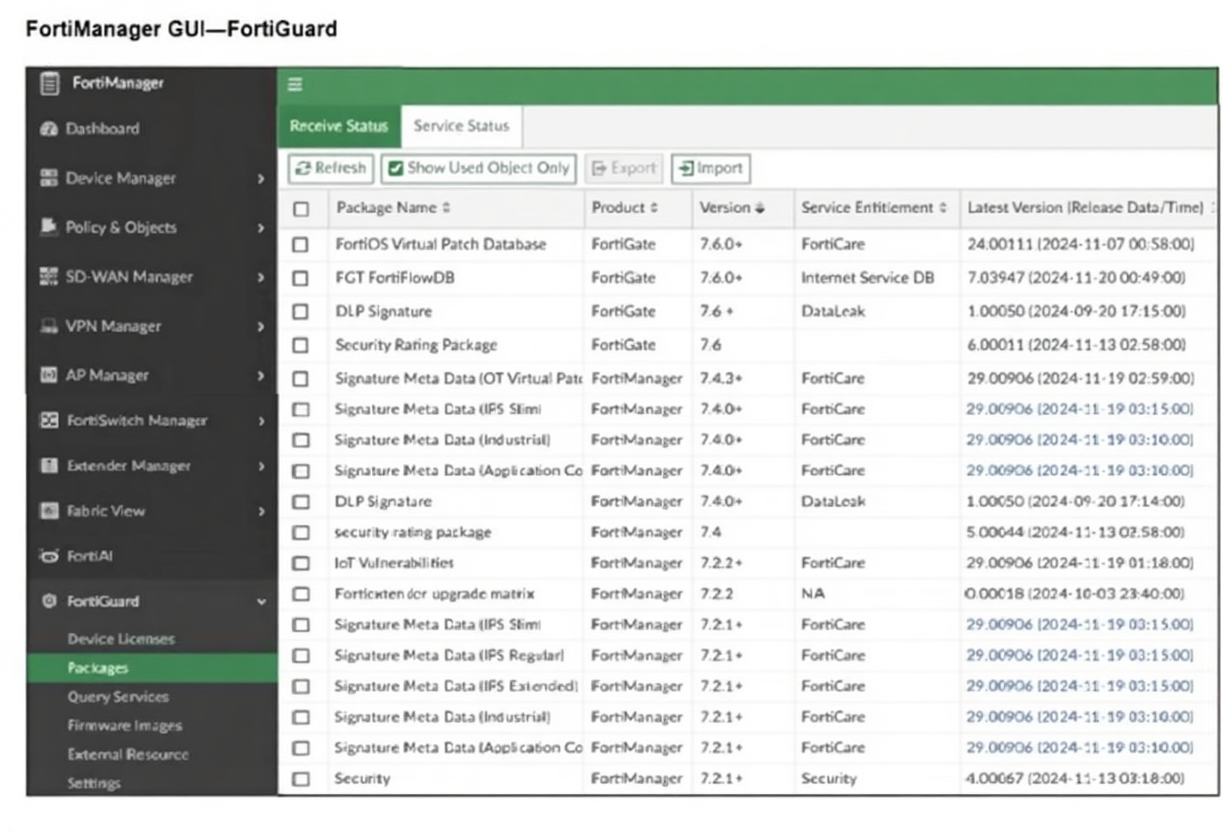
FortiGate HQ-NGFW-1 downloads and validates FortiGuard databases from FortiManager which acts as a
local FortiGuard Distribution Server (FDS) in a closed network. An administrator pushes a new firewall
policy with an intrusion prevention system (IPS) profile from FortiManager to FortiGate HQ- NGFW-1
However, FortiGate does not recognize the new IPS signature from FortiManager.
What is the most likely reason why FortiGate HQ-NGFW-1 does not recognize the new IPS signature?
A. FortiGate must enable rating for the FortiManager IP address, 192.168.1.120, in server list 1.
B. FortiManager and FortiGate have different IPS database versions.
C. The administrator must enable IPv6 connections for FortiGuard services on FortiManager.
D. The administrator must enable the fortiguard-anycast option to correctly download all signatures from the local FDS.
Explanation:
The scenario describes a managed FortiGate that receives its FortiGuard updates (including IPS signatures) from FortiManager acting as a local FortiGuard Distribution Server (FDS). The FortiGate's configuration shows its update server is 192.168.1.120 (the FortiManager), not the public FortiGuard servers. For the FortiGate to recognize a new IPS signature pushed via policy, the IPS signature database on the FortiGate must be the same version (or newer) than the one referenced when the policy was configured on FortiManager. If FortiManager has a newer IPS database version than what is currently installed on the FortiGate, the FortiGate will not recognize signatures that were added in that newer database version, causing the policy to fail or be ineffective.
Option A is incorrect.
The rating option is for the Security Rating service, not for IPS signature validation. The server list is correctly configured for updates.
Option C is incorrect.
IPv6 is not required; the communication is using IPv4 (shown as ::ffff:10.0.13.120 which is an IPv4-mapped IPv6 address, and server 192.168.1.120).
Option D is incorrect.
The fortiguard-anycast option is used on a FortiGate to use Fortinet's anycast servers for updates. Here, the FortiGate is explicitly configured to use the local FortiManager (192.168.1.120), so anycast is not relevant.
Reference:
FortiManager Administration Guide - FortiGuard - Configuring Local FortiGuard Distribution. When FortiManager acts as an FDS, managed devices must have their FortiGuard update source pointed to it. Synchronization of signature database versions between FortiManager and the managed devices is critical for policy consistency.
| Page 3 out of 11 Pages |
| 123456 |
| FCP_FMG_AD-7.6 Practice Test Home |
The Fortinet FortiManager 7.6 Administrator exam is notoriously tough. It doesn't test memorization. It forces you to make complex decisions under time pressure. A weak prep strategy risks a costly failure and wasted effort. Our FCP_FMG_AD-7.6 practice tests are built to be your definitive bridge to a passing score.

Copyright © - All Rights Reserved