
Last Updated On : 12-Oct-2026
Total 112 Questions
A vulnerability scan report has revealed that a user has generated traffic to the website
example.com (10.10.10.10) using a weak SSL/TLS version supported by the HTTPS web
server.
What can the firewall administrator do to block all outdated SSL/TLS versions on any
HTTPS web server to prevent possible attacks on user traffic?
A. Configure the unsupported SSL version and set the minimum allowed SSL version in the HTTPS settings of the SSL/SSH inspection profile.
B. Enable auto-detection of outdated SSL/TLS versions in the SSL/SSH inspection profile to block vulnerable websites.
C. Install the required certificate in the client's browser or use Active Directory policies to block specific websites as defined in the SSL/SSH inspection profile.
D. Use the latest certificate, Fortinet_SSL_ECDSA256, and replace the CA certificate in the SSL/SSH inspection profile.
Explanation:
A. Configure the unsupported SSL version and set the minimum allowed SSL version in the HTTPS settings of the SSL/SSH inspection profile.
FortiGate allows administrators to enforce SSL/TLS version control through the SSL/SSH inspection profile.
By setting the minimum allowed SSL/TLS version (e.g., TLS 1.2 or TLS 1.3), the firewall blocks any traffic attempting to negotiate weaker versions (SSLv3, TLS 1.0, TLS 1.1).
This is the direct and supported method to prevent users from connecting to HTTPS servers that still allow outdated protocols.
Why the other options are wrong:
B. Enable auto-detection of outdated SSL/TLS versions in the SSL/SSH inspection profile to block vulnerable websites. ❌ Incorrect.
There is no “auto-detection” feature in FortiOS SSL/SSH inspection profiles. Administrators must explicitly configure minimum SSL/TLS versions.
C. Install the required certificate in the client's browser or use Active Directory policies to block specific websites as defined in the SSL/SSH inspection profile. ❌ Incorrect.
Certificates and AD policies do not control SSL/TLS protocol negotiation. They only affect trust and site access, not protocol enforcement.
D. Use the latest certificate, Fortinet_SSL_ECDSA256, and replace the CA certificate in the SSL/SSH inspection profile. ❌ Incorrect.
Updating certificates does not block weak SSL/TLS versions. Certificates are about identity and trust, not protocol enforcement.
Reference
FortiOS 7.6 Administration Guide – SSL/SSH Inspection Profiles: Administrators can configure the minimum and maximum SSL/TLS versions allowed for HTTPS traffic.
Fortinet KB: Configuring SSL/TLS protocol versions in SSL inspection profiles
Refer to the exhibit, which shows an enterprise network connected to an internet service
provider.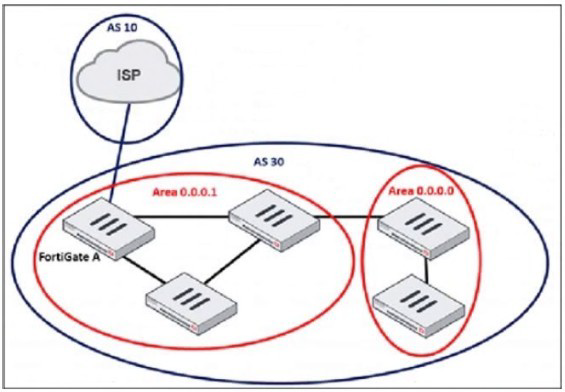
The administrator must configure the BGP section of FortiGate A to give internet access to
the enterprise network.
Which command must the administrator use to establish a connection with the internet
service provider?
A. config neighbor
B. config redistribute bgp
C. config router route-map
D. config redistribute ospf
Explanation:
To establish a BGP session between FortiGate A and the ISP, the administrator must configure the BGP neighbor — which defines the remote peer (ISP router) and its IP address. This is the foundational step in BGP peering.
The config neighbor command is used inside the BGP configuration to specify:
The remote IP address of the ISP router
The remote AS number
Optional parameters like route-maps, password, update-source, etc.
This is the only command among the options that directly initiates a BGP peering session.
Why the other options are incorrect:
B. config redistribute bgp ❌
Used to redistribute BGP routes into another routing protocol (e.g., OSPF), not to establish a BGP session.
C. config router route-map ❌
Used to filter or manipulate routes during import/export. It’s optional and not required to establish a BGP connection.
D. config redistribute ospf ❌
Used to redistribute OSPF routes into BGP or another protocol. Again, not relevant to initiating a BGP peer.
Reference
FortiOS 7.6 CLI Guide – config router bgp section
Fortinet NSE 4/FCSS Training – BGP Peering and Route Advertisement
An administrator needs to install an IPS profile without triggering false positives that can
impact applications and cause problems with the user's normal traffic flow.
Which action can the administrator take to prevent false positives on IPS analysis?
A. Use the IPS profile extension to select an operating system, protocol, and application for all the network internal services and users to prevent false positives.
B. Enable Scan Outgoing Connections to avoid clicking suspicious links or attachments that can deliver botnet malware and create false positives.
C. Use an IPS profile with action monitor, however, the administrator must be aware that this can compromise network integrity.
D. Install missing or expired SSUTLS certificates on the client PC to prevent expected false positives.
Explanation:
To reduce false positives in IPS analysis, FortiGate allows administrators to fine-tune IPS signatures using IPS profile extensions. This includes:
Operating system filtering: Only apply signatures relevant to the OS in use (e.g., Windows, Linux).
Protocol filtering: Focus on protocols actually used in the environment (e.g., HTTP, DNS).
Application filtering: Target specific applications (e.g., Apache, IIS) to avoid irrelevant detections.
This selective approach ensures that IPS only inspects traffic that matches the actual environment, minimizing false positives and avoiding disruption to legitimate traffic.
Why the other options are incorrect:
B. Enable Scan Outgoing Connections… ❌ Misleading.
Scanning outgoing traffic helps detect botnet callbacks or data exfiltration, but it does not prevent false positives in IPS analysis. IPS primarily inspects incoming and internal traffic for exploit patterns.
C. Use an IPS profile with action monitor… ❌Risky.
While “monitor” mode avoids blocking traffic, it still logs all detections — including false positives — and does not prevent them. Also, relying on monitor mode can compromise security posture if real threats are not blocked.
D. Install missing or expired SSUTLS certificates… ❌ Irrelevant.
SSL/TLS certificates affect HTTPS inspection and trust validation, not IPS false positives. IPS operates at the packet level and signature matching, independent of certificate status.
Reference:
FortiOS 7.6 Administration Guide – Intrusion Prevention System (IPS)
Fortinet KB: How to reduce IPS false positives using profile extensions
An administrator received a FortiAnalyzer alert that a 1 disk filled up in a day. Upon
investigation, they found thousands of unusual DNS log requests, such as
JHCMQK.website.com, with no answers. They later discovered that DNS exfiltration was
occurring through both UDP and TLS.
How can the administrator prevent this data theft technique?
A. Create an inline-CASB to protect against DNS exfiltration.
B. Configure a File Filter profile to prevent DNS exfiltration.
C. Enable DNS Filter to protect against DNS exfiltration.
D. Use an IPS profile and DNS exfiltration-related signatures.
Explanation:
The scenario describes a classic DNS tunneling or DNS exfiltration attack. In this technique, an attacker encodes stolen data into a series of subdomain labels of DNS queries (like JHCMQK.website.com). Since DNS is a critical and often allowed protocol, it can be used to bypass traditional security controls to sneak data out of the network. The fact that there are "no answers" is common, as the act of sending the query itself is the exfiltration method.
Let's analyze the options:
D. Use an IPS profile and DNS exfiltration-related signatures.
The FortiGate Intrusion Prevention System (IPS) includes specific signatures designed to detect and block DNS tunneling and exfiltration. These signatures analyze DNS traffic patterns, such as the length of subdomains, the frequency of requests, and the entropy of the strings (which would be high in encoded/encrypted data), to identify malicious activity. Since the attack is occurring over both UDP (standard DNS) and TLS (DNS-over-HTTPS/DoH), an IPS is the ideal tool as it can inspect the encrypted TLS traffic for DoH tunneling if the FortiGate is performing SSL/TSL inspection.
A. Create an inline-CASB to protect against DNS exfiltration.
Incorrect. An inline Cloud Access Security Broker (CASB) is designed to monitor and enforce security policies on transactions between users and cloud applications (like SaaS services). It does not inspect or control core network protocols like DNS at the packet level.
B. Configure a File Filter profile to prevent DNS exfiltration.
Incorrect. The File Filter profile is designed to block the transfer of files based on their type (e.g., .exe, .zip) over protocols like HTTP, FTP, and SMB. The data in a DNS exfiltration attack is not being transferred as a file within these protocols; it is encoded within the DNS protocol itself, which File Filter does not inspect.
C. Enable DNS Filter to protect against DNS exfiltration.
Incorrect. The DNS Filter service on a FortiGate is primarily used for content filtering—blocking access to malicious, adult, or other unwanted websites by categorizing the domain being queried. It is not designed to analyze the content of the subdomain for encoded data, which is the mechanism of this attack. It would see a query for website.com and allow it if the domain is categorized as benign.
Reference:
Fortinet Documentation: FortiOS Handbook - Intrusion Prevention System (IPS). The solution involves creating or using an existing IPS sensor and enabling signatures related to DNS tunneling and exfiltration, such as those found in the "DNS.Over.TLS" and "DNS" signature subgroups. Applying this sensor to the relevant security policies will inspect and block the malicious DNS traffic on both UDP and TLS ports.
Refer to the exhibits.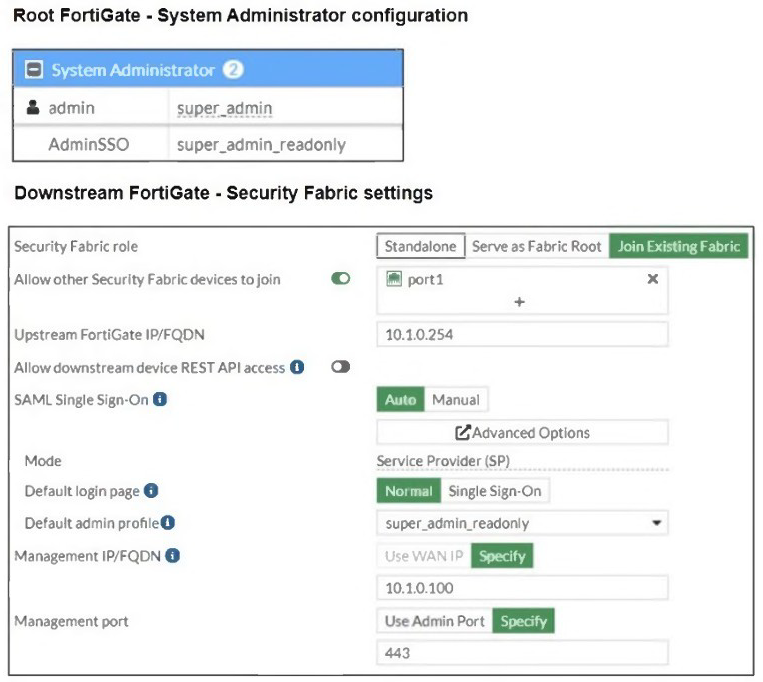
The Administrators section of a root FortiGate device and the Security Fabric Settings
section of a downstream FortiGate device are shown.
When prompted to sign in with Security Fabric in the downstream FortiGate device, a user
enters the AdminSSO credentials.
What is the next status for the user?
A. The user is prompted to create an SSO administrator account for AdminSSO.
B. The user receives an authentication failure message.
C. The user receives an authentication failure message.
D. The user accesses the downstream FortiGate with super_admin privileges.
Explanation:
In this scenario, the downstream FortiGate is configured to use SAML Single Sign-On (SSO) via the Security Fabric. The user attempts to authenticate using the AdminSSO account, which is defined on the root FortiGate with the role super_admin_readonly.
However, the Management IP/FQDN field in the downstream FortiGate’s Security Fabric settings is incorrectly set to super_admin_readonly — which is a username, not a valid IP or FQDN. This misconfiguration breaks the SAML authentication flow.
As a result:
The downstream FortiGate cannot properly reach the upstream FortiGate for SAML assertion.
The SSO login attempt fails due to invalid or unreachable identity provider configuration.
Why the other options are incorrect:
A. Prompted to create an SSO administrator account ❌ Incorrect.
FortiGate does not prompt users to create SSO accounts during login. Accounts must be pre-configured.
B. Authentication failure message ❌ Duplicate of C.
This option is redundant and likely a distractor.
D. Accesses downstream FortiGate with super_admin privileges ❌ Incorrect.
Even if AdminSSO has super_admin_readonly rights on the root FortiGate, the downstream FortiGate cannot validate the login due to the misconfigured Management IP/FQDN.
Reference
FortiOS 7.6 Administration Guide – Security Fabric and SAML SSO setup
Fortinet KB: Troubleshooting SAML login failures in Security Fabric
🔍 Summary:
The login fails because the Management IP/FQDN is misconfigured as a username, not a valid endpoint. SAML cannot complete, and the user receives an authentication failure.
An administrator must standardize the deployment of FortiGate devices across branches
with consistent interface roles and policy packages using FortiManager.
What is the recommended best practice for interface assignment in this scenario?
A. Enable metadata variables to use dynamic configurations in the standard interfaces of FortiManager.
B. Use the Install On feature in the policy package to automatically assign different interfaces based on the branch.
C. Create interfaces using device database scripts to use them on the same policy package of FortiGate devices.
D. Create normalized interface types per-platform to automatically recognize device layer interfaces based on the FortiGate model and interface name.
Explanation:
The goal is to standardize deployment while accommodating minor branch-to-branch variations, such as different interface names or IP schemes. FortiManager's Metadata Variables are the designed best practice for this exact scenario.
A Standard Interface object is created in FortiManager (e.g., WAN_INTERFACE).
A Metadata Variable (e.g., %WAN_Port%) is assigned to the interface's "Physical Name" field.
In the Device Manager, each branch FortiGate is assigned a unique value for this variable (e.g., port1 for one branch, wan1 for another).
The same Policy Package can then be applied to all devices. During installation, FortiManager dynamically resolves the %WAN_Port% variable to the correct physical interface name for each specific device, achieving standardization with flexibility.
Why other options are incorrect:
B. Use the Install On feature:
This feature controls which devices a policy package is installed on, but it does not dynamically change the interface names within the policies themselves. It lacks the granularity for interface assignment.
C. Use device database scripts:
While powerful for automation, scripts are complex and not the primary, standardized method for this specific task. Metadata variables provide a simpler, GUI-driven, and centrally managed solution.
D. Create normalized interface types per-platform:
This describes the function of Platform Sets, which are used to map physical interfaces to logical roles (WAN, DMZ, etc.) before importing a device. It is a foundational step for model variance but does not handle the dynamic assignment of variables for consistent policy application across a standardized deployment.
Reference:
Fortinet Documentation: FortiManager Administration Guide - "Using metadata in policies and objects". This section details how to use variables to create dynamic configurations that adapt to individual devices while using a single, standardized policy package.
Refer to the exhibit, which shows the ADVPN network topology and partial BGP
configuration.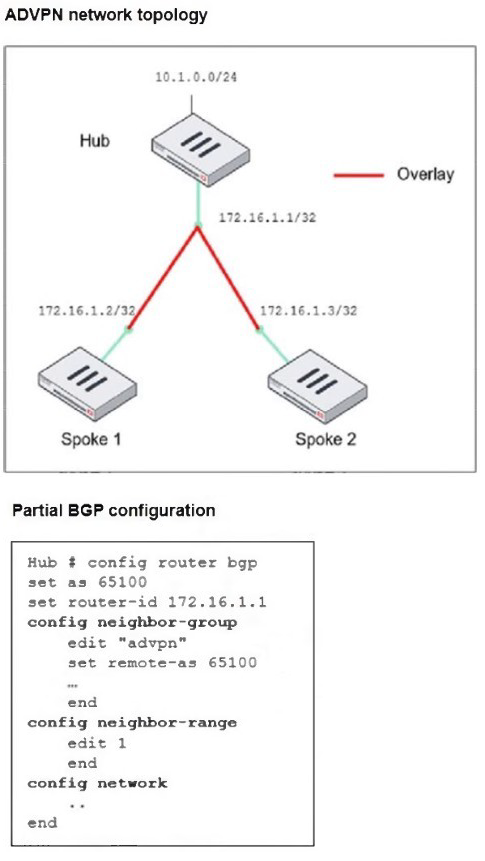
Which two parameters must an administrator configure in the config neighbor range for
spokes shown in the exhibit? (Choose two.)
A. set max-neighbor-num 2
B. set neighbor-group advpn
C. set route-reflector-client enable
D. set prefix 172.16.1.0 255.255.255.0
Explanation:
In an Auto-Discovery VPN (ADVPN) setup using BGP, the config neighbor-range command is used on the hub FortiGate to automatically accept and establish BGP sessions with spokes without needing to statically define each one. The configuration defines a range of IP addresses from which neighbors can connect.
Let's analyze the required parameters based on the topology:
D. set prefix 172.16.1.0 255.255.255.0
This is correct. The prefix command defines the IP address range from which the hub will accept dynamic BGP peerings. The exhibit shows the spokes have IP addresses 172.16.1.2/32 and 172.16.1.3/32. These addresses fall within the 172.16.1.0/24 subnet. Configuring this prefix tells the hub to accept BGP connections from any spoke whose IP is within this network.
B. set neighbor-group advpn
This is correct. The neighbor-group command applies a pre-defined set of BGP settings (like remote-as 65100 and any associated route-maps) to all neighbors that fall within the specified prefix range. The exhibit shows a neighbor-group named "advpn" has already been created. Associating this group with the neighbor-range ensures all dynamically discovered spokes inherit the correct BGP configuration.
Why the other options are incorrect:
A. set max-neighbor-num 2
Incorrect. While this command exists and can limit the number of dynamic peers, it is not a required parameter. The hub will function correctly without it, learning as many spokes as connect from the defined prefix. It is an optional administrative control, not a mandatory configuration for the setup to work.
C. set route-reflector-client enable
Incorrect. This command is typically applied within the config neighbor-group "advpn" section, not under the config neighbor-range. The "advpn" neighbor-group is where you would configure set route-reflector-client enable to allow the hub to reflect routes between spokes. Placing it directly in the neighbor-range stanza would be syntactically incorrect.
Reference:
Fortinet Documentation: FortiOS Handbook - BGP, specifically the section on "Configuring dynamic BGP neighbors (neighbor range)". The documentation confirms that the prefix is required to define the IP range, and the neighbor-group is used to assign common parameters to these dynamic peers.
| Page 3 out of 16 Pages |
| 12345678 |
| FCSS_EFW_AD-7.6 Practice Test Home |
The FCSS - Enterprise Firewall 7.6 Administrator exam is notoriously tough. It doesn't test memorization. It forces you to make complex decisions under time pressure. A weak prep strategy risks a costly failure and wasted effort. Our FCSS_EFW_AD-7.6 practice tests are built to be your definitive bridge to a passing score.

Copyright © - All Rights Reserved