
Last Updated On : 12-Oct-2026
Total 112 Questions
During the maintenance window, an administrator must sniff all the traffic going through a
specific firewall policy, which is handled by NP6 interfaces. The output of the sniffer trace
provides just a few packets.
Why is the output of sniffer trace limited?
A. The traffic corresponding to the firewall policy is encrypted
B. auto-asic-off load is set to enable in the firewall policy,
C. inspection-mode is set to proxy in the firewall policy.
D. The option npudbg is not added in the diagnose sniff packet command.
Explanation:
When traffic matching a firewall policy is hardware-offloaded to a Network Processor (NP6, NP7, etc.), it bypasses the CPU's general processing path. The built-in diagnose sniffer command captures packets processed by the CPU.
If auto-asic-offload is enabled (the default), traffic handled by the NP6 interfaces will be accelerated and not visible to the standard sniffer command, resulting in a trace with very few or no packets.
To capture hardware-offloaded traffic, the administrator must either:
Disable auto-asic-offload on the specific policy (for testing), or
Use the specialized NPU debug command diagnose npu np6 sniffer (or similar for the specific ASIC).
Why other options are incorrect:
A. The traffic is encrypted:
The sniffer captures packets after IPsec decryption if the traffic passes through a VPN tunnel. Encryption itself does not prevent sniffing on the FortiGate. The issue is hardware offloading.
C. Inspection-mode is set to proxy:
Proxy-mode inspection can affect packet flow and rewriting, but it still generally requires CPU processing and would be visible to the sniffer. It does not cause the near-total packet disappearance described.
D. The option npudbg is not added:
While using npudbg can provide more detail, its absence does not cause the sniffer to capture "just a few packets." Without it, the sniffer simply uses default verbosity; the core issue is that offloaded traffic isn't reaching the CPU sniffer at all.
Reference:
FortiOS Troubleshooting Guide - "Sniffer Traces." It notes that hardware-offloaded traffic is not captured by diagnose sniffer and recommends disabling ASIC offload on the policy or using NPU-specific debug commands to trace such traffic.
A user reports that their computer was infected with malware after accessing a secured
HTTPS website. However, when the administrator checks the FortiGate logs, they do not
see that the website was detected as insecure despite having an SSL certificate and
correct profiles applied on the policy.
How can an administrator ensure that FortiGate can analyze encrypted HTTPS traffic on a
website?
A. The administrator must enable reputable websites to allow only SSL/TLS websites rated by FortiGuard web filter.
B. The administrator must enable URL extraction from SNI on the SSL certificate inspection to ensure the TLS three-way handshake is correctly analyzed by FortiGate.
C. The administrator must enable DNS over TLS to protect against fake Server Name Indication (SNI) that cannot be analyzed in common DNS requests on HTTPS websites.
D. The administrator must enable full SSL inspection in the SSL/SSH Inspection Profile to decrypt packets and ensure they are analyzed as expected.
Explanation:
The core issue is that malware was delivered via an HTTPS website. HTTPS encrypts all content, making it invisible to traditional security profiles (like web filtering, antivirus, IPS) unless it is decrypted for inspection.
Full SSL Inspection (Deep Inspection) decrypts the HTTPS session, allows the security profiles to scan the now-clear content for malware and threats, and then re-encrypts it before sending it to the client. This is the only way for FortiGate to analyze the actual content of an HTTPS website.
Without this, the FortiGate can only see the outer TLS handshake (including the Server Name Indication - SNI) and the encrypted payload, which appears as benign, "secured" traffic.
Why other options are incorrect:
A. Enable reputable websites:
This is a filtering action based on FortiGuard categories, not content inspection. It cannot detect malware inside an encrypted HTTPS session from a website that is categorized as legitimate.
B. Enable URL extraction from SNI:
SNI extraction allows the firewall to see the domain name requested during the TLS handshake without decrypting. This allows for category-based blocking but not for scanning the actual content for embedded malware. The logs would show the website was accessed, but not the malicious payload.
C. Enable DNS over TLS:
This is a method to encrypt DNS queries for privacy. It is unrelated to inspecting the content of HTTPS web traffic and does not help detect malware on a website.
Reference:
FortiOS Security Profiles Guide - SSL/SSH Inspection. It distinguishes between Certificate Inspection (which only validates the certificate) and Full (Deep) Inspection (which decrypts content). To detect malware within HTTPS traffic, Full SSL Inspection is mandatory.
Refer to the exhibit, which shows a physical topology and a traffic log.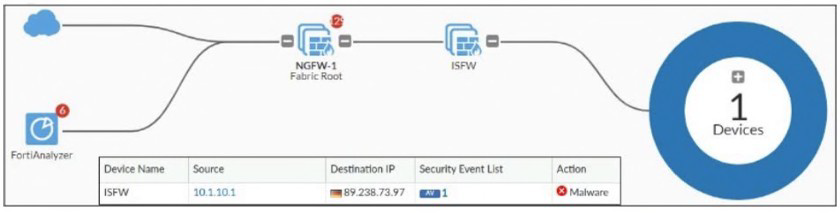
The administrator is checking on FortiAnalyzer traffic from the device with IP address
10.1.10.1, located behind the FortiGate ISFW device.
The firewall policy in on the ISFW device does not have UTM enabled and the
administrator is surprised to see a log with the action Malware, as shown in the exhibit.
What are the two reasons FortiAnalyzer would display this log? (Choose two.)
A. Security rating is enabled in ISFW.
B. ISFW is in a Security Fabric environment.
C. ISFW is not connected to FortiAnalyzer and must go through NGFW-1.
D. The firewall policy in NGFW-1 has UTM enabled.
Explanation:
The exhibit shows a Security Fabric topology where ISFW (Internal Segmentation Firewall) is downstream from NGFW-1, the Fabric Root. Traffic from 10.1.10.1 goes through ISFW first, then to NGFW-1.
B. ISFW is in a Security Fabric environment:
This is the foundational reason. In a Security Fabric, logs are forwarded upstream to the root FortiGate (NGFW-1). From there, they are aggregated and sent to FortiAnalyzer. Therefore, FortiAnalyzer receives logs that appear to be from ISFW but were actually processed and enhanced by the root.
D. The firewall policy in NGFW-1 has UTM enabled:
This is the direct cause of the "Malware" action log. Even though the ISFW policy has no UTM, the traffic is subsequently inspected by NGFW-1. If NGFW-1 has a UTM profile (like Antivirus) enabled on its policy, it will scan the traffic, detect the malware, and block it. Because the log is forwarded through the Fabric, FortiAnalyzer attributes the security event to the source device (ISFW) but shows the action taken by the root (NGFW-1).
Why the other options are incorrect:
A. Security rating is enabled in ISFW:
Security Rating is a compliance and best-practice auditing tool. It does not perform real-time malware detection or generate "Malware" action logs for traffic.
C. ISFW is not connected to FortiAnalyzer and must go through NGFW-1:
This statement is partially true about the connection path, but it is a description of the Fabric's log forwarding, not the reason for the malware log. The reason is the UTM inspection on NGFW-1.
Reference:
FortiOS Security Fabric Guide - Logging and Reporting. It explains that in a Fabric, downstream device logs are forwarded to the root, which can apply central logging and analysis. The root FortiGate's UTM actions on forwarded traffic will be reflected in logs attributed to the original source device.
An administrator applied a block-all IPS profile for client and server targets to secure the
server, but the database team reported the application stopped working immediately after.
How can an administrator apply IPS in a way that ensures it does not disrupt existing
applications in the network?
A. Use an IPS profile with all signatures in monitor mode and verify patterns before blocking.
B. Limit the IPS profile to server targets only to avoid blocking connections from the server to clients.
C. Select flow mode in the IPS profile to accurately analyze application patterns.
D. Set the IPS profile signature action to default to discard all possible false positives.
Explanation:
The scenario highlights a classic problem: applying an overly aggressive IPS profile (like "block-all") can break legitimate application traffic due to false positives or overly broad signatures.
The best practice for deploying IPS in a production environment without causing disruption is to start in monitor mode.
Monitor Mode allows the IPS to log and alert on potential threats without blocking any traffic. The administrator can then review the logs to identify which signatures are being triggered by legitimate applications.
After a sufficient monitoring period, the administrator can fine-tune the IPS profile by:
Creating exceptions (filters) for affected servers/applications.
Disabling irrelevant signatures.
Confidently enabling block mode only for verified, malicious patterns that do not impact business operations.
Why other options are incorrect:
B. Limit IPS to server targets only:
This is a flawed approach. Attacks can originate from compromised clients, and server-to-server communication also needs protection. Limiting targets reduces security coverage and does not address the root cause of false positives.
C. Select flow mode:
Flow mode vs. proxy mode is an inspection mode choice that affects performance and some detection capabilities, but it does not inherently prevent disruption. A block-all profile in flow mode will still block traffic.
D. Set signature action to default to discard:
This is not a valid or recommended configuration. "Default to discard" is not a standard IPS action. Even if it were, it would be equivalent to blocking, causing the same disruption.
Reference:
FortiOS Intrusion Prevention Guide - IPS Deployment Best Practices. It recommends initial deployment in Monitor/Log-only mode to establish a baseline, identify false positives, and tune the sensor before enabling active blocking to ensure network stability.
Refer to the exhibit, which shows a revision history window in the FortiManager device
layer.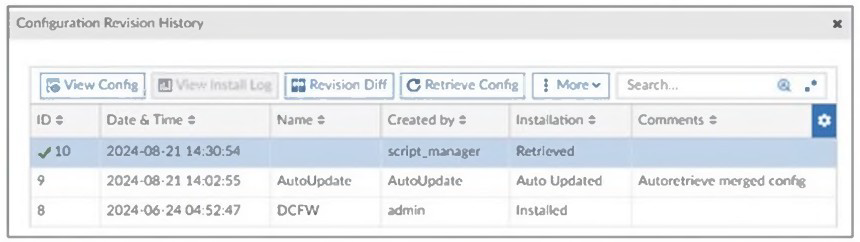
The IT team is trying to identify the administrator responsible for the most recent update in
the FortiGate device database.
Which conclusion can you draw about this scenario?
A. This retrieved process was automatically triggered by a Remote FortiGate Directly (via CLI) script.
B. The user script_manager is an API user from the Fortinet Developer Network (FDN) retrieving a configuration.
C. To identify the user who created the event, check it on the Configuration and Installation widget on FortiGate within the FortiManager device layer.
D. Find the user in the FortiManager system logs and use the type=script command to find the administrator user in the user field.
Explanation:
The exhibit shows a revision (#10) with "Created by: script_manager". In FortiManager, script_manager is a system-generated internal user account that executes automated scripts. It does not identify the actual human administrator or API user who triggered the script.
To find the real administrator responsible:
You must examine the FortiManager System Event Log.
Filter for log entries where type=script.
Within those script execution logs, the user field will show the actual administrator username (e.g., admin, api_user) who initiated or scheduled the script that performed the configuration retrieval.
Why the other options are incorrect:
A. ...triggered by a Remote FortiGate Directly (via CLI) script:
A configuration change triggered directly from a FortiGate CLI would not appear in FortiManager's device database revision history as a retrieved config. It would appear as a revision from the FortiGate itself, not from script_manager.
B. The user script_manager is an API user from FDN:
This is incorrect. script_manager is an internal system account, not a user from the Fortinet Developer Network. FDN users would have distinct usernames.
C. Check the Configuration and Installation widget on FortiGate:
This widget on FortiManager shows installation status and logs for policy packages, but it does not reveal the underlying administrator behind a script_manager action. That information is only in the system logs.
Reference:
FortiManager Administration Guide - Logging and Reporting. The system event logs (specifically script-related logs) are the authoritative source for tracking which administrator or API account executed a script that resulted in a script_manager revision entry.
Refer to the exhibit, which shows a network diagram showing the addition of site 2 with an
overlapping network segment to the existing VPN IPsec connection between the hub and
site 1.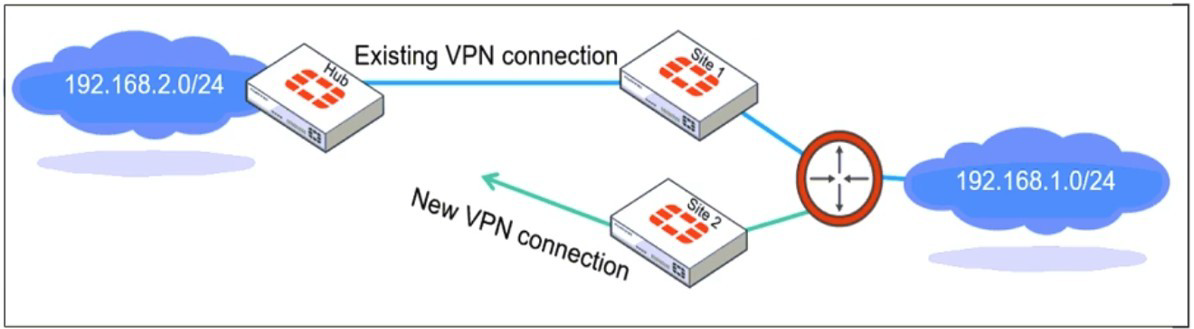
Which IPsec phase 2 configuration must an administrator make on the FortiGate hub to
enable equal-cost multi-path (ECMP) routing when multiple remote sites connect with
overlapping subnets?
A. Set route-overlap to either use-new or use-old
B. Set net-device to ecmp
C. Set single-source to enable
D. Set route-overlap to allow
Explanation:
The scenario describes multiple remote sites (Site 1 and Site 2) connecting to a hub via IPsec VPNs, both using the same internal subnet (192.168.2.0/24). This creates an overlapping route in the hub's routing table.
To handle this and allow ECMP (equal-cost multi-path) routing between the two tunnels for the same destination network, the hub's IPsec Phase 2 configuration must explicitly define how to manage the overlapping routes.
The route-overlap setting in the Phase 2 configuration dictates this behavior.
Setting it to use-new means the most recently established tunnel's route will be used.
Setting it to use-old means the first established tunnel's route will be used.
Crucially, both use-new and use-old allow ECMP to function because the FortiGate understands how to manage the duplicate routes for the same subnet across different tunnels. The setting tells the system which tunnel to prefer when both are up, but ECMP can still load balance if configured.
Why the other options are incorrect:
B. Set net-device to ecmp:
net-device is used to bind a VPN tunnel to a specific physical interface for routing purposes. It is not the parameter that controls overlapping route handling.
C. Set single-source to enable:
single-source is used to restrict a Phase 2 selector to a single source address. It is unrelated to resolving overlapping subnets from multiple peers and would likely break connectivity in this scenario.
D. Set route-overlap to allow:
allow is not a valid option for the route-overlap parameter. The valid options are disable, use-old, and use-new. Setting it to disable would cause the second tunnel's setup to fail because of the overlapping subnet.
Reference:
FortiOS VPN IPsec Guide - Phase 2 Configuration. The route-overlap parameter is specifically documented for handling overlapping subnets from multiple VPN peers, detailing how use-old and use-new allow ECMP routing by managing the duplicate routes.
A company that acquired multiple branches across different countries needs to install new
FortiGate devices on each of those branches. However, the IT staff lacks sufficient
knowledge to implement the initial configuration on the FortiGate devices.
Which three approaches can the company take to successfully deploy advanced initial
configurations on remote branches? (Choose three.)
A. Use metadata variables to dynamically assign values according to each FortiGate device.
B. Use provisioning templates and install configuration settings at the device layer.
C. Use the Global ADOM to deploy global object configurations to each FortiGate device.
D. Apply Jinja in the FortiManager scripts for large-scale and advanced deployments.
E. Add FortiGate devices on FortiManager as model devices, and use ZTP or LTP to connect to FortiGate devices.
Explanation:
The challenge is deploying advanced initial configurations to many remote branches with local IT staff lacking knowledge. This requires a centralized, automated, and templated approach using FortiManager.
A. Metadata Variables:
This allows creation of a single, standardized configuration template in FortiManager (e.g., for policies and objects) where unique per-device values (like interface IPs, hostnames) are represented by variables (e.g., %WAN_IP%). Each device's specific values are defined in its meta fields, enabling mass deployment of a consistent config that adapts to each branch.
B. Provisioning Templates:
These are pre-defined configuration scripts or templates applied at the Device Layer in FortiManager. They can push a complete baseline setup (interfaces, routing, policies) to a new device as soon as it is added, ensuring all branches start with a correct, standardized configuration without manual CLI input.
E. Model Devices with ZTP/LTP:
This is the core zero-touch or lean-touch deployment method.
A model device configuration is created in FortiManager.
New FortiGate devices are pre-configured in FortiManager (or via serial number in ZTP cloud).
When the physical FortiGate at a remote branch boots with internet access, it uses ZTP (Zero-Touch Provisioning) to contact FortiManager/cloud and automatically download its full configuration. This requires minimal to no on-site technical skill.
Why the other options are incorrect:
C. Use the Global ADOM:
The Global ADOM is for shared objects (like IP addresses, services) that can be referenced across multiple ADOMs. It is not a tool for deploying initial device configurations or for provisioning new devices. It manages objects, not device setups.
D. Apply Jinja in FortiManager scripts:
Jinja is a powerful templating language used within FortiDeploy (FortiCloud) for ZTP scripting, not within the standard FortiManager scripts in the GUI/CLI. FortiManager primarily uses its own CLI-based scripting. While powerful, Jinja is more specific to FortiCloud ZTP workflows and is not the standard method for "advanced initial configurations" directly from FortiManager as implied here.
Reference:
FortiManager Administration Guide - Device Management, Provisioning Templates, and Meta Fields. The guide details using model devices, provisioning templates, and metadata variables for scalable, templated deployment. The ZTP/LTP process is documented in FortiOS and FortiManager Zero-Touch Provisioning guides.
| Page 7 out of 16 Pages |
| 345678910 |
| FCSS_EFW_AD-7.6 Practice Test Home |
The FCSS - Enterprise Firewall 7.6 Administrator exam is notoriously tough. It doesn't test memorization. It forces you to make complex decisions under time pressure. A weak prep strategy risks a costly failure and wasted effort. Our FCSS_EFW_AD-7.6 practice tests are built to be your definitive bridge to a passing score.

Copyright © - All Rights Reserved