
Last Updated On : 12-Oct-2026
Total 65 Questions
Policy and objects
An administrator assigned the Training global policy package to the Branches policy package in ADOM1. Later, the administrator created a new policy package named Remotes on ADOM1.
What should the administrator do to sync the Training global policy package with the Remotes policy package
in ADOM1?
A. Manually add and assign the Remotes policy package to the Training global policy package
B. Use the automatically install policies to ADOM devices method to sync from the Training global policy package to the Remotes policy package
C. Assign the Training global policy package to the Remotes policy package
D. Unassign the Training policy package and reassign it to all policy packages within ADOM1
✅ Explanation:
In FortiManager, a global policy package is a centralized set of policies that can be shared across multiple ADOMs or policy packages. When a global policy package is assigned to a policy package (like Branches), it automatically syncs its policies to that package. To extend this synchronization to a newly created policy package (Remotes), the administrator must explicitly assign the global policy package to the new policy package. This is done by editing the Remotes policy package and adding the global package under the Global Policies section. Once assigned, the global policies will automatically appear and sync with the Remotes package without manual re-creation.
❌ Why Other Options Are Incorrect:
A. Manually add and assign the Remotes policy package to the Training global policy package.
This is incorrect. The relationship is global → local, not local → global. You assign the global package to the local package, not the other way around. The global package does not need to be added to the local package; rather, the local package references the global one.
B. Use the automatically install policies to ADOM devices method to sync from the Training global policy package to the Remotes policy package.
This is incorrect. Automatic installation is for deploying policies to devices, not for syncing global policies to local policy packages. The sync between global and local packages is managed through assignment, not installation workflows.
D. Unassign the Training policy package and reassign it to all policy packages within ADOM1.
This is incorrect. Unassigning and reassigning is unnecessary and disruptive. The Training global package is already assigned to the Branches package. To include the Remotes package, you only need to assign the global package to it—no need to unassign or reassign existing relationships.
References:
FortiManager 7.6 Administration Guide, Chapter "Policy and Objects" → Section "Global Policy Packages" – explains that global policy packages are assigned to local policy packages to share policies across ADOMs, and new packages must be explicitly assigned to receive the global policies.
FortiManager 7.6 Administration Guide, Chapter "Policy Packages" → Section "Assigning Global Policies to a Policy Package" – describes the steps to edit a policy package and add a global policy package under the Global Policies section.
An administrator has assigned a global policy package to a new ADOM named ADOM1. What will happen if the administrator tries to create a new policy package in ADOM1?
A. The administrator will be able to select the option to assign the global policy package to the new policy package.
B. FortiManager will automatically assign the global policy package to the new policy package.
C. FortiManager will automatically install policies on the policy package in ADOM1.
D. The administrator will have to assign the global policy package from the global ADOM.
✅ Explanation:
When a global policy package is assigned to an ADOM (via ADOM Settings > Global Policy Package), it does not automatically apply to every policy package created within that ADOM. Instead, the global policy package becomes available as an option for any policy package in that ADOM. When the administrator creates a new policy package in ADOM1, they will have the option to select and assign the global policy package to it during or after creation. This gives administrators flexibility to decide which policy packages should inherit the global policies.
❌ Why Other Options Are Incorrect:
B. FortiManager will automatically assign the global policy package to the new policy package.
This is incorrect. Automatic assignment does not occur. The global policy package is made available as an option, but the administrator must explicitly assign it to each new policy package if they want it included.
C. FortiManager will automatically install policies on the policy package in ADOM1.
This is incorrect. Creating a policy package does not trigger an automatic installation of policies to devices. Installation is a separate manual step performed after policies are configured and assigned to devices.
D. The administrator will have to assign the global policy package from the global ADOM.
This is incorrect. Global policy packages are assigned from within the local ADOM's policy package settings, not from the global ADOM. Once the global package is made available to ADOM1, the assignment is done locally within ADOM1.
References:
FortiManager 7.6 Administration Guide, Chapter "Policy and Objects" → Section "Global Policy Packages" – explains that assigning a global policy package to an ADOM makes it available for selection when creating or editing policy packages within that ADOM.
A FortiManager administrator has moved a FortiGate device to a new ADOM, but they cannot see the policyor object configurations for that FortiGate.
What should the administrator do to see the policy or object configurations?
A. Use ADOM shared objects to restore all missing data.
B. Reset the device and add it to the new ADOM again.
C. Import the policy package manually using the Import Configuration wizard.
D. Use ADOM sync to restore the missing configurations.
✅ Explanation:
When a FortiGate device is moved to a new ADOM in FortiManager, its policy and object configurations do not automatically follow the device. The configuration data (policies, objects, etc.) is stored within the context of the original ADOM's database. After the move, the new ADOM has no record of the device's configuration. To populate the new ADOM with the device's existing policies and objects, the administrator must manually import the configuration from the device into the new ADOM using the Import Configuration wizard (found under Policy & Objects > Import Configuration). This pulls the current running configuration from the FortiGate and creates the corresponding policy package and objects in the new ADOM.
❌ Why Other Options Are Incorrect:
A. Use ADOM shared objects to restore all missing data.
This is incorrect. ADOM shared objects are used to share objects between ADOMs that are already defined, not to restore configurations after a device move. Shared objects do not automatically populate missing policies or device-specific configurations.
B. Reset the device and add it to the new ADOM again.
This is incorrect. Resetting the device would wipe its configuration, which is destructive and unnecessary. The configuration still exists on the device; it simply needs to be imported into the new ADOM.
D. Use ADOM sync to restore the missing configurations.
This is incorrect. ADOM sync is used to synchronize policy packages and objects between ADOMs (e.g., replicating a policy from ADOM-A to ADOM-B), not to restore configurations for a moved device. It does not pull device-specific configuration automatically.
References:
FortiManager 7.6 Administration Guide, Chapter "ADOMs" → Section "Moving Devices Between ADOMs" – explains that after moving a device, the configuration must be manually imported into the new ADOM using the Import Configuration wizard.
FortiManager 7.6 Administration Guide, Chapter "Policy and Objects" → Section "Importing Policies from Managed Devices" – describes the Import Configuration wizard process for pulling device configurations into an ADOM.
Refer to the exhibit.
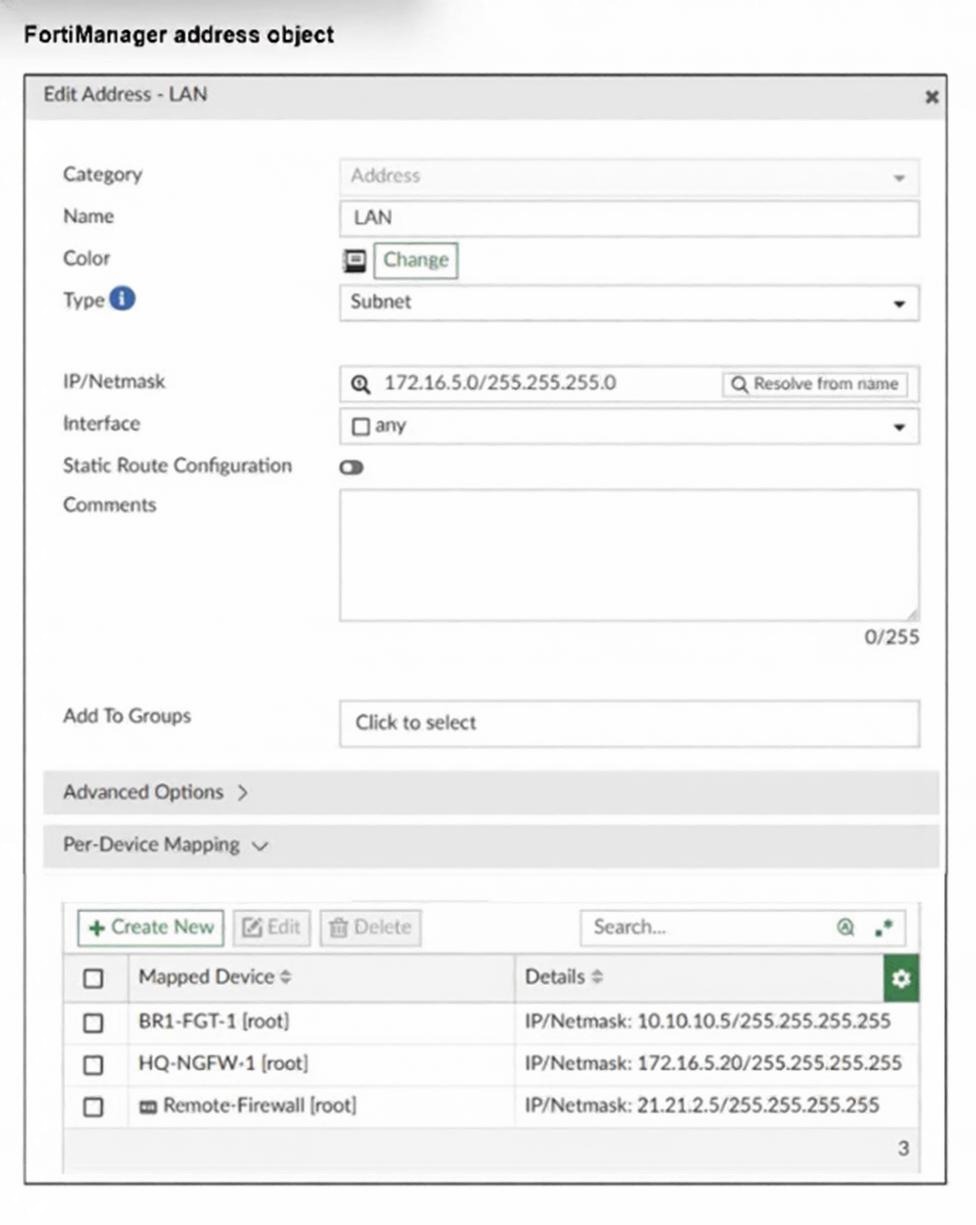
An administrator has created a firewall address object that is used in multiple policy packages for multiple
FortiGate devices in an ADOM.
After the installation operation is performed, which IP/netmask will be installed on Remote-Firewall
[VDOM1] for the LAN firewall address object?
A. 21.21.2.5/255.255.255.255
B. 172.16.5.20/255.255.255.255
C. 172.16.5.0/255.255.255.0
D. 10.10.10.5/255.255.255.255
✅ Explanation:
The exhibit shows a firewall address object named LAN that has Per-Device Mapping configured. In FortiManager, per-device mapping allows the same address object name to have different IP/netmask values for different managed devices or VDOMs. When a policy containing this address object is installed on a specific device, FortiManager uses the device-specific mapped value for that device, rather than the ADOM-level default value.
Looking at the Per-Device Mapping table:
BR1-FGT-1 [root] → IP/Netmask: 10.10.10.5/255.255.255.255
HQ-NGFW-1 [root] → IP/Netmask: 172.16.5.20/255.255.255.255
Remote-Firewall [root] → IP/Netmask: 21.21.2.5/255.255.255.255
The question asks for the value installed on Remote-Firewall [VDOM1] . The table shows a mapping for Remote-Firewall [root], but note that VDOM1 is a VDOM under Remote-Firewall. In FortiManager, per-device mappings are applied at the device/VDOM level—if no specific mapping exists for a particular VDOM, FortiManager checks for a mapping at the parent device level (root) and applies that value to all VDOMs of that device unless overridden. Since no specific mapping for Remote-Firewall [VDOM1] is shown, the device-level mapping for Remote-Firewall [root] (21.21.2.5/255.255.255.255) will be used.
❌ Why Other Options Are Incorrect
B. 172.16.5.20/255.255.255.255– This is the mapping for HQ-NGFW-1 [root], not Remote-Firewall or its VDOMs.
C. 172.16.5.0/255.255.255.0– This is the ADOM-level default value (the base definition of the address object). It is used only when no per-device mapping exists for the target device/VDOM.
D. 10.10.10.5/255.255.255.255 – This is the mapping for BR1-FGT-1 [root], not Remote-Firewall.
📚 References:
FortiManager 7.6 Administration Guide, Chapter "Policy and Objects" → Section "Per-Device Mapping" – explains that per-device mapping allows address objects to have device-specific values, and when a policy is installed, FortiManager applies the mapped value for the specific device or VDOM.
An administrator created a new global policy package that includes both header policies and footer policies. What two things must the administrator know before deploying the global policy package to ADOM2? Choose two answers
A. They can promote ADOM2 objects to global objects.
B. They can assign the global policy package to all or selected policy packages within ADOM2.
C. They must install from the ADOM2 layer to FortiGate when using the Automatically install policies to ADOM devices option.
D. They can synchronize policy packages by importing from the ADOM2 policy package into the global ADOM policy package.
✅ Explanation:
When an administrator creates a new global policy package with both header and footer policies and deploys it to ADOM2, two key considerations apply:
A. They can promote ADOM2 objects to global objects.
This is correct. Before deploying a global policy package to an ADOM, the administrator may need to promote ADOM-level objects (addresses, services, etc.) to the Global ADOM so they can be referenced by the global policies. FortiManager allows promoting objects from a local ADOM to the Global ADOM, making them available for use in global policy packages. This ensures that any objects referenced in the global policies exist in the global scope.
B. They can assign the global policy package to all or selected policy packages within ADOM2.
This is correct. When a global policy package is assigned to an ADOM (via ADOM Settings), the administrator has the flexibility to assign it to all policy packages within that ADOM or only to selected ones (during policy package creation or editing). This provides granular control over which devices/policy packages inherit the global header and footer policies.
❌ Why Other Options Are Incorrect
C. They must install from the ADOM2 layer to FortiGate when using the Automatically install policies to ADOM devices option.
This is incorrect. The "Automatically install policies to ADOM devices" option is a setting that controls whether policy installation happens automatically after changes. It does not require the administrator to manually install from ADOM2 to FortiGate; it is an automated behavior. Additionally, this option is not specific to global policy deployment—it is a general ADOM-level setting.
D. They can synchronize policy packages by importing from the ADOM2 policy package into the global ADOM policy package.
This is incorrect. Synchronization flows from the global policy package to the local ADOM policy package, not the reverse. You do not import from ADOM2 into the global ADOM to sync; instead, the global package is assigned to local packages, and changes made to the global package are automatically reflected in those local packages.
📚 References:
FortiManager 7.6 Administration Guide, Chapter "Policy and Objects" → Section "Global Policy Packages" – explains that global packages are assigned to local policy packages within an ADOM, and the assignment can be to all or selected packages.
Refer to the exhibits
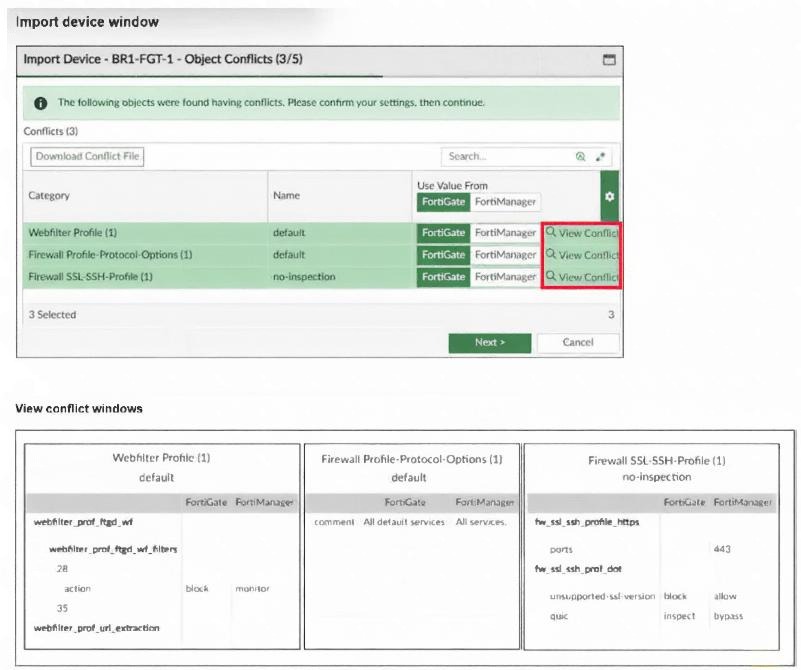
An administrator added BR1-FGT-1 to FortiManager and started importing the policy package. During the
process, they saw that they need to choose values from FortiGate or FortiManager.
Which conclusion is most clearly supported by the exhibits?
A. BR1-FGT-1 does not support the SSL/SSH profile with HTTPS on port 443.
B. The administrator must match the FortiOS firmware version with the FortiManager ADOM firmware version to resolve the conflict status.
C. The default Firewall Profile-Protocol-Options object is the only profile that does not significantly affect any configuration changes on either FortiManager or FortiGate.
D. FortiManager has a different FortiGuard database compared to FortiGate BR1-FGT-1 for the QUIC protocol.
✅ Explanation:
The exhibit shows an import conflict window where three profile objects are in conflict between FortiGate (BR1-FGT-1) and FortiManager: Webfilter Profile (default), Firewall Profile-Protocol-Options (default), and Firewall SSL-SSH-Profile (no-inspection). For each conflict, the administrator must choose whether to use the value from FortiGate or FortiManager.
Looking at the detailed conflict view for Firewall Profile-Protocol-Options (default):
The FortiGate version shows a comment: "All default services"
The FortiManager version shows a comment: "All services"
This is a cosmetic difference (comment field only) and does not affect the actual functionality or security posture of the profile. The protocol options themselves (timeouts, session settings, etc.) are identical or functionally equivalent. Therefore, choosing either value will not significantly impact configuration changes on either device or FortiManager. In contrast:
The Webfilter Profile conflict likely involves filter actions or URL filtering settings that affect web filtering behavior.
The SSL/SSH Profile conflict involves SSL inspection settings (as shown: unsupported-ssl-version with options block, allow, bypass, inspect), which directly affect how SSL traffic is handled and can impact security.
Thus, the default Protocol-Options profile is the least impactful conflict to resolve.
❌ Why Other Options Are Incorrect
A. BR1-FGT-1 does not support the SSL/SSH profile with HTTPS on port 443.
This is incorrect. The exhibit shows that the SSL/SSH profile includes port 443 for HTTPS inspection, but there is no indication that the device does not support it. The conflict is about the unsupported-ssl-version action (block, allow, bypass, inspect), not about port 443 support.
B. The administrator must match the FortiOS firmware version with the FortiManager ADOM firmware version to resolve the conflict status.
This is incorrect. Firmware version mismatches can cause compatibility issues, but the exhibit does not mention firmware versions. The conflicts shown are object-level differences (comment fields, inspection settings), not version mismatches. Matching firmware versions is not the solution to these specific conflicts.
D. FortiManager has a different FortiGuard database compared to FortiGate BR1-FGT-1 for the QUIC protocol.
This is incorrect. There is no mention of QUIC protocol or FortiGuard database differences in the exhibit. The conflicts are about profile settings (comments, SSL actions), not FortiGuard categories or QUIC.
📚 References:
FortiManager 7.6 Administration Guide, Chapter "Policy and Objects" → Section "Importing Policies and Handling Conflicts" – explains that during import, when profile objects differ between FortiGate and FortiManager, the administrator must choose which version to keep. Conflicts with only comment differences are considered low-impact and can be resolved with either value.
A service provider administrator has assigned a global policy package to a managed customer ADOM named My_ADOM. The customer administrator has access only to My_ADOM. How can the customer administrator edit the global header policy of the global policy package?
A. The customer administrator can edit the header policy by using workspace mode on the global ADOM.
B. The customer administrator can edit the header policy by using workflow mode on the global ADOM and My_ADOM.
C. The service provider administrator can unlock the global policy from the global ADOM to authorize changes to the customer administrator.
D. The customer administrator cannot edit the global header policy; only the service provider administrator can make changes from the global ADOM.
✅ Explanation:
In FortiManager, global policy packages are created and managed exclusively within the Global ADOM (ADOM level 0). When a global policy package is assigned to a customer ADOM (like My_ADOM), the policies within it (including header and footer policies) are read-only for administrators who only have access to that customer ADOM. They can view the global policies and install them on their devices, but they cannot edit, modify, or delete any part of the global policy package.
The service provider (or super-admin) with access to the Global ADOM is the only one who can create, edit, or delete global policy packages and their contents. This design ensures centralized control over shared policies, preventing customer administrators from altering policies that may affect multiple customers or ADOMs.
❌ Why Other Options Are Incorrect:
A. The customer administrator can edit the header policy by using workspace mode on the global ADOM.
This is incorrect. The customer administrator does not have access to the Global ADOM. Workspace mode is a locking mechanism, not a permission bypass. Without Global ADOM access, the customer cannot even see the global policies in edit mode.
B. The customer administrator can edit the header policy by using workflow mode on the global ADOM and My_ADOM.
This is incorrect. Workflow mode is an approval-based change management feature, but it does not grant edit permissions to users who lack access to the Global ADOM. The customer still cannot edit global policies.
C. The service provider administrator can unlock the global policy from the global ADOM to authorize changes to the customer administrator.
This is incorrect. Unlocking a policy (via workspace mode) only allows other Global ADOM administrators to edit it. It does not grant edit permissions to customer ADOM administrators. Authorization is based on ADOM access, not lock status.
📚 References:
FortiManager 7.6 Administration Guide, Chapter "ADOMs" → Section "Global ADOM" – explains that the Global ADOM (ADOM 0) is reserved for system-wide configurations, and only administrators with Global ADOM access can create and modify global policy packages.
FortiManager 7.6 Administration Guide, Chapter "Policy and Objects" → Section "Global Policy Packages" – clarifies that global policies are read-only when viewed from a local ADOM, and local administrators cannot modify them.
| Page 2 out of 10 Pages |
| 12345 |
| NSE6_FMG_AD-7.6 Practice Test Home |
The Fortinet NSE 6 FortiManager 7.6 Administrator exam is notoriously tough. It doesn't test memorization. It forces you to make complex decisions under time pressure. A weak prep strategy risks a costly failure and wasted effort. Our NSE6_FMG_AD-7.6 practice tests are built to be your definitive bridge to a passing score.

Copyright © - All Rights Reserved