
Last Updated On : 7-Sep-2026
Total 160 Questions
Security profiles
Consider the scenario where the server name indication (SNI) does not match either the common name (CN) or any of the subject alternative names (SAN) in the server certificate.
Which action will FortiGate take when using the default settings for SSL certificate inspection?
A. FortiGate uses the SNI from the user ' s web browser.
B. FortiGate closes the connection because this represents an invalid SSL/TLS configuration.
C. FortiGate uses the first entry listed in the SAN field in the server certificate.
D. FortiGate uses the CN information from the Subject field in the server certificate.
Explanation
When FortiGate performs SSL certificate inspection, it receives the SNI from the client's TLS handshake and the CN/SAN from the server's certificate. The default behavior of the Server Certificate SNI Check setting determines how FortiGate handles a mismatch between these two identifiers.
The official Fortinet documentation states:
Enable (default): If it is mismatched, use the CN in the server certificate for URL filtering.
Therefore, in the described scenario, the FortiGate will disregard the mismatched SNI and proceed using the CN from the server certificate to perform its functions, such as URL filtering.
Correct Option: D
FortiGate uses the CN information from the Subject field in the server certificate.
This statement is correct. As per the default configuration (Enable), the "Server certificate SNI check" is active. When a mismatch between the SNI and the certificate's CN/SAN is detected, the FortiGate's configured action is to use the CN from the server certificate.
Incorrect Options
A. FortiGate uses the SNI from the user's web browser.
This is incorrect. While the SNI is the initial identifier, the default Enable setting is specifically designed to override it with the CN from the certificate when a mismatch occurs.
B. FortiGate closes the connection because this represents an invalid SSL/TLS configuration.
This is incorrect. Closing the connection is the behavior associated with the Strict setting, not the default Enable setting.
C. FortiGate uses the first entry listed in the SAN field in the server certificate.
This is incorrect. This action is not part of the default SSL certificate inspection behavior. The official configuration guide explicitly states that the fallback is to the CN, not to an entry in the SAN list.
Reference
Fortinet Administration Guide: Configuring an SSL/SSH inspection profile, Server certificate SNI check option.
FortiOS 7.2.4 Administration Guide: Certificate inspection.
Exam discussion identifying the correct option and its configuration parameter.
You must use FortiManager to standardize the deployment of the same FortiGate model across multiple branches with consistent interface roles and policy packages.
In this scenario, what is the recommended best practice for interface assignment?
A. Create interfaces using CLI scripts and use those interfaces in FortiGate policy packages.
B. Enable metadata variables to use dynamic configurations on the standard interfaces of FortiManager.
C. Create normalized interface mappings per platform to automatically map device-level interfaces based on the FortiGate model and interface name.
D. Use the Install On feature in the policy package to automatically assign the interfaces across branches.
Explanation
When you need to standardize policy packages across multiple FortiGate devices of the same model, directly referencing physical interface names (like port1 or wan1) in policies is problematic. While the model is the same, the exact physical interface names or port assignments could vary per device.
The Normalized Interface feature in FortiManager solves this. It allows you to create a logical interface object (e.g., "WAN") in your policy package. This object is then linked to the actual physical interface on each device through "Per-Platform Mapping" rules. Because the policy package uses interface objects instead of directly referring to the interface, you can link the interface objects with the actual interfaces on any/all devices.
Correct Option: C
Create normalized interface mappings per platform to automatically map device-level interfaces based on the FortiGate model and interface name.
This is the standard FortiManager approach. You create the normalized interface with per-platform mappings. The mapping uses the device model to automatically recognize the correct interface name (e.g., mapping the logical "WAN" to wan1 on one model and to port2 on another). This creates a consistent policy package that is automatically valid for each branch FortiGate, eliminating the need for per-device manual adjustments.
Incorrect Options
A. Create interfaces using CLI scripts and use those interfaces in FortiGate policy packages.
While CLI scripting can be used for deployment, it is not the recommended best practice for this scenario. CLI scripts require you to know or handle the varying interface names for each device, making them more error-prone and less dynamic than normalized interfaces, which are built for this exact purpose.
B. Enable metadata variables to use dynamic configurations on the standard interfaces of FortiManager.
Metadata variables are useful for customizing values like IP addresses or branch_id in provisioning templates, not for abstracting physical interface names in a policy package. They do not address the core problem of mapping a logical policy to different physical ports on devices of the same model.
D. Use the Install On feature in the policy package to automatically assign the interfaces across branches.
The "Install On" feature is used to define installation targets for a policy package (i.e., which devices receive it). It does not handle interface assignment or abstraction. Normalized interfaces are the correct mechanism for solving the port-mapping challenge.
Reference
FortiManager Administration Guide: Creating Normalized Interfaces
FortiManager Administration Guide: Onboarding New Branch Devices
Refer to the exhibit.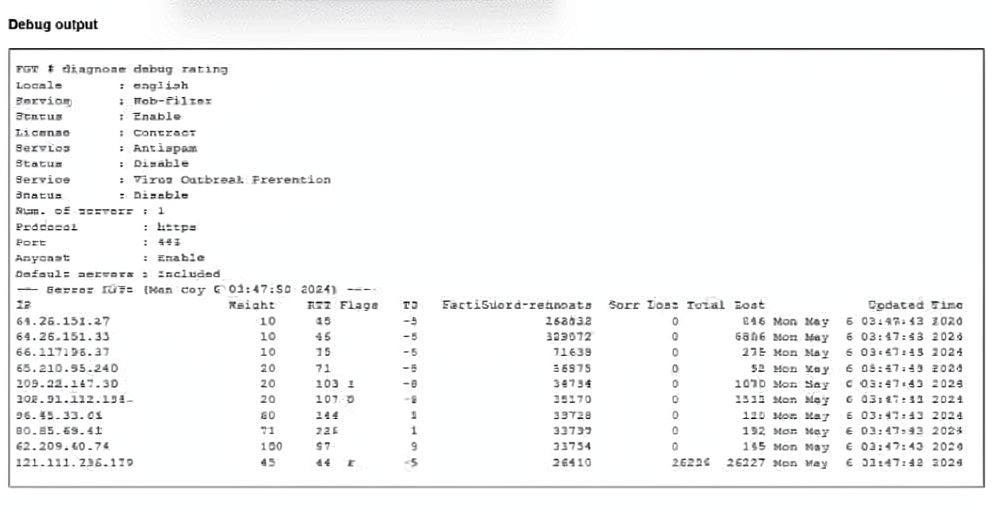
The administrator did not override the FortiGuard FODN or IP address in the FortiGate configuration
Which IP address did FortiGate get when resolving the servicem,fortiguard.net name?
A. 208.91.112.194
B. 209.22.147.36
C. 64.26.151.37
D. 96.45.33.65
Explanation
The diagnose debug rating command displays a list of FortiGuard servers, with the selection algorithm's top choice presented at the top of the list. Since the administrator did not override the FortiGuard FQDN (it remains service.fortiguard.net) and the fortiguard-anycast setting is enabled by default, DNS resolution for this Anycast domain points to a single IP address—not a list.
Correct Option: A
208.91.112.194 is the correct answer because it is the first server listed in the diagnose debug rating output. With the default Anycast setting enabled, the service.fortiguard.net domain resolves to a specific Anycast IP address that is already included in the server list. In the exhibit, 208.91.112.194 is the top server, which indicates it was either the resolved address or selected as the active server.
Incorrect Options
B. 209.22.147.36 is incorrect because, although it appears in the server list, it is not at the top. Since the FortiGate sends rating requests to the top server during normal operation, this would not be the resolved IP address for the FQDN.
C. 64.26.151.37 is also incorrect. While it appears with a lower RTT value than 208.91.112.194, the RTT value does not determine DNS resolution. The standard selection algorithm selects the server with the smallest RTT for sorting, but the DNS resolve step happens before the list is generated for the algorithm.
D. 96.45.33.65 is incorrect and does not match the top server in the server list. This IP address does not appear as the first entry in the provided exhibit.
Reference
Fortinet Administration Guide: Diagnose debug rating command output and server sorting.
Exam discussion confirming the top server selection algorithm.
Fortinet Documentation: Anycast domain service.fortiguard.net resolves to a single anycast IP address.
Refer to the exhibit.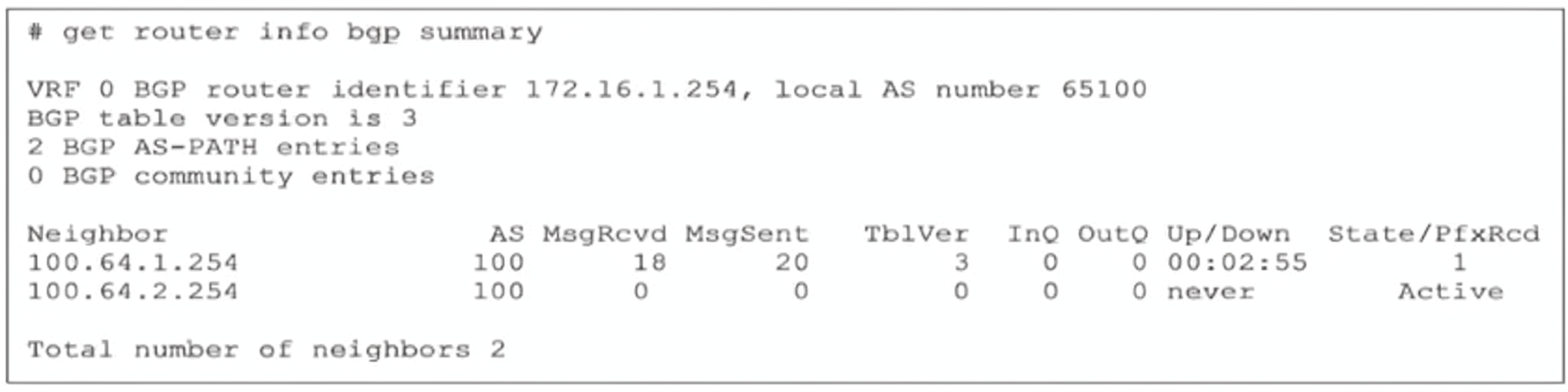
The output of the get router info bgp summary command is shown.
Which statement regarding adjacencies between the local router and its neighbors is correct?
A. The local router and neighbor 100.64.2.254 are unable to establish adjacency until the adjacency with neighbor 100.64.1.254 ceases.
B. The local router and neighbor 100.64.2.254 are unable to establish adjacency because the TCP session could not be established.
C. The local router and neighbor 100.64.1.254 established adjacency because the priority of 100.64.1.254 is higher than that of 100.64.2.254.
D. The local router and neighbor 100.64.2.254 are unable to establish adjacency because AS 100 is already used by neighbor 100.64.1.254.
Explanation
The get router info bgp summary command provides a snapshot of the BGP neighbor states. For neighbor 100.64.2.254, the state is shown as Active. In BGP, the Active state indicates that the local router has sent a TCP SYN to the neighbor but has not received a TCP SYN-ACK in response, meaning the TCP session cannot be established. This is a Layer 3/Layer 4 issue, often caused by reachability problems, ACLs, or the neighbor not listening on port 179.
Correct Option: B
The local router and neighbor 100.64.2.254 are unable to establish adjacency because the TCP session could not be established.
This is correct. The BGP state machine for neighbor 100.64.2.254 is stuck in the Active state. In this state, the local router is actively attempting to open a TCP connection with the neighbor, but the three-way handshake is not completing. This indicates that the neighbor is unreachable, the port is blocked, or the neighbor is not configured to peer with the local router's IP.
Incorrect Options
A. The local router and neighbor 100.64.2.254 are unable to establish adjacency until the adjacency with neighbor 100.64.1.254 ceases.
This is incorrect. BGP can establish multiple adjacencies simultaneously; there is no requirement for one BGP session to be terminated before another can be established. The two neighbors are independent.
C. The local router and neighbor 100.64.1.254 established adjacency because the priority of 100.64.1.254 is higher than that of 100.64.2.254.
This is incorrect. BGP uses IP addresses and router IDs for tie-breaking during path selection, but there is no "priority" value for establishing an adjacency. The session establishes simply because the TCP connection was successful.
D. The local router and neighbor 100.64.2.254 are unable to establish adjacency because AS 100 is already used by neighbor 100.64.1.254.
This is incorrect. It is perfectly valid for multiple BGP neighbors to use the same AS number. The local router can have multiple eBGP or iBGP neighbors with the same AS. This is not the cause of the Active state, which is a connectivity issue.
Reference
Fortinet FortiGate Administration Guide – BGP Neighbor States (Idle, Connect, Active, OpenSent, OpenConfirm, Established)
RFC 4271 – BGP-4 Finite State Machine (Active State Description)
Refer to the exhibit.
Partial output of a real-time OSPF debug is shown.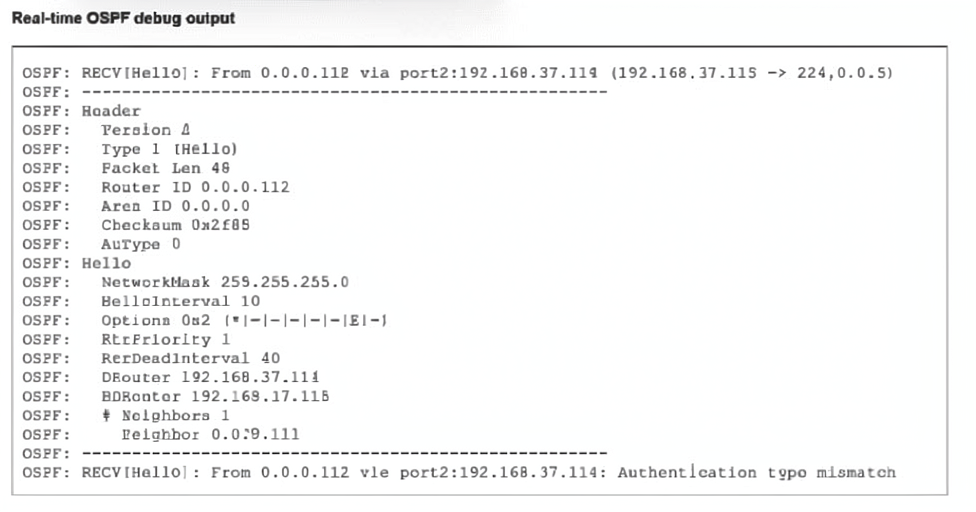
Which two reasons explain why the two FortiGate devices are unable to form an adjacency? (Choose two.)
A. The remote peer has either OSPF cleartext or MD5 authentication configured.
B. There is an OSPF authentication configuration mismatch.
C. The local FortiGate does not have OSPF authentication configured
D. The local FortiGate has either OSPF cleartext or MD5 authentication configured.
Explanation
The debug output shows OSPF: RECV[Hello]: From 0.0.0.112 via port2:192.168.37.114: Authentication type mismatch. This indicates that the local FortiGate received a Hello packet from the neighbor, but the authentication type in the received packet does not match what the local interface is expecting. The AuType 0 in the received packet header confirms the neighbor is not using authentication.
Correct Options
B. There is an OSPF authentication configuration mismatch.
This is correct. The error message explicitly states "Authentication type mismatch". This means the OSPF authentication configuration on the local FortiGate interface does not match the configuration on the neighbor's interface. The mismatch could be that one side has authentication enabled and the other does not, or they are using different authentication methods (e.g., cleartext vs. MD5).
D. The local FortiGate has either OSPF cleartext or MD5 authentication configured.
This is correct. The debug output shows the received packet has AuType 0, which means no authentication is configured on the neighbor. Since the local FortiGate is reporting an authentication type mismatch, it must be configured to expect some form of authentication. The local FortiGate could have either cleartext authentication (AuType 1) or MD5 authentication (AuType 2) configured on the interface, which does not match the neighbor's AuType 0.
Incorrect Options
A. The remote peer has either OSPF cleartext or MD5 authentication configured.
This is incorrect. The debug output clearly shows the received packet has AuType 0, indicating the neighbor has no authentication configured. If the remote peer had cleartext or MD5 authentication configured, the AuType field would show 1 or 2 respectively, and the debug would not display an authentication type mismatch (it would be a different error, like password mismatch).
C. The local FortiGate does not have OSPF authentication configured.
This is incorrect. If the local FortiGate did not have authentication configured, it would be expecting AuType 0. The received packet also has AuType 0, which would match, and the adjacency would proceed. The fact that an authentication type mismatch error is generated proves the local FortiGate does have authentication configured, conflicting with the neighbor's AuType 0.
Reference
Fortinet FortiGate Administration Guide – OSPF Authentication Configuration and Troubleshooting
RFC 2328 – OSPF Version 2 (Authentication Types: 0 = Null, 1 = Simple Password, 2 = Cryptographic/MD5)
FortiGate Troubleshooting Guide – OSPF Neighbor Issues and Debug Output Interpretation
Which three common FortiGate-to-collector-agent connectivity issues can you identify using the FSSO realtime debug? (Choose three.)
A. The SSL certificate used for FSSO over SSL has expired.
B. The connection was refused. There may be a mismatch of the TCP port.
C. FortiGate cannot reach the IP address of the collector agent.
D. The pro-shared key does not match
E. The group filters do not match.
Explanation
The FSSO real-time debug (using diagnose debug application authd -1 and diagnose debug application fssod -1) helps identify a range of communication issues. The debug output will show specific error messages that correspond to particular problems. A connection refused error indicates a TCP port or connectivity issue, while a server authentication failed error points to a pre-shared key mismatch .
Correct Options
B. The connection was refused. There may be a mismatch of the TCP port.
The real-time debug will show an error like connection refused if the FortiGate attempts to connect to the collector agent but nothing is listening on the specified TCP port. The default port for FSSO communication is TCP 8000. If the collector agent is configured to use a different port, or if a firewall is blocking the port, the debug log will reveal this "refused" state .
C. FortiGate cannot reach the IP address of the collector agent.
If the FortiGate cannot establish a connection with the collector agent, a common reason is that the collector agent's IP address is unreachable. This is often due to routing issues or network segmentation. The fssod and authd debugs will show error messages related to a failed connection attempt, indicating that the FortiGate cannot reach the defined IP address .
D. The pre-shared key does not match.
Authentication between the FortiGate and the collector agent uses a pre-shared key (or password). If the key configured in the FortiGate's FSSO configuration does not match the key in the collector agent, the authentication will fail. The debug output will log an error such as server authentication failed or authentication failure, clearly indicating a mismatch of the pre-shared key .
Incorrect Options
A. The SSL certificate used for FSSO over SSL has expired.
While FSSO over SSL uses certificates, this is not a common issue identified by the standard real-time debug. The authentication failure error points to a pre-shared key mismatch, not a certificate validation issue .
E. The group filters do not match.
A mismatch of group filters is a configuration issue on the collector agent, not a connectivity issue. When group filters do not match, the FortiGate may not receive user logon information or may not apply the correct policies, but the connection itself would still be established. This problem is identified by a lack of user information in the debug output or diagnose firewall auth list, rather than a connection error .
Reference
Fortinet FSSO Study Guide – Troubleshooting Common Collector Agent Connection Issues
Fortinet Troubleshooting Guides – Diagnosing FSSO with Real-Time Debug Commands
Refer to the exhibit, which shows the output of a debug command.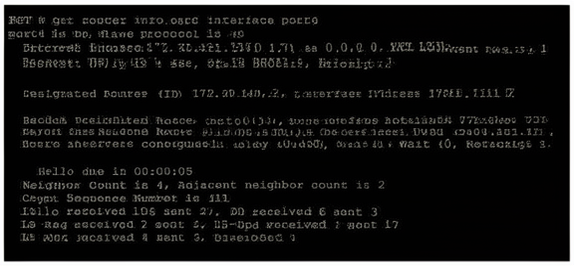
Which two statements about the output are true? (Choose two.)
A. The interlace is part of the OSPF backbone area.
B. There are a total of five OSPF routers attached to the vorz4 network segment
C. One of the neighbors has a router ID of 0.0.0.4.
D. In the network connected to port4, two OSPF routers are down.
Explanation
The get router info ospf interface command provides detailed OSPF information for a specific interface. The output shows key parameters including the assigned area, network type, DR/BDR information, and neighbor statistics. Understanding these fields is essential for diagnosing OSPF adjacency issues and verifying network topology.
Correct Option: A
The interface is part of the OSPF backbone area.
This is correct. The output shows Area 0.0.0.0 in the line Internet Address 172.20.121.236/24, Area 0.0.0.0. In OSPF, Area 0.0.0.0 is defined as the backbone area. All OSPF areas must connect to the backbone area, and Area 0.0.0.0 serves as the central routing domain. This confirms that the interface port4 is part of the OSPF backbone.
Correct Option: B
There are a total of five OSPF routers attached to the port4 network segment.
This is correct. The output shows Neighbor Count is 4. This indicates that the local router (Router ID 0.0.0.4) has 4 OSPF neighbors on the port4 network segment. Therefore, the total number of OSPF routers attached to this segment is 4 (neighbors) + 1 (the local router itself) = 5 routers total. This is a common interpretation of OSPF neighbor counts.
Incorrect Option: C
One of the neighbors has a router ID of 0.0.0.4.
This is incorrect. The Router ID 0.0.0.4 shown in the output is the local router's Router ID, not a neighbor's Router ID. The output clearly states Process ID 0, VRF 0, Router ID 0.0.0.4. The DR and BDR listed have Router IDs 172.20.140.2 and 0.0.0.1 respectively, neither of which is 0.0.0.4.
Incorrect Option: D
In the network connected to port4, two OSPF routers are down.
This is incorrect. The output shows Neighbor Count is 4 and Adjacent neighbor count is 2. The fact that only 2 out of 4 neighbors are fully adjacent does not necessarily mean the other 2 routers are "down". OSPF neighbors can be in other states (e.g., 2-Way, ExStart, Exchange, Loading) without being fully adjacent, especially in broadcast networks where not all routers form full adjacencies with each other. They may still be operational.
Reference
Fortinet FortiGate Administration Guide – OSPF Commands (get router info ospf interface)
RFC 2328 – OSPF Version 2 (Backbone Area Definition, DR/BDR, and Neighbor States)
FortiGate Troubleshooting Guide – OSPF Neighbor Count and Adjacency Interpretation
| Page 3 out of 23 Pages |
| 123456789101112 |
| NSE7_FSN_AR-7.6 Practice Test Home |
The Fortinet NSE 7 Secure Networking 7.6 Architect exam is notoriously tough. It doesn't test memorization. It forces you to make complex decisions under time pressure. A weak prep strategy risks a costly failure and wasted effort. Our NSE7_FSN_AR-7.6 practice tests are built to be your definitive bridge to a passing score.

Copyright © - All Rights Reserved