
Last Updated On : 12-Oct-2026
Total 42 Questions
The difference between a near pass and a confident pass isn't just knowing the material, it's mastering the FCP FortiSandbox 5.0 Administrator exam experience. Our Fortinet FCP_FSA_AD-5.0 practice test is engineered to close the gap between your current knowledge and the 2026 exam's demands. With every question, you receive detailed, expert verified explanations that break down not just the correct answer, but also the reasoning behind every incorrect option.
Don't just study. Practice FCP_FSA_AD-5.0 with purpose. Start your journey to a first-time pass today.
By replicating the exact style, complexity, and format of the real FCP FortiSandbox 5.0 Administrator exam questions, we ensure you walk into the exam with complete confidence.
An organization has an existing FortiGate provisioned as a data center firewall (DCFW) that submits inbound files to FortiSandbox for inline scanning. As a result of a network redesign, traffic between the FortiSandbox and the DCFW now passes through an intermediate firewall. Inline scanning is no longer working. While examining the configuration of the intermediate firewall you notice that it is configured to allow traffic on ports TCP/3389, UDP/53, and TCP/443. What must you change for the integration to work? (Choose one answer)
A. FortiGate must be able to access FortiSandbox on TCP/4443.
B. FortiGate must be able to access FortiSandbox on TCP/8890.
C. FortiGate must be able to access FortiSandbox on UDP/8888.
D. FortiGate must be able to access FortiSandbox on UDP/1344.
Explanation:
FortiGate-to-FortiSandbox inline file scanning uses specific control and data channels. The default port for HTTPS-based management and file submission API (REST API) is TCP/4443. The intermediate firewall currently allows TCP/443 (web), TCP/3389 (RDP), and UDP/53 (DNS), but not TCP/4443, which breaks inline scanning.
Correct Option:
A. FortiGate must be able to access FortiSandbox on TCP/4443.
TCP/4443 is the default HTTPS port for FortiSandbox’s REST API and file submission from FortiGate.
Inline scanning requires this port for real‑time file transfer and verdict retrieval.
Without TCP/4443, FortiGate cannot communicate with FortiSandbox for inline analysis.
Incorrect Option:
B. TCP/8890 –
Used for VM console access or legacy communications, not for inline file scanning between FortiGate and FortiSandbox.
C. UDP/8888 –
Not a standard FortiSandbox control or data port for inline scanning; typically not required.
D. UDP/1344 –
Used for syslog or certain management functions, not for HTTPS‑based file submission or inline scanning.
Reference:
Fortinet FortiSandbox Admin Guide, “Configuring FortiGate to Submit Files to FortiSandbox” – Inline scanning uses HTTPS (TCP/4443) for file submission and quarantine feedback. Also referenced in FortiSandbox secure deployment guides (e.g., FCP_FSA_AD-5.0 study materials).
Refer to the exhibit.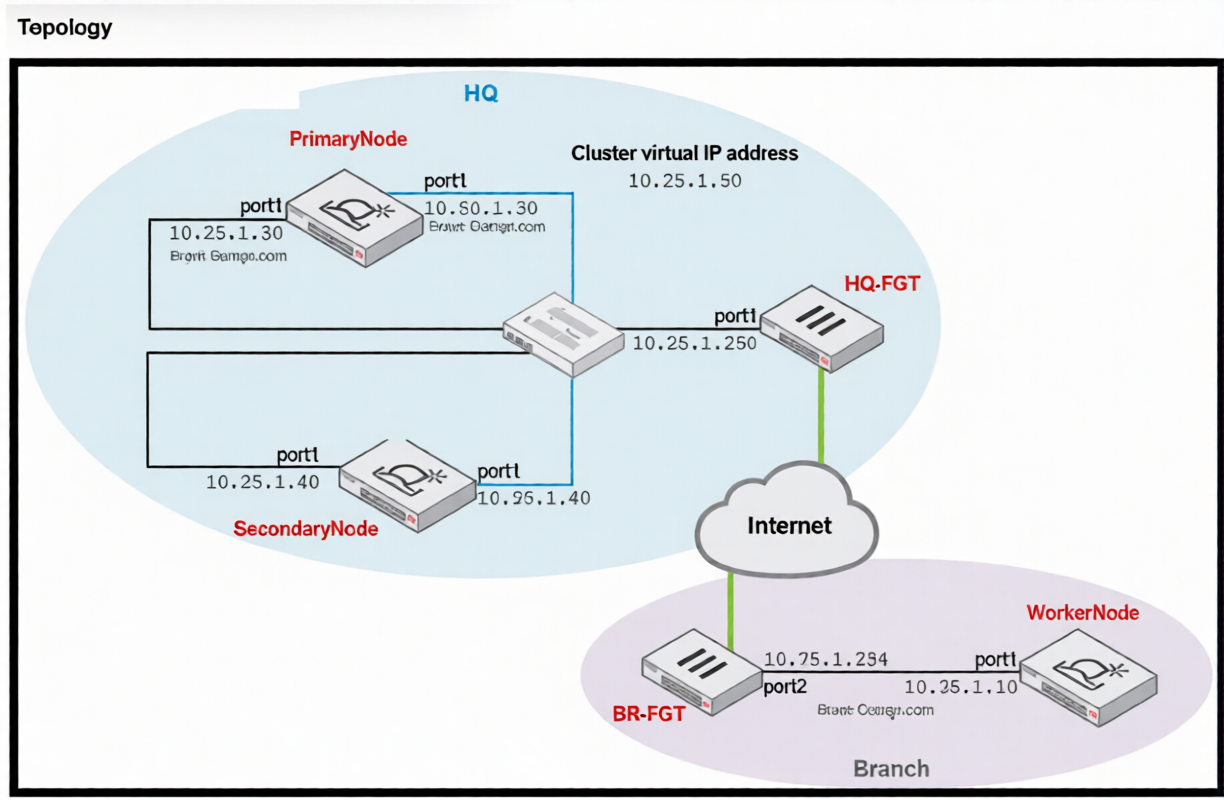
Which command must you use to configure the worker node? (Choose one answer)
A. hc-worker -a -sI0.50.1.30 -p < password >
B. hc-worker -a -sI0.25.1.50 -p < password >
C. hc-worker -a -sI0.75.1.254 -p < password >
D. hc-worker -a -sI0.25.1.30 -p < password >
Explanation:
The topology shows a FortiSandbox HA cluster with a Cluster virtual IP address of 10.25.1.50. A worker node must join the cluster using the cluster virtual IP, not individual node IPs. The hc-worker -a -s command with the cluster VIP allows the worker to discover the active primary node and synchronize configuration, regardless of which physical node is currently master.
Correct Option:
B. hc-worker -a -s10.25.1.50 -p
The -s parameter specifies the cluster virtual IP address (10.25.1.50) for the worker to contact.
Using the VIP ensures the worker always reaches the active primary node, even after failover.
The cluster VIP is distinct from individual node IPs (10.25.1.30, 10.25.1.40) and the BR-FGT or WorkerNode IPs.
Incorrect Option:
A. -s10.50.1.30 –
This is the port4 IP of the primary node (likely data interface), not the cluster VIP for management/join operations.
C. -s10.75.1.254 –
This appears to be the BR-FGT (border FortiGate) IP address, not part of the FortiSandbox cluster.
D. -s10.25.1.30 –
This is the primary node's port1 IP, not the cluster VIP. Using this would break if the primary fails over to the secondary node.
Reference:
FortiSandbox Administration Guide, "High Availability – Adding Worker Nodes" – Worker nodes join using the cluster virtual IP with hc-worker -a -s
A FortiSandbox HA cluster is configured with the MTA adapter. What does the primary node do when it receives MTA jobs? (Choose one answer)
A. It distributes the MTA jobs to secondary members.
B. It distributes the MTA jobs to itself or to worker nodes.
C. It assigns the MTA jobs to itself #
D. It assigns the MTA jobs only to worker members.
Explanation:
In a FortiSandbox HA cluster with the MTA adapter enabled, the primary node acts as the job coordinator. When MTA jobs (email attachments submitted via the MTA adapter) are received, the primary does not process them all itself. Instead, it intelligently distributes the workload across available cluster members, including itself and any secondary (worker) nodes, for load balancing and efficiency.
Correct Option:
B. It distributes the MTA jobs to itself or to worker nodes.
The primary node acts as the scheduler and distributes MTA jobs to available cluster members.
"Worker nodes" in this context includes the primary (when acting as a worker) and secondary nodes.
This ensures optimal resource utilization and faster processing of MTA-submitted files.
Incorrect Option:
A. It distributes the MTA jobs to secondary members. –
Incorrect because the primary does not exclude itself; it can also process jobs.
C. It assigns the MTA jobs to itself. –
Incorrect because this would defeat HA load balancing and overload the primary node.
D. It assigns the MTA jobs only to worker members. –
Incorrect because "worker members" typically excludes the primary in some contexts, but the primary can also process jobs when distribution logic allows.
Reference:
FortiSandbox Administration Guide, "MTA Adapter Configuration" – In HA mode, the primary node receives MTA jobs and distributes them across all available nodes (including itself) for scanning and analysis. Verified in FCP_FSA_AD-5.0 curriculum.
A FortiGate root VDOM is authorized on FortiSandbox, and FortiGate is configured to send suspicious files to FortiSandbox for inspection. You create a new VDOM and then generates some traffic so that the new VDOM sends a file to FortiSandbox for the first time. In this scenario, which action will FortiSandbox take? (Choose one answer)
A. FortiSandbox will inspect all files, based on the root VDOM authorization state and configuration.
B. FortiSandbox will accept the file, but not inspect the file until the administrator manually authorizes the new VDOM on FortiSandbox.
C. FortiSandbox will authorize the new VDOM by default and inspect files as they are received.
D. FortiSandbox will accept the file; but not inspect the file until the administrator manually configures the new VDOM on FortiSandbox.
Explanation:
In a FortiGate VDOM environment, each VDOM is treated as a separate logical device by FortiSandbox. While the root VDOM may be authorized, a newly created VDOM is not automatically authorized. When it submits its first file, FortiSandbox accepts but does not inspect the file until an administrator manually authorizes the new VDOM under Device Authorization settings.
Correct Option:
B. FortiSandbox will accept the file, but not inspect the file until the administrator manually authorizes the new VDOM on FortiSandbox.
FortiSandbox requires explicit authorization for each VDOM.
The file is received and queued but not processed.
Once the administrator authorizes the new VDOM, pending and future files are inspected.
Incorrect Options:
A. Inspect all files based on root VDOM authorization –
VDOMs are independent; root VDOM authorization does not extend to other VDOMs.
C. Authorize the new VDOM by default –
No automatic authorization for new VDOMs; this would be a security risk.
D. Accept but not inspect until manually configured –
Phrasing is similar to B, but "configured" is vague; the correct term is authorized on FortiSandbox, not configured elsewhere.
Reference:
FortiSandbox Administration Guide, "Device Authorization – VDOM Support" – Each VDOM requires separate manual authorization. First submission is accepted but not inspected until authorized. Verified in FCP_FSA_AD-5.0 exam objectives.
.png)
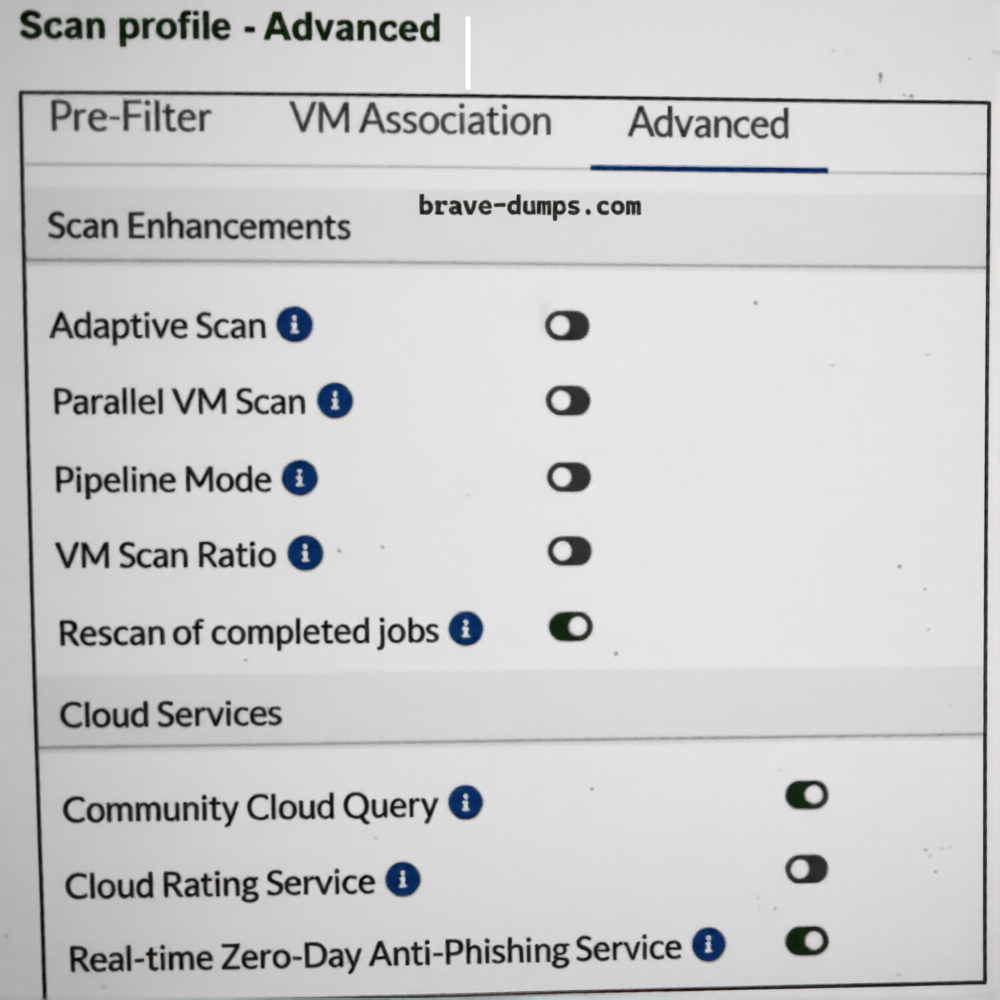
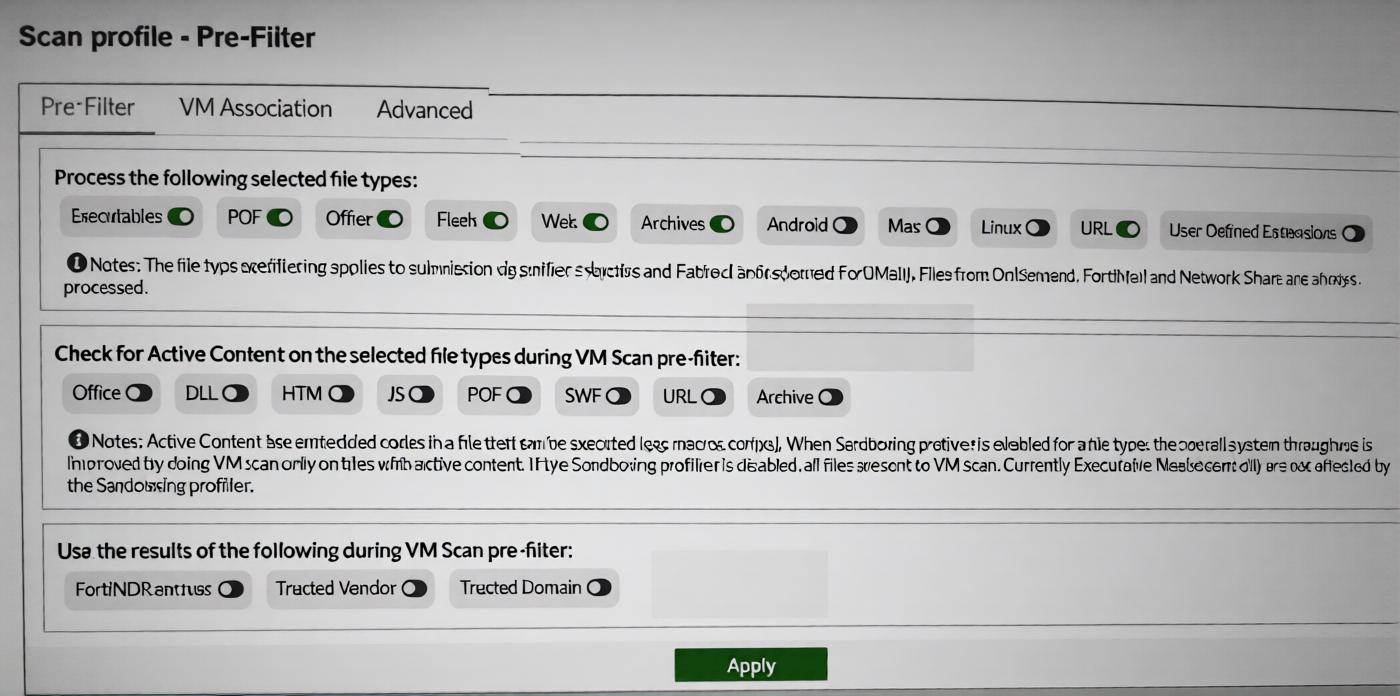
You are asked to configure a FortiSandbox to leverage the real-time anti-phishing (RTAP) feature. After configuring the scan profile, testing shows that URLs are not being submitted to the RTAP service. What could cause this issue? (Choose one answer)
A. The URL option is not selected as a Web file type.
B. The WEBLink file type is not selected in the profile.
C. The VM scan timeout for URLs should be at least 300 to provide enough time for a FortiGuard response.
D. The URLs are not designated for active content pre-scan.
Explanation:
FortiSandbox's Real-Time Anti-Phishing (RTAP) feature submits URLs to FortiGuard for reputation checks. For RTAP to process URLs, the WEBLink file type must be explicitly selected in the scan profile. If this file type is missing, URLs will not be submitted to the RTAP service even if other URL-related options are enabled.
Correct Option:
B. The WEBLink file type is not selected in the profile.
RTAP requires that the WEBLink file type be enabled in the scan profile's file type selection.
From the first screenshot, under "Pre-Filter" → "Process the following selected file types," Web includes WEBLink.
If WEBLink is unchecked, URLs are not recognized as scannable items for RTAP submission.
Incorrect Option:
A. The URL option is not selected as a Web file type –
Misleading; "Web" file type category exists, but the specific subtype required for RTAP is WEBLink. Selecting general Web without WEBLink is insufficient.
C. The VM scan timeout for URLs should be at least 300 –
RTAP does not rely on VM scan timeout; RTAP queries FortiGuard in real time and is not affected by VM timeout settings.
D. The URLs are not designated for active content pre-scan –
Active content pre-filter applies to embedded scripts (e.g., JS in Office/PDF), not to standalone URL submissions for anti-phishing checks.
Reference:
FortiSandbox Administration Guide, "Real-Time Anti-Phishing (RTAP)" – Requires enabling WEBLink file type in the scan profile under Pre-Filter. Also referenced in FCP_FSA_AD-5.0 training materials regarding profile configuration for URL scanning.
What is the default timeout value on FortiGate for inline scanning mode? (Choose one answer)
A. 300 seconds
B. 50 seconds
C. 40 minutes
D. 30 minutes
Explanation:
In FortiGate inline scanning mode with FortiSandbox, the FortiGate waits for a verdict from the sandbox before allowing or blocking the file. This timeout value is configurable but has a specific default. If the sandbox does not respond within this time, FortiGate falls back to a configured action (e.g., allow or block based on policy).
Correct Option:
B. 50 seconds
The default inline scanning timeout on FortiGate is 50 seconds.
During this period, FortiGate holds the file (e.g., email attachment or HTTP upload) waiting for FortiSandbox analysis result.
If no verdict is received within 50 seconds, FortiGate takes the fallback action defined in the security policy.
Incorrect Option:
A. 300 seconds –
Too long for inline mode; this would cause excessive delay for end users. 300 seconds (5 minutes) is more typical for offline or asynchronous scanning modes.
C. 40 minutes –
Completely impractical for inline real-time traffic; used for different features (e.g., long analysis jobs in sandbox itself).
D. 30 minutes –
Similarly unsuitable for inline mode; would cause poor user experience and session timeouts.
Reference:
FortiOS Security Fabric Integration Guide, "Inline Sandbox Scanning" – Default timeout = 50 seconds. Configurable under config antivirus profile → fortisandbox → timeout. Also referenced in FCP_FSA_AD-5.0 exam objectives under FortiGate-FortiSandbox integration.
You are asked to configure a FortiSandbox HA cluster. Port 4 on the primary and secondary nodes is dedicated for HA-specific communication. Which command must you use to configure the secondary node? (Choose one answer)
A. hc-settings -sc -tN -nSecondaryNode -cFSAGrp -p < password > -iport4
B. hc-settings -sc -tM -nSecondaryNode -cFSAGrp -p < password > -iport4
C. hc-settings -sc -tP -nSecondaryNode -cFSAGrp -p < password > -iport4
D. hc-settings -sc -tR -nSecondaryNode -cFSAGrp -p < password > -iport4
Explanation:
When configuring a FortiSandbox HA cluster with a dedicated HA communication interface (port 4), the secondary node must use the hc-settings -sc command with the correct node type flag. The -tN flag designates a secondary node. The -iport4 parameter specifies that port 4 is used for HA heartbeat and synchronization traffic between cluster members.
Correct Option:
A. hc-settings -sc -tN -nSecondaryNode -cFSAGrp -p
-sc indicates "set cluster" configuration mode.
-tN specifies node type N (Secondary/Node).
-nSecondaryNode assigns the node name.
-cFSAGrp sets the cluster group name.
-p
-iport4 designates port 4 as the dedicated HA communication interface.
Incorrect Options:
B. -tM –
M is not a valid node type code for secondary nodes; typically used for management or unspecified roles.
C. -tP –
P typically stands for Primary node, not secondary.
D. -tR –
R is not a standard FortiSandbox HA node type code; may be invalid or used for other functions.
Reference:
FortiSandbox CLI Reference Guide – hc-settings -sc -tN configures a secondary node in HA cluster. The -iport4 parameter assigns the dedicated HA interface. Verified in FortiSandbox Administration Guide, "High Availability – CLI Configuration," and FCP_FSA_AD-5.0 exam objectives.
| Page 1 out of 6 Pages |
| 123 |
The FCP FortiSandbox 5.0 Administrator exam is notoriously tough. It doesn't test memorization. It forces you to make complex decisions under time pressure. A weak prep strategy risks a costly failure and wasted effort. Our FCP_FSA_AD-5.0 practice tests are built to be your definitive bridge to a passing score.

Copyright © - All Rights Reserved