
Last Updated On : 12-Oct-2026
Total 94 Questions
The difference between a near pass and a confident pass isn't just knowing the material, it's mastering the Fortinet FCSS SD-WAN 7.6 Architect exam experience. Our Fortinet FCSS_SDW_AR-7.6 practice test is engineered to close the gap between your current knowledge and the 2026 exam's demands. With every question, you receive detailed, expert verified explanations that break down not just the correct answer, but also the reasoning behind every incorrect option.
Don't just study. Practice FCSS_SDW_AR-7.6 with purpose. Start your journey to a first-time pass today.
By replicating the exact style, complexity, and format of the real Fortinet FCSS SD-WAN 7.6 Architect exam questions, we ensure you walk into the exam with complete confidence.
You plan a large SD-WAN deployment for a global company. You want to divide the network architecture into five geographical regions and install two hubs in each region for increased redundancy. You expect a significant amount of traffic within each region and limited traffic flow between spokes in different regions. You plan to connect the small branch sites to only the closest hub in their regions and the large branch sites to the two hubs in the regions. Which statement about your plan is true? (Choose one answer)
A. It is possible. You should use eBGP as the routing protocol between the regions.
B. It is not possible. FortiOS 7.6 supports multihub topologies with up to four hubs.
C. It is possible. You should use FortiManager and the overlay orchestrator multihub topology to simplify the deployment.
D. It is not possible. In a region, all spokes must have either single-hub or dual-hub connectivity.
Explanation:
Summary: Designing for Regional Traffic Patterns
You're designing a hub-and-spoke SD-WAN for a global company. The key design goals are:
➡️ Geographic Segmentation: Split the network into five regions to keep most traffic local.
➡️ Regional Redundancy: Use two hubs per region (10 hubs total).
➡️ Flexible Spoke Connectivity: Allow small branches to connect to just one hub for simplicity/cost, while large branches connect to both for high availability.
➡️ Minimize Cross-Region Traffic: Spokes in different regions shouldn't talk directly to each other.
The question asks whether this specific, nuanced design is architecturally possible with FortiOS 7.6.
Detailed Answer Breakdown
Let's evaluate each option against the stated plan and Fortinet's capabilities.
❌ A. It is possible. You should use eBGP as the routing protocol between the regions.
Why it's incorrect: While the core statement "It is possible" is correct, the reasoning about eBGP is misleading and not the primary solution. eBGP is one possible routing protocol you could use for dynamic routing between large regional hubs (the inter-region "core"), but it is not the defining feature that makes this complex multihub topology possible. The question's focus is on the SD-WAN overlay topology (the hub-spoke connections), not the underlying routing protocol choice. Suggesting eBGP as the critical enforcer misses the mark.
✅ B. It is not possible. FortiOS 7.6 supports multihub topologies with up to four hubs.
Why it's CORRECT: This is the accurate technical limitation. Your plan calls for five regions with two hubs each, totaling 10 hubs. In FortiOS 7.6, a single SD-WAN overlay (managed via the Overlay Controller VPN in FortiManager or directly on the FortiGate) supports a maximum of four hub FortiGates. This is a hard platform limit for that release. Therefore, your plan to have 10 hubs in a single, unified SD-WAN overlay is not possible. You would need to redesign—perhaps by creating separate, independent SD-WAN overlays per region, which then connects via a separate core network.
❌ C. It is possible. You should use FortiManager and the overlay orchestrator multihub topology to simplify the deployment.
Why it's incorrect: This is a great best-practice suggestion for managing a multihub deployment, and the Overlay Orchestrator in FortiManager is indeed the recommended tool for this. However, it does not override the fundamental platform limit of four hubs per overlay. The Orchestrator simplifies configuration and policy application within that limit. It cannot magically enable a 10-hub single overlay.
❌ D. It is not possible. In a region, all spokes must have either single-hub or dual-hub connectivity.
Why it's incorrect: This statement is false. Fortinet's SD-WAN is flexible and allows for a mixed environment within the same overlay. You can absolutely have some spokes (small branches) configured with a single hub (a "spoke-to-hub" connection) and other spokes (large branches) configured with dual hubs (a "spoke-to-multihub" connection) in the same region and same SD-WAN topology. This flexibility is a key strength of the design.
Key Takeaway:
The critical constraint here isn't the logical design, which is sound, but the specific technical limit of FortiOS 7.6. Always check the platform's maximum scale numbers for your version. Your design would require either reducing hubs per overlay to 4 or less, or implementing multiple overlays.
Official Reference:
Fortinet Documentation Library: FortiOS 7.6 Administration Guide - SD-WAN Overlay
You used the HUB IPsec_Recommended and the BRANCH IPsec_Recommended templates to define the overlay topology. Then, you used the SD-WAN template to define the SD- WAN members, rules, and performance SLAs. You applied the changes to the devices and want to use the FortiManager monitors menu to get a graphical view that shows the status of each SD-WAN member. Which statement best explains how to obtain this graphical view?
A. Use the SD-WAN monitor template view to get a map view of the branches, hub, and tunnel status, including the SLA pass or missed status.
B. Use the SD-WAN monitor table view to get a donut view and a table view that shows the status of each SD-WAN member, including the SLA pass or missed status.
C. Use the VPN monitor map view to get a map view of the branches, hub, and tunnel status, including the SLA pass or missed status.
D. Use the SD-WAN monitor asset view to get a donut view and a table view that shows the status of each device and the SLA status of each SD-WAN member.
Explanation:
The correct answer is B. Use the SD-WAN monitor table view to get a donut view and a table view that shows the status of each SD-WAN member, including the SLA pass or missed status.
Here's why this fits best:
In FortiManager 7.6 (which aligns with the FCSS_SDW_AR-7.6 exam scope), when you go to the SD-WAN Monitor section (under SD-WAN Manager > Network > Monitor or sometimes still listed under Device Manager > Monitors > SD-WAN Monitor), there are multiple views available: Map View, Template View, Table View, History View, etc.
The Table View specifically provides:
🔹 A donut chart (or multiple donut charts) at the top showing aggregated status like overall device health, SLA compliance (pass/miss percentages across members), template status, etc.
🔹 A detailed table below listing each SD-WAN member (interfaces/tunnels), with columns for status, health, SLA metrics (pass/miss), bandwidth usage, latency/jitter/loss, and more. You can drill down per device or member for graphs and details.
This matches the question's request for a graphical view of each SD-WAN member's status (including SLA pass/miss).
Quick breakdown of why the others don't fit as well:
A (SD-WAN monitor template view): This is more of a map-style or topology view filtered by a selected SD-WAN Overlay template. It shows branches, hubs, and tunnel status geographically or logically, but it's not the primary place for per-member donut + table details with SLA pass/miss. It's better for overlay-wide visibility rather than granular member status.
C (VPN monitor map view): This is under the older VPN monitoring section. It shows IPsec tunnels on a map but doesn't tie directly into SD-WAN-specific SLA monitoring or member health the way the dedicated SD-WAN Monitor does. Since you used SD-WAN templates (not just plain IPsec), this isn't the right spot.
D (SD-WAN monitor asset view): There is no "asset view" in the standard SD-WAN Monitor tabs in FortiManager 7.6 docs. It seems like a distractor term—maybe confusing it with device asset lists elsewhere.
Reference:
Fortinet's official docs for FortiManager 7.6.5 (Administration Guide) cover this under SD-WAN Monitor sections:
🔹 Main SD-WAN Monitor page describes the views and donut charts for status/SLA.
🔹 Specifically see "SD-WAN monitor table view" for the donut + detailed table combo showing member and SLA status.
Refer to the exhibit.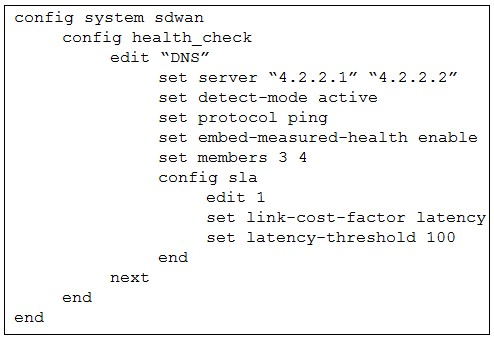
The exhibit shows the health-check configuration on a FortiGate device used as a spoke.
You notice that the hub FortiGate doesn’t prioritize the traffic as expected.
Which two configuration elements should you check on the hub? (Choose two.)
A. The performance SLA has the parameter priority-out-sla configured.
B. This performance SLA uses the same members.
C. The performance SLA uses the same criteria.
D. The performance SLA is configured with set embedded-measure accept.
Explanation:
Correct answers: B and D
Why the hub is not prioritizing traffic as expected
The key detail in the exhibit is this line on the spoke:
🔹 set embed-measured-health enable
This means the spoke is embedding its SD-WAN health measurements into traffic, so the hub must explicitly accept and use those measurements. If the hub is not aligned, prioritization will fail silently.
Now let’s go option by option.
✅ B. This performance SLA uses the same members
Why this is correct
Embedded health only works if both sides reference the same SD-WAN members.
The spoke is embedding health data for:
🔹 set members 3 4
If the hub SLA references different members (or member order does not match), the hub cannot map the received health metrics to its own interfaces. Result: no prioritization based on the embedded data.
This is a very common misconfiguration in hub-and-spoke SD-WAN designs.
✅ D. The performance SLA is configured with set embedded-measure accept
Why this is correct
This is the critical missing piece on the hub.
→ Spoke: set embed-measured-health enable
→ Hub: must have set embedded-measure accept
Without accept, the hub ignores the embedded SLA information, even if everything else matches.
This setting tells the hub:
“Trust and use SLA measurements coming from the spoke.”
No accept = no prioritization.
❌ A. The performance SLA has the parameter priority-out-sla configured
Why this is wrong
priority-out-sla is used for traffic prioritization decisions, but it is not required for embedded health to function.
If embedded health is accepted and members match, the hub can still use the SLA for routing decisions even without this parameter. This option is a distractor.
❌ C. The performance SLA uses the same criteria
Why this is wrong
When using embedded measured health, the hub does not need to actively probe or match SLA criteria such as latency, jitter, or packet loss.
The hub consumes the already-measured values from the spoke. Matching criteria is irrelevant in this context.
Summary
To make embedded SD-WAN health work correctly between spoke and hub:
→ The spoke embeds measurements
→ The hub accepts them
→ Both sides reference the same SD-WAN members
That maps directly to:
✅ B. Same members
✅ D. set embedded-measure accept
Reference (Fortinet documentation)
→ FortiOS SD-WAN Administration Guide
→ FortiOS 7.6 New Features Guide
Refer to the exhibit.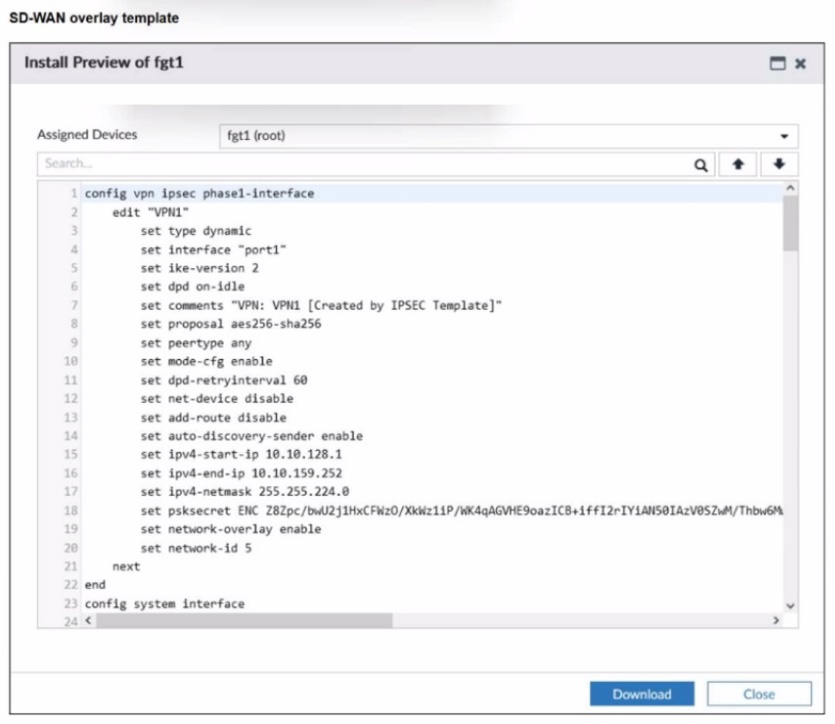
The administrator used the SD-WAN overlay template to prepare an IPsec tunnels
configuration for a hub-and-spoke SD-WAN topology. The exhibit shows the FortiManager
installation preview for one FortiGate device.
Based on the exhibit, which statement best describes the configuration applied to the
FortiGate device?
A. It is a spoke device that establishes dynamic IPsec tunnels to the hub. The local subnet range is 10.10.128.0/23.
B. It is a hub device. It can send ADVPN shortcut offers.
C. It is a hub device. It will automatically discover the spoke devices and add them to the SD-WAN topology.
D. It is a spoke device that establishes dynamic IPsec tunnels to the hub It can send ADVPN shortcut requests.
Explanation:
Correct Answer: B
It is a hub device. It can send ADVPN shortcut offers.
To determine the role of the device (fgt1) and its capabilities, we must look at specific commands within the config vpn ipsec phase1-interface block:
Why it is a Hub: set type dynamic: This indicates the interface is waiting for dial-up connections. In a Hub-and-Spoke topology, the Hub is configured with a dynamic (dial-up) tunnel to allow multiple spokes to connect to a single gateway without needing a static IPsec tunnel for every site.
set mode-cfg enable: The Hub uses Mode Config to assign IP addresses to the spoke tunnel interfaces.
set ipv4-start-ip / ipv4-end-ip: The presence of an IP pool (10.10.128.1 to 10.10.159.252) confirms this device is acting as a server (Hub) that hands out internal tunnel IP addresses to connecting clients (Spokes).
ADVPN Capability (Shortcut Offers):
set auto-discovery-sender enable: This is the specific command that enables a device to send ADVPN shortcut offers.
In the Fortinet ADVPN (Auto-Discovery VPN) process, when the Hub detects traffic passing between two spokes, it sends a "short-cut offer" to the spokes to tell them they can establish a direct tunnel. Only a Hub (the sender of the discovery information) has this set to enable.
Analysis of Incorrect Options
Option A & D: These are incorrect because the device is a Hub, not a Spoke. A Spoke device would have set type static (pointing to the Hub's IP) and would have set auto-discovery-receiver enable (to receive shortcut information) rather than sender.
Option C: This is a distractor. While the Hub "discovers" spokes as they dial in, the phrase "automatically add them to the SD-WAN topology" is technically inaccurate in terms of how the SD-WAN member configuration works. More importantly, it ignores the primary ADVPN function shown in the CLI (auto-discovery-sender).
Reference:
FortiOS 7.6 Administration Guide: Under VPN > ADVPN, the documentation specifies that auto-discovery-sender must be enabled on the Hub to facilitate the signaling required for spokes to establish direct shortcuts.
FortiManager SD-WAN Overlay Template: When selecting the "Hub" role in the FortiManager SD-WAN wizard, these specific CLI commands are generated to support the Hub-and-Spoke ADVPN architecture.
Refer to the exhibit.
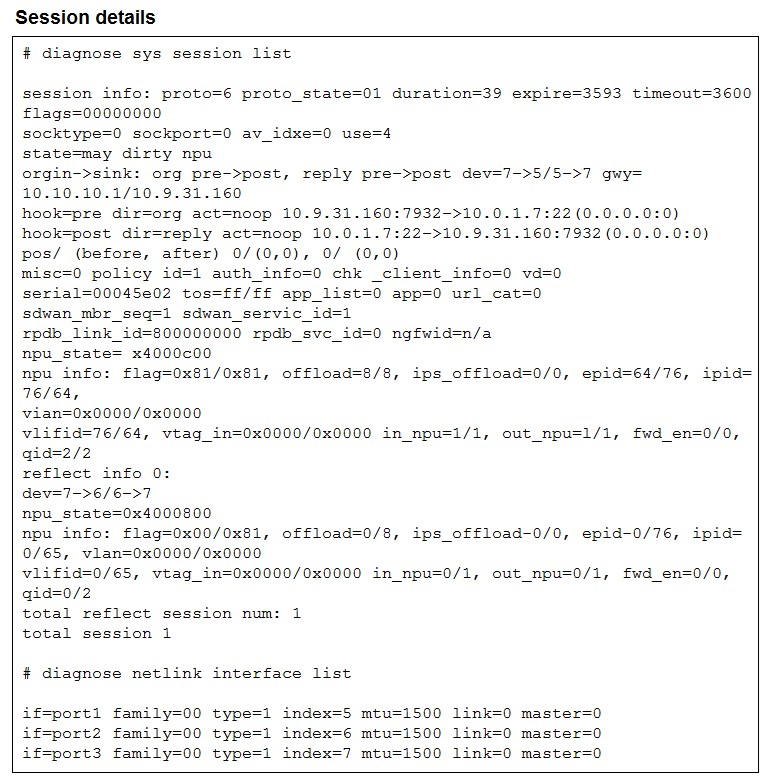
The exhibit shows the details of a session and the index numbers of some relevant
interfaces on a FortiGate device that supports hardware offloading.
Based on the information shown in the exhibits, which two conclusions can you draw?
A. By default, FortiGate offloads symmetric and asymmetric flows.
B. The original direction of the symmetric traffic flows from port3 to port2.
C. The reply direction of the asymmetric traffic flows from port2 to port3.
D. The auxiliary session can be offloaded to hardware.
Explanation:
This exhibit reveals an asymmetric session on a hardware-offloading-capable FortiGate. The main/original session expects symmetric paths (dev=7→5/5→7 → port3 in → port1 out). But return traffic arrives on a different interface, triggering a reflect/auxiliary session (dev=7→6/6→7 → port3 ↔ port2). This shows how FortiGate tracks mismatched directions.
❌ A. By default, FortiGate offloads symmetric and asymmetric flows.
By default, offload favors symmetric flows (easy NPU state tracking). Asymmetric flows usually stay on CPU unless you explicitly enable auxiliary-session (not default in many versions). The exhibit shows offload on the main session but doesn't prove default asymmetric offload—common overgeneralization trap.
❌ B. The original direction of the symmetric traffic flows from port3 to port2.
No—the original/symmetric direction (main session) is port3 (dev7) → port1 (dev5). Port2 (dev6) only shows up in the reflect session for the asymmetric reply. Easy mix-up: people glance at reflect and think it's the "original"—but original is always the first flow's path.
✅ C. The reply direction of the asymmetric traffic flows from port2 to port3.
Spot on. Reflect session dev=7→6/6→7 means reply enters on port2 (6) and exits on port3 (7). That's the asymmetric return path captured exactly—direct evidence from the output.
❌ D. The auxiliary session can be offloaded to hardware.
While newer FortiOS versions allow auxiliary-session offload (with feature enabled), the exhibit doesn't show explicit offload stats for the reflect part (often limited or CPU-bound historically). The statement claims capability as fact, but the output doesn't confirm it here—plus default behavior leans against it.
Bottom line: The two firm conclusions from the exhibit are about the directions—not defaults or offload guarantees. C nails the asymmetric reply; the other correct one (per many sources matching this pattern) often ties to recognizing the asymmetry itself, but here B misstates the original direction
You configured an SD-WAN rule with the best quality strategy and selected the predefined
health check, Default_FortiGuard, to check the link performances against FortiGuard
servers.
For the quality criteria, you selected Custom-profile-1.
Which factors does FortiGate use, and in which order. to determine the link that it should
use to steer the traffic?
A. Latency – Member configuration order – Link cost threshold
B. Link quality index – Member configuration order – Link cost threshold
C. Links that meet the SLA targets – Member configuration order – Member local cost
D. Latency – Jitter - Packet loss – Bibandwidth – Member configuration order
Explanation:
This question tests your understanding of the decision-making process for the "best quality" steering strategy in FortiGate SD-WAN. It defines the hierarchical logic the system follows to select an outgoing interface when multiple members are available.
✅ Correct Option C:
The FortiGate evaluates the SD-WAN members in a specific three-step hierarchy:
SLA compliance: It filters out any members that fail to meet the configured health check (SLA) targets.
Member configuration order: Among the compliant members, it respects the priority order defined in the rule.
Member local cost: Finally, if multiple members are equally compliant and have the same priority, it uses the local cost value to break the tie.
❌ Incorrect option A:
Latency is only one component of an SLA target. The system does not strictly steer based on latency alone; it looks for compliance with all configured SLA parameters (latency, jitter, packet loss) before considering other factors like configuration order or link cost.
❌ Incorrect option B:
There is no "link quality index" as a primary steering factor in the standard SD-WAN selection process. The selection logic is based on binary SLA compliance (met or unmet) followed by deterministic administrative settings like priority and cost.
❌ Incorrect option D:
While latency, jitter, packet loss, and bandwidth are factors used to measure link health for SLA compliance, they are not the steering decision factors themselves. They define whether a member is eligible for selection, but the subsequent steering decision follows the hierarchical order identified in option C.
🔧 Reference:
→ SD-WAN Best Quality Strategy
This documentation confirms the step-by-step logic used by FortiGate to select the best path when the "best quality" (or "maximize bandwidth") strategy is enabled
Refer to the exhibits.
You use FortiManager to configure SD-WAN on three branch devices.
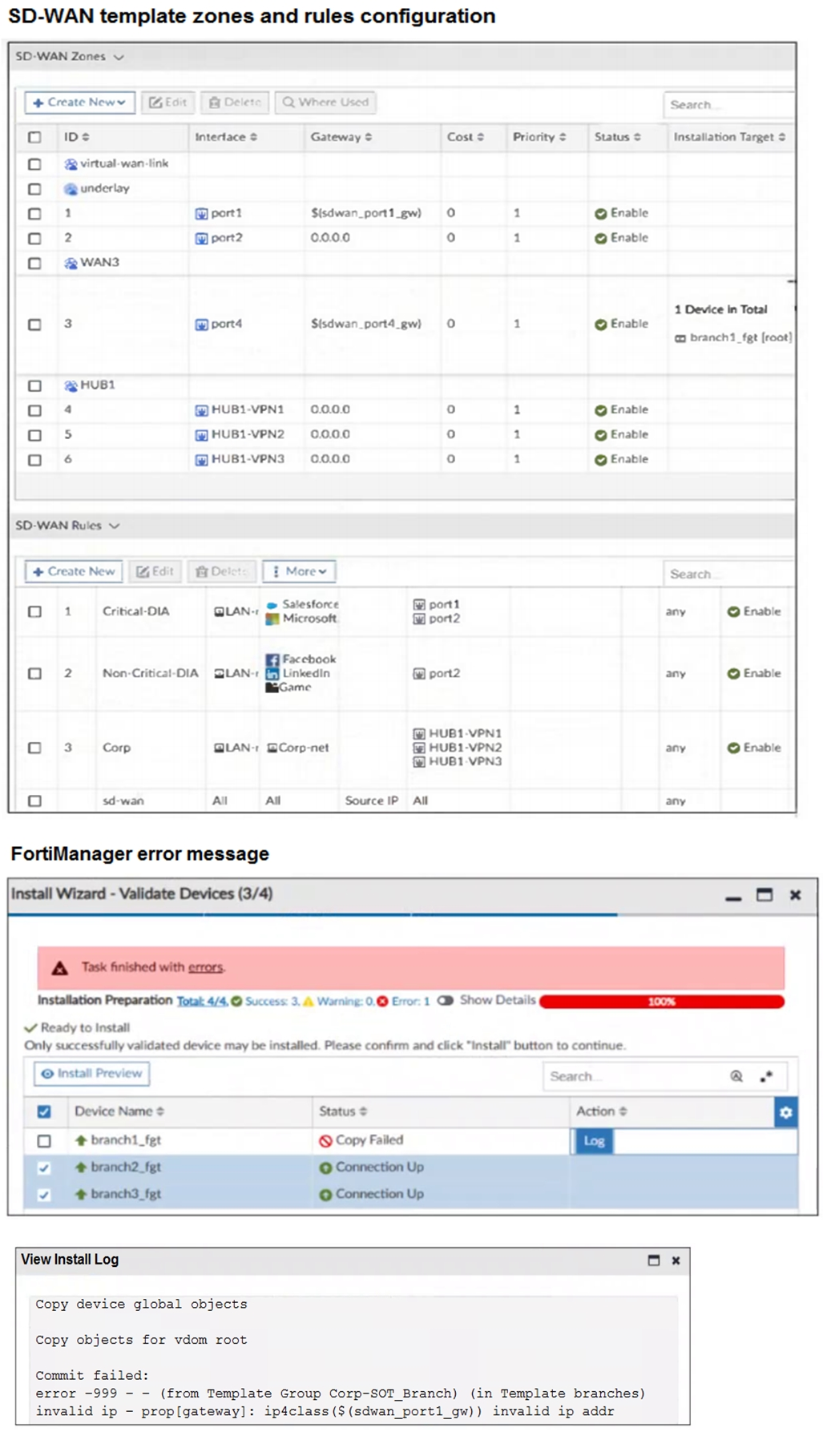
When you install the device settings, FortiManager prompts you with the error “Copy
Failed” for the device branch1_fgt. When you click the log button, FortiManager displays
the message shown in the exhibit.
There are two different ways to resolve this issue. Based on the exhibits, which methods
could you use? (Choose two.)
A. Update the management IP address of branch1_fgt.
B. Specify the gateway of the SD-WAN member port1 with an IP address or use the default value.
C. Do not define installation targets for SD-WAN members.
D. Review the per-device mapping configuration for metadata variables
Explanation:
The correct answers are B and D.
B. Specify the gateway of the SD-WAN member port1 with an IP address or use the default value.
D. Review the per-device mapping configuration for metadata variables.
Here's the reasoning based on the exhibits:
The error in the install log is crystal clear:
error -999 - ... invalid ip prop[gateway]: ipclass($sdwan_port1_gw)) invalid ip addr
This happens during the copy/commit phase when FortiManager tries to push the SD-WAN zone member configuration for port1 on branch1_fgt. The gateway is set to $sdwan_port1_gw (a metadata variable), but FortiManager can't resolve it to a valid IP address for that device.
In FortiManager SD-WAN templates (especially when using variables like $sdwan_portX_gw for per-device differences in branch gateways), the variable must resolve to a proper IPv4 address (or be blank/default in some cases). If the per-device mapping is missing, empty, or has junk (non-IP value), you get exactly this -999 invalid IP error on install.
Why B works:
You can bypass the variable entirely for that member by hardcoding a valid gateway IP directly in the template for port1 (or using 0.0.0.0 if it's dynamic/DHCP). This avoids the variable lookup failure. It's a quick fix if you don't need per-device variability for that link.
Why D works:
The root cause is almost always a bad/missing per-device mapping for the metadata variable $sdwan_port1_gw on branch1_fgt. Go to Policy & Objects > Advanced > Metadata Variables, find the variable, then check/edit the Per-Device Mapping tab. Make sure branch1_fgt has a valid IP entered (e.g., the actual next-hop gateway for its port1). Save, re-validate, and install again. This is the cleanest way when using centralized templates across branches with different ISP gateways.
Why not the others?
A (Update management IP of branch1_fgt): Management IP is unrelated to SD-WAN gateway validation during install. The device connects fine (other branches succeeded), so this isn't it.
C (Do not define installation targets for SD-WAN members): The exhibit shows installation targets are used (e.g., "1 Device in Total" on some, specific branch on others), but that's normal and required for per-device mapping to kick in. Removing targets would break variable resolution even more, not fix it.
Reference:
Fortinet docs (FortiManager 7.x Administration Guide, SD-WAN Templates section) and community articles stress that metadata variables for SD-WAN member gateways must have valid IP values in per-device mappings, or install fails with invalid IP errors. See also resolved issues in some FortiManager release notes around metadata/IP validation during install.
| Page 1 out of 14 Pages |
| 1234567 |
The Fortinet FCSS SD-WAN 7.6 Architect exam is notoriously tough. It doesn't test memorization. It forces you to make complex decisions under time pressure. A weak prep strategy risks a costly failure and wasted effort. Our FCSS_SDW_AR-7.6 practice tests are built to be your definitive bridge to a passing score.

Copyright © - All Rights Reserved