
Last Updated On : 12-Oct-2026
Total 91 Questions
The difference between a near pass and a confident pass isn't just knowing the material, it's mastering the Fortinet NSE 7 - Security Operations 7.6 Architect exam experience. Our Fortinet NSE7_SOC_AR-7.6 practice test is engineered to close the gap between your current knowledge and the 2026 exam's demands. With every question, you receive detailed, expert verified explanations that break down not just the correct answer, but also the reasoning behind every incorrect option.
Don't just study. Practice NSE7_SOC_AR-7.6 with purpose. Start your journey to a first-time pass today.
By replicating the exact style, complexity, and format of the real Fortinet NSE 7 - Security Operations 7.6 Architect exam questions, we ensure you walk into the exam with complete confidence.
SOC Features, Incidents, and Automation
Which three are threat hunting activities? (Choose three answers)
A. Enrich records with threat intelligence.
B. Automate workflows.
C. Generate a hypothesis.
D. Perform packet analysis.
E. Tune correlation rules.
Explanation:
This question tests understanding of core threat hunting activities, which are proactive and investigation-driven. Threat hunting focuses on forming hypotheses, enriching and analyzing data, and deeply inspecting traffic to uncover hidden threats. It is distinct from automation or rule tuning, which belong to SOC operations and engineering.
🟢 Correct Option A: Enrich records with threat intelligence
Threat hunters enrich logs and events with threat intelligence such as IOCs, reputation data, and known malicious indicators. This added context helps identify suspicious activity that would otherwise look normal, enabling more accurate detection of compromised systems and attacker behavior.
🟢 Correct Option C: Generate a hypothesis
Threat hunting is fundamentally hypothesis-driven. Hunters start with an assumption about potential attacker behavior and validate it through investigation. This structured approach allows them to proactively search for threats that have bypassed traditional detection mechanisms.
🟢 Correct Option D: Perform packet analysis
Packet analysis provides deep visibility into network traffic, allowing hunters to detect hidden payloads, anomalies, or suspicious communication patterns. It goes beyond logs and is essential for identifying advanced or stealthy threats that evade standard security tools.
🔴 Incorrect Option B: Automate workflows
Automation is part of SOAR and operational efficiency, not threat hunting. Hunting requires manual investigation, critical thinking, and analysis rather than predefined automated processes.
🔴 Incorrect Option E: Tune correlation rules
Tuning correlation rules is a SIEM engineering activity aimed at improving detection accuracy. While it may be informed by hunting results, it is not itself a threat hunting activity.
🔧 Reference:
→ FortiAnalyzer Threat Hunting
– Confirms that threat hunting involves hypothesis-driven investigation, enrichment with threat intelligence, and deep analysis of network and log data.
You are trying to create a playbook that creates a manual task showing a list of public IPv6 addresses. You were successful in extracting all IP addresses from a previous action into a variable calledip_list, which contains both private and public IPv4 and IPv6 addresses. You must now filter the results to display only public IPv6 addresses. Which two Jinja expressions can accomplish this task? (Choose two answers)
A. {{ vars.ip_list | ipv6addr('public') }}
B. {{ vars.ip_list | ipaddr('public') | ipv6 }}
C. {{ vars.ip_list | ipaddr('!private') | ipv6 }}
D. {{ vars.ip_list | ipv6 | ipaddr('public') }}
Explanation:
This question tests your ability to manipulate IP address lists using Jinja filters within FortiSIEM. The filters ipaddr and ipv6 can be chained in different sequences to refine the raw ip_list variable, ensuring the final output contains only valid public IPv6 addresses.
✅ B. {{ vars.ip_list | ipaddr('public') | ipv6 }}:
This expression first filters the entire list to keep only addresses categorized as public. It then takes that resulting list and applies the ipv6 filter, which discards any remaining IPv4 addresses, successfully isolating the public IPv6 subset.
✅ D. {{ vars.ip_list | ipv6 | ipaddr('public') }}:
This expression performs the same task but in reverse order. It first filters the list to keep only IPv6 addresses and then applies the public filter to remove any private or link-local IPv6 addresses, achieving the same final result of a filtered public IPv6 list.
❌ A. {{ vars.ip_list | ipv6addr('public') }}:
While ipv6addr is a valid filter in some Ansible-based environments, FortiSIEM automation workflows primarily utilize the ipaddr library. ipv6addr is not a standard, recognized filter within the FortiSIEM Jinja schema for this specific operational requirement.
❌ C. {{ vars.ip_list | ipaddr('!private') | ipv6 }}:
The !private syntax is not the standard way to define inclusion criteria for public addresses in FortiSIEM Jinja filters. The filter ipaddr('public') is the correct, explicit method for identifying public-facing IP addresses, whereas !private can lead to inconsistent handling of non-routable or reserved address ranges.
🔧 Reference:
→ FortiSIEM Automation Jinja2 Filters
This resource documents the supported IP filtering syntax for workflow variables.
Refer to the exhibits.
The FortiMail Sender Blocklist playbook is configured to take manual input and add those entries to the
FortiMail abc. com domain-level block list. The playbook is configured to use a FortiMail connector and the
ADD_SENDER_TO_BLOCKLIST action.
Why is the FortiMail Sender Blocklist playbook execution failing7
A. You must use the GET_EMAIL_STATISTICS action first to gather information about email messages.
B. FortiMail is expecting a fully qualified domain name (FQDN).
C. The client-side browser does not trust the FortiAnalzyer self-signed certificate.
D. The connector credentials are incorrect
Explanation:
The most common cause for a FortiMail connector failure in a playbook is an issue with the connection credentials or settings. Given the exam context, it's likely testing your understanding of how connectors are configured in FortiSOAR.
✅ The Most Likely Answer
D. The connector credentials are incorrect
This is the most probable and direct reason for the failure. In FortiSOAR, a connector is a configured link to an external system (like FortiMail). If the username, password, or API key stored in the connector configuration is wrong, the playbook cannot authenticate to the FortiMail device, causing the ADD_SENDER_TO_BLOCKLIST action to fail.
❌ Why the Other Options Are Incorrect
A. You must use the GET_EMAIL_STATISTICS action first:
This is incorrect. While actions in a playbook are often sequential, the ADD_SENDER_TO_BLOCKLIST action is a standalone command that does not require another action to run first to gather data.
B. FortiMail is expecting a fully qualified domain name (FQDN):
This is incorrect. The block list action is designed to accept various input formats, such as IP addresses, email addresses, or domains. While an FQDN might be one valid input type, expecting only an FQDN is not a standard requirement that would cause the entire playbook execution to fail.
C. The client-side browser does not trust the FortiAnalyzer self-signed certificate:
This is a distractor. Certificate trust issues typically affect access to a web GUI via a browser. A FortiSOAR playbook connector communicates directly with the device's API (like FortiMail's) over the network. Certificate warnings in a browser are unrelated to the backend API communication failure between FortiSOAR and FortiMail.
📚 Reference
https://docs.fortinet.com
Refer to the exhibit.
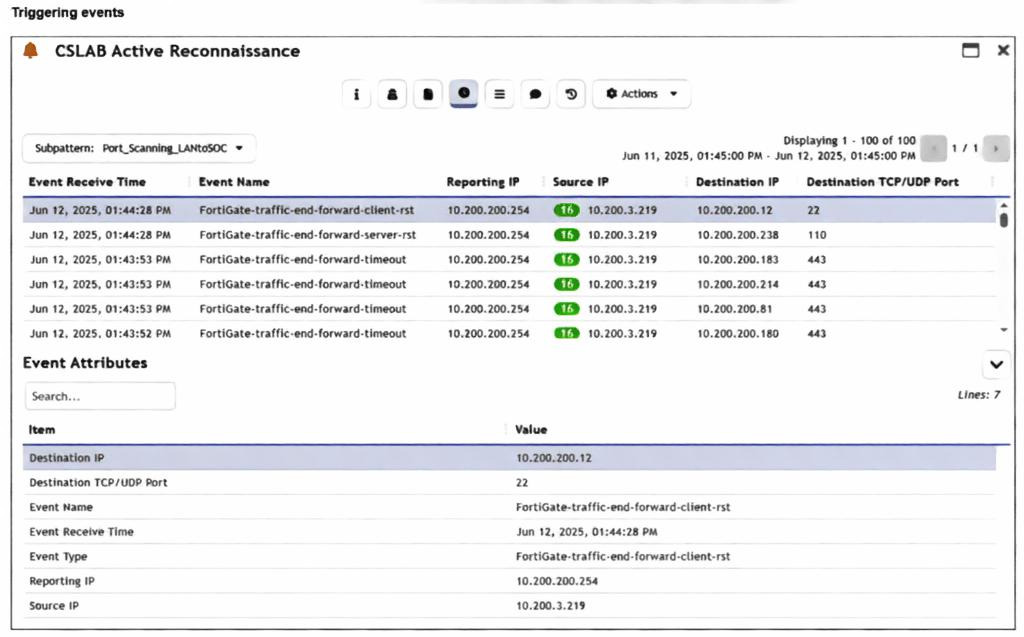
You are reviewing the Triggering Events page for a FortiSIEM incident. You want to remove the Reporting
IP column because you have only one firewall in the topology. How do you accomplish this? (Choose one
answer)
A. Clear the Reporting IP field from the Triggered Attributes section when you configure the Incident Action.
B. Disable correlation for the Reporting IP field in the rule subpattern.
C. Remove the Reporting IP attribute from the raw logs using parsing rules.
D. Customize the display columns for this incident.
Explanation:
When a rule triggers an incident in FortiSIEM, the "Triggering Events" tab shows you the specific logs that caused the alert. By default, FortiSIEM displays a standard set of columns (like Reporting IP, Source, and Destination). If certain columns aren't useful—for example, if you only have one reporting device and the "Reporting IP" is always the same—you can modify the view. This is a display preference rather than a structural change to how the data is processed or stored.
The Correct Answer
✅ D. Customize the display columns for this incident.
Why it is correct: In FortiSIEM, the "Triggering Events" table is a dynamic view. Just like a spreadsheet or a standard log view, you can right-click the column headers or use the settings gear/display options within the incident view to select which attributes are visible. Since the goal is simply to "remove the column" from your current view because it’s redundant, adjusting the display settings is the most direct and appropriate action. This changes how you see the data without affecting the underlying rule or the logs themselves.
Why the Other Options are Incorrect
❌ A. Clear the Reporting IP field from the Triggered Attributes section when you configure the Incident Action.
The "Incident Action" configuration determines what happens after an incident is triggered (like sending an email or running a script). "Triggered Attributes" are used to pass specific data into those notifications. Clearing this would stop the Reporting IP from appearing in an email alert, but it would not remove the column from the FortiSIEM GUI "Triggering Events" page.
❌ B. Disable correlation for the Reporting IP field in the rule subpattern.
Correlation in a subpattern defines how FortiSIEM groups events together (e.g., "Group by Source IP"). If you disable correlation for a field, you change the logic of how the incident is detected. This is a "back-end" logic change. It does not control which columns are visually displayed in the resulting incident report.
❌ C. Remove the Reporting IP attribute from the raw logs using parsing rules.
This is a destructive and "nuclear" option. Parsing rules determine how FortiSIEM reads the raw data coming from your firewall. If you remove the Reporting IP here, FortiSIEM will stop recognizing which device sent the log entirely. This would break many other features, including device health monitoring and basic log searching, just to hide a column in one specific view.
📚 Reference
https://docs.fortinet.com
Refer to the exhibit.
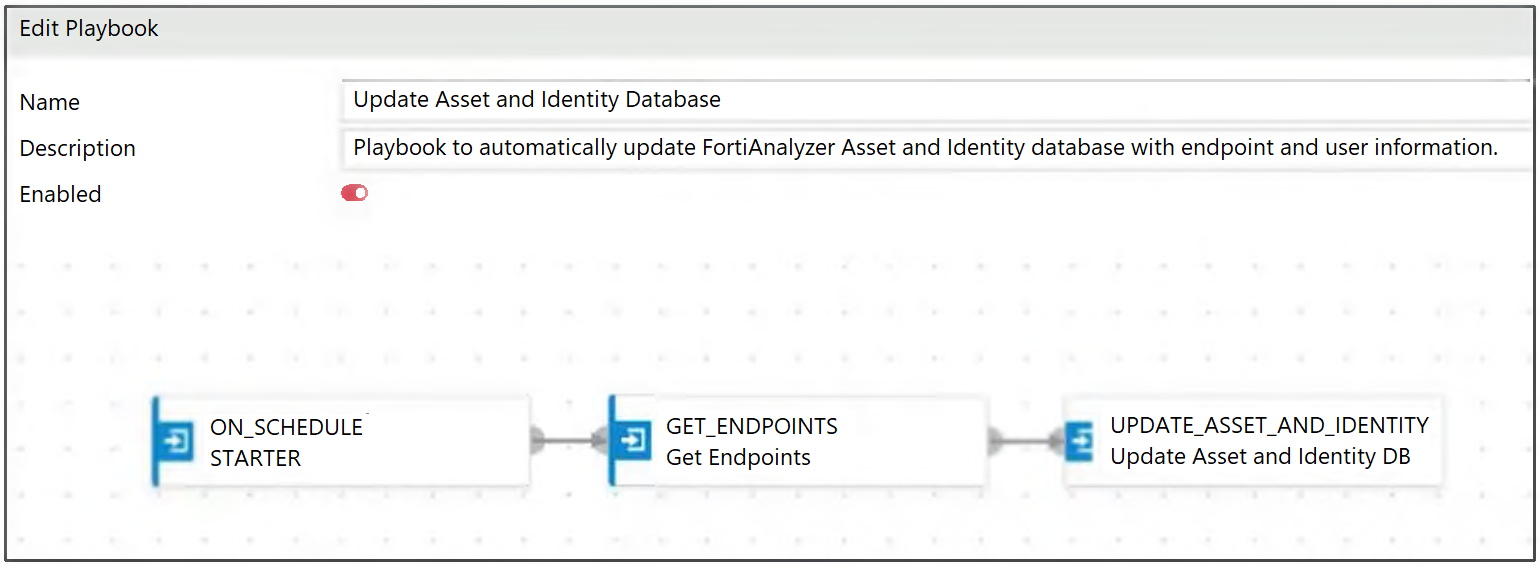
Which two options describe how the Update Asset and Identity Database playbook is configured? (Choose
two.)
A. The playbook is using a local connector.
B. The playbook is using a FortiMail connector.
C. The playbook is using an on-demand trigger.
D. The playbook is using a FortiClient EMS connector.
Explanation:
This question tests your ability to identify playbook components from task names and understand which connectors provide specific actions in FortiAnalyzer. The exhibit shows a playbook with an ON_SCHEDULE_STARTER trigger and two tasks: GET_ENDPOINTS and UPDATE_ASSET_AND_IDENTITY. Based on FortiAnalyzer's predefined connector actions, GET_ENDPOINTS is exclusive to the FortiClient EMS connector, while UPDATE_ASSET_AND_IDENTITY is a Local connector action used to enrich the asset database.
✔️ Correct Option: A. The playbook is using a local connector.
The Update Asset and Identity action is a predefined Local connector action in FortiAnalyzer. According to the official documentation, this action is available under the Local connector and is used to add or update asset and identity information in FortiAnalyzer's database . The task name "Update Asset and Identity DB" in the exhibit directly corresponds to this action.
✔️ Correct Option: D. The playbook is using a FortiClient EMS connector.
The Get Endpoints action is an exclusive action provided by the FortiClient EMS connector. The documentation confirms that this action retrieves endpoint information—including hostname, IP address, software inventory, and vulnerability status—from FortiClient EMS . The task "Get Endpoints" in the exhibit matches this action, and it is the only connector that provides endpoint data for asset database enrichment.
❌ Incorrect Option: B. The playbook is using a FortiMail connector.
FortiMail connector actions are designed for email security functions such as retrieving email statistics, quarantining messages, or blocking senders . The tasks shown—GET_ENDPOINTS and UPDATE_ASSET_AND_IDENTITY—have no relation to FortiMail functionality, making this option incorrect.
❌ Incorrect Option: C. The playbook is using an on-demand trigger.
The exhibit clearly shows the trigger type as ON_SCHEDULE_STARTER. According to FortiAnalyzer documentation, an on-demand trigger is labeled ON_DEMAND or ON_DEMAND_STARTER and requires manual execution by a user . The ON_SCHEDULE_STARTER trigger indicates the playbook runs automatically based on a configured schedule, not on-demand.
🔧 Reference:
→ FortiAnalyzer Administration Guide: Configuring connectors for automation — Confirms that the EMS connector includes the Get Endpoints action to retrieve endpoint information, and the Local connector includes the Update Asset and Identity action .
→
FortiAnalyzer New Features: EMS Connector — Provides an example playbook configured with an EMS connector Get Endpoints task and a Local connector Update Asset and Identity task, which matches the exact configuration shown in the exhibit .
Which FortiAnalyzer connector can you use to run automation stitches9
A. FortiCASB
B. FortiMail
C. Local
D. FortiOS
Explanation:
FortiAnalyzer uses connectors to link automation (like playbooks) to different systems or itself. These connectors provide actions you can run when a playbook triggers. The question is asking which connector lets you execute FortiAnalyzer's own built-in automation stitches (or related local actions) as part of that flow. Automation stitches are primarily a FortiGate feature, but FortiAnalyzer integrates with them through event handlers and connectors. The key is the "local" one handles FortiAnalyzer-native stuff, including actions tied to stitches or similar automation.
Correct answer
✅ C. Local
This is the right one. The Local connector is built-in and always there on FortiAnalyzer. It gives you a list of predefined FortiAnalyzer actions that you can use directly in playbooks or automation flows. In the context of the exam (and docs for 7.6), this is the connector that supports running local FortiAnalyzer automation features, which tie into things like event handler-triggered stitches or playbook tasks that interact with stitches. People sometimes confuse it with FortiOS because stitches live on FortiGate, but when the question says "FortiAnalyzer connector" for running them (likely meaning triggering or executing related automation from FAZ side), Local is the one that fits.
Incorrect options
❌ A. FortiCASB
No, this connector is for integrating with FortiCASB cloud access security broker stuff—like pulling in CASB logs or actions related to cloud app security. It doesn't provide any way to run or trigger automation stitches. Common mix-up: thinking any Fabric connector can do everything, but each is purpose-built.
❌ B. FortiMail
This one's for FortiMail integration—things like email quarantine actions, pulling mail logs, or email-related remediation in playbooks. It has zero to do with executing automation stitches, which are more about broader Security Fabric responses (quarantine, CLI scripts, etc.). Easy to rule out if you remember connectors match the product they're named after.
❌ D. FortiOS
Close but not quite. The FortiOS connector appears once you authorize a FortiGate in the ADOM, and it exposes FortiGate-side actions (like running CLI scripts, enabling/disabling interfaces, or triggering things on the device itself). While FortiGate is where stitches actually live and can be triggered (e.g., via FAZ event handlers sending notifications), the connector for running them from FortiAnalyzer's perspective isn't labeled FortiOS—it's the Local one for FAZ-native execution. Many people pick this because stitches feel "FortiOS-y," but the question is specifically about the FortiAnalyzer connector.
📚 Reference
Fortinet Documentation: https://docs.fortinet.com/product/fortianalyzer/7.6
Refer to the Exhibit:
An analyst wants to create an incident and generate a report whenever FortiAnalyzer generates a malicious
attachment event based on FortiSandbox analysis. The endpoint hosts are protected by FortiClient EMS
integrated with FortiSandbox. All devices are logging to FortiAnalyzer.
Which connector must the analyst use in this playbook?
A. FortiSandbox connector
B. FortiClient EMS connector
C. FortiMail connector
D. Local connector
Explanation:
The scenario here revolves around automating incident creation and reporting in FortiSOAR (or similar playbook tools) triggered by FortiAnalyzer-detected malicious attachments from FortiSandbox scans with EMS-protected endpoints logging centrally to FAZ. It's about picking the right connector to kick off the playbook response when that specific event hits.
✅ Correct Answer: A. FortiSandbox connector
This is the ideal choice because the malicious attachment event originates directly from FortiSandbox analysis, which FortiAnalyzer surfaces as a triggerable event (often via integration hooks). The FortiSandbox connector lets the playbook listen for those sandbox verdicts—like malware detections in attachments—then create the incident and spawn the report. Even though FAZ is the aggregator and EMS is in the mix for endpoints, the connector targets the source of the analysis for precise event handling, ensuring the playbook fires reliably on sandbox results.
❌ Incorrect Answers:
B. FortiClient EMS connector
Handy for endpoint actions like quarantines, but it won't catch FortiAnalyzer's sandbox-based events. EMS focuses on client telemetry (e.g., endpoint detections), not FAZ-generated alerts from sandbox scans a frequent mix-up since EMS integrates with sandbox, but the trigger here is FAZ-relayed.
C. FortiMail connector
This one's for mail server events like spam/phishing, not general sandbox attachment analysis across endpoints. No direct tie to FAZ or EMS in this setup, so it misses the mark entirely.
D. Local connector
Too generic—it's for internal SOAR actions or system events, not polling external FortiSandbox verdicts via FAZ. Using it would require custom polling, which complicates things unnecessarily when a dedicated connector exists.
📚 Reference
Fortinet Documentation: https://docs.fortinet.com
| Page 1 out of 13 Pages |
| 1234567 |
The Fortinet NSE 7 - Security Operations 7.6 Architect exam is notoriously tough. It doesn't test memorization. It forces you to make complex decisions under time pressure. A weak prep strategy risks a costly failure and wasted effort. Our NSE7_SOC_AR-7.6 practice tests are built to be your definitive bridge to a passing score.

Copyright © - All Rights Reserved